In an earlier article I wrote about using a gray card for setting the white balance. This corrects for the color of the light hitting the subject. It still doesn’t guarantee that all colors are accurately represented. Every camera sensor sees various colors differently and if you’re being really picky, different lenses transmit colors differently.
To adjust for this, I use the X-Rite Color Checker Passport test target and software to make color profiles for each of my cameras. I make four profiles for each camera based on the lighting I usually encounter, so I have a daylight, overcast, studio strobe, and fluorescent ringlight profile for each camera. So here are the steps to create a color profile for your camera.
First shoot the test target in the lighting you want to create a profile for. The target should be relatively large in the image so the software can see it well. I’ll shoot in daylight, studio strobe, with my fluorescent ringlight, and then when there is a very cloudy day.
When you purchase the color checker, it will come with software including a Lightroom plugin. Make sure you have the most current version, or download it from the X-rite site.
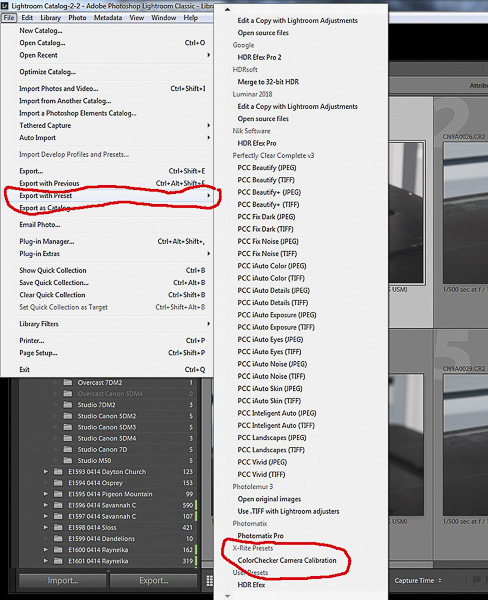
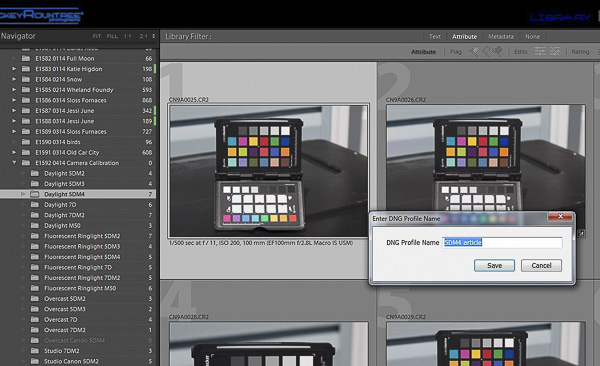
Next import those images into Lightroom. It would be helpful to name them based on the light source so you can keep that straight in creating your specific profiles. Once the images are in Lightroom select an image of the test target and then go to file/export with preset/ ColorChecker Camera Calibration.
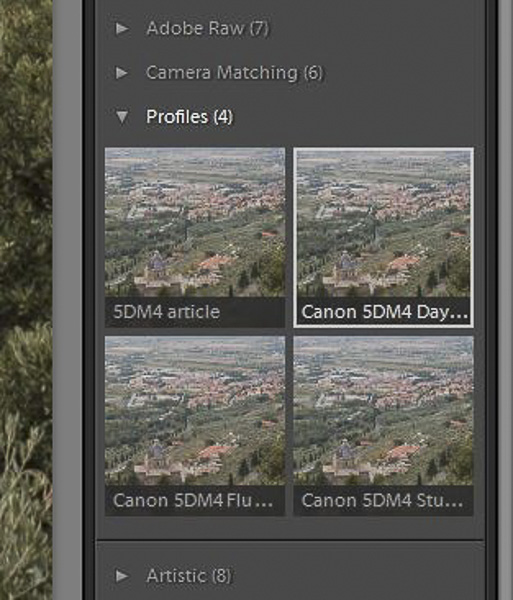
After the software develops a profile, it will ask you to name it and save it. I normally name mine with the camera name and light source. But for this example I named mine “5DM4 article” so it wouldn’t overwrite or get confused with my existing profiles. In practice my profiles for the 5D Mark IV are 5DM4 Daylight, 5DM4 Studio, 5DM4 Fluorescent, and 5DM4 Overcast. I have the same 4 profiles for all of my other cameras.
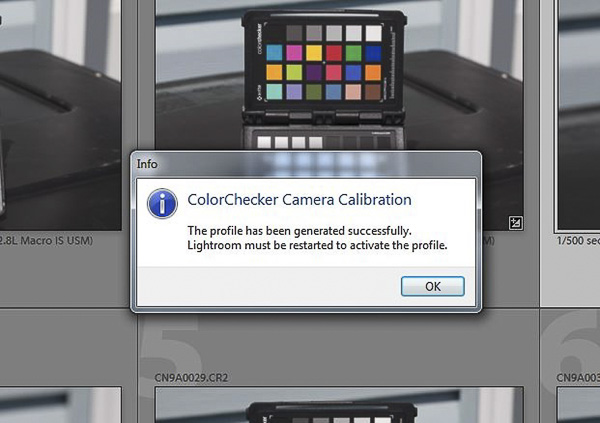
After you name and save your profile, you will be told to restart Lightroom before the profile can be used.
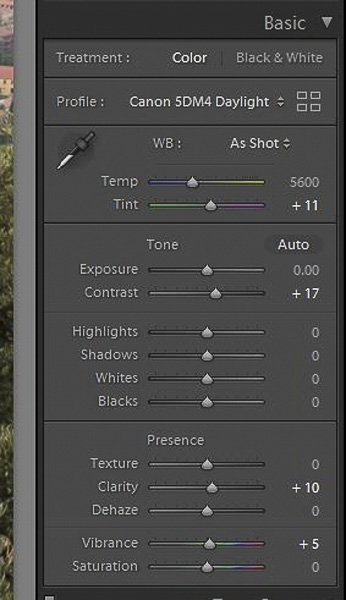
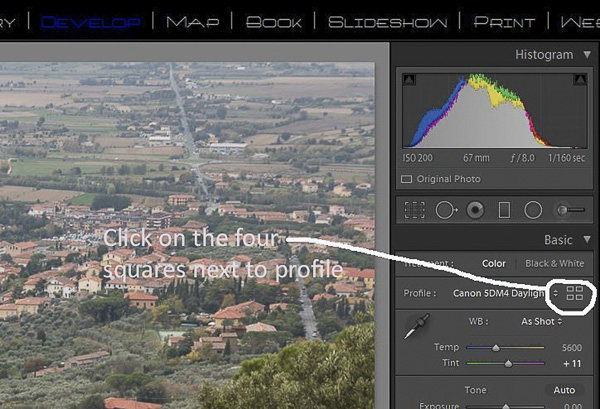
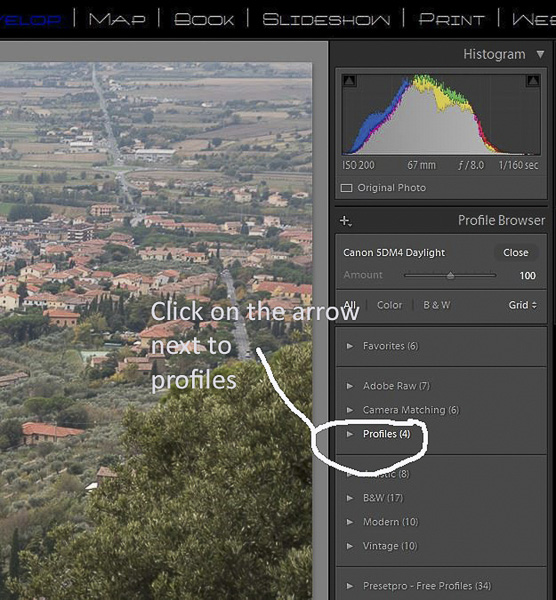
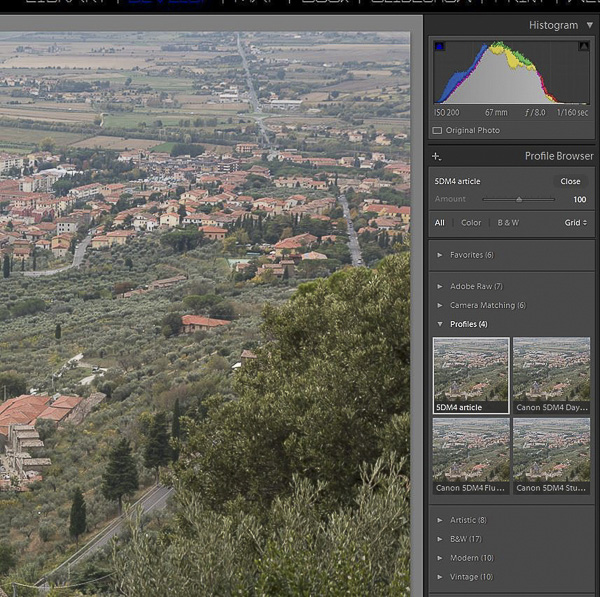
Now to use your profile, open an image in Lightroom and go to the develop module. Right above the color sliders you will see profile and four squares to the right. Click on the squares and in the list that opens, select profiles, and you should see the list of profiles for your camera. The profiles are camera specific, so even though you may have four profiles for each of four cameras you will only see the profiles for the camera used for that image. It is not possible to apply a profile for a Canon 7D to an image shot with a Canon 5D Mark V. Select the profile that matches your light and click to apply it.
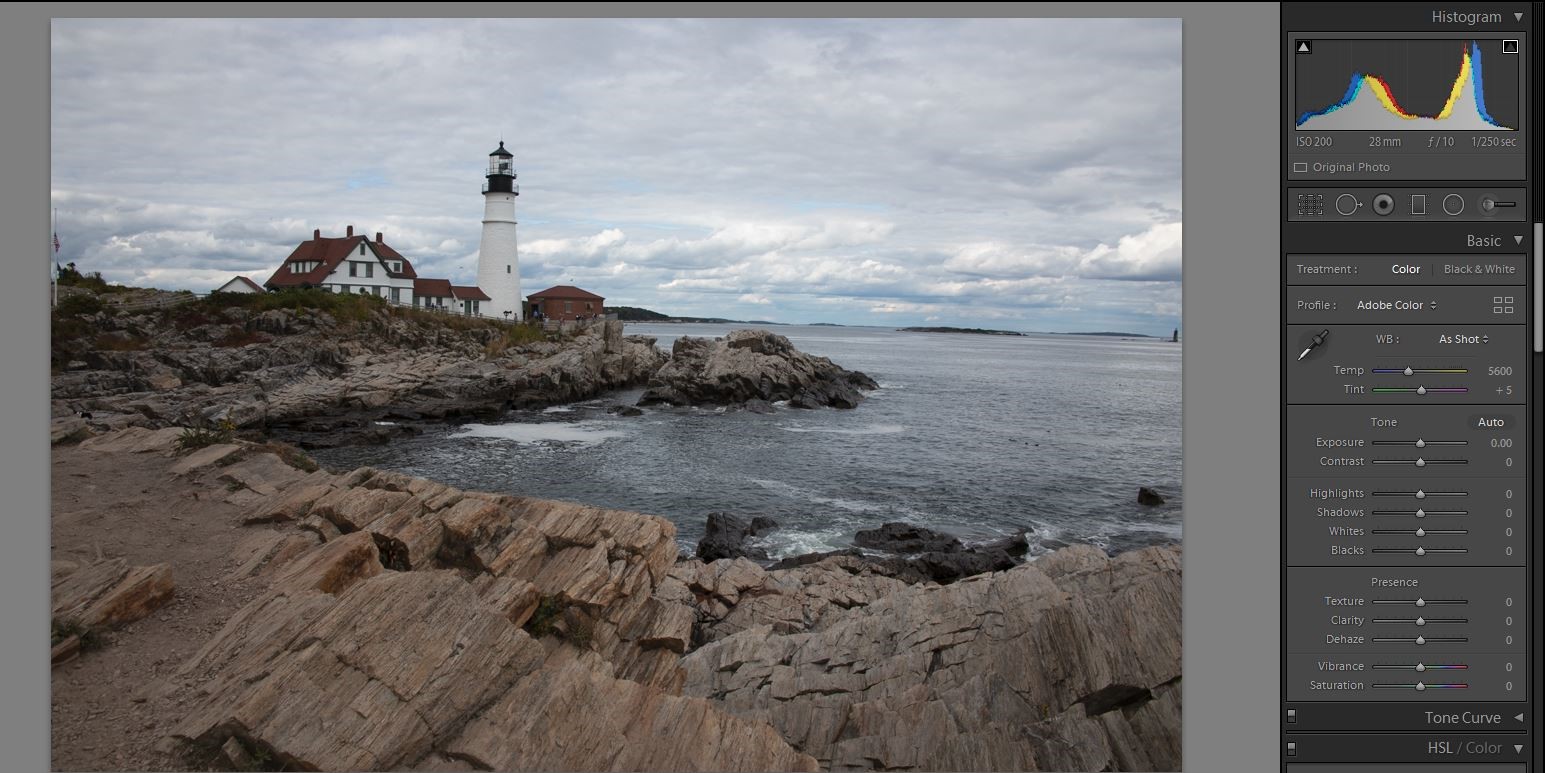
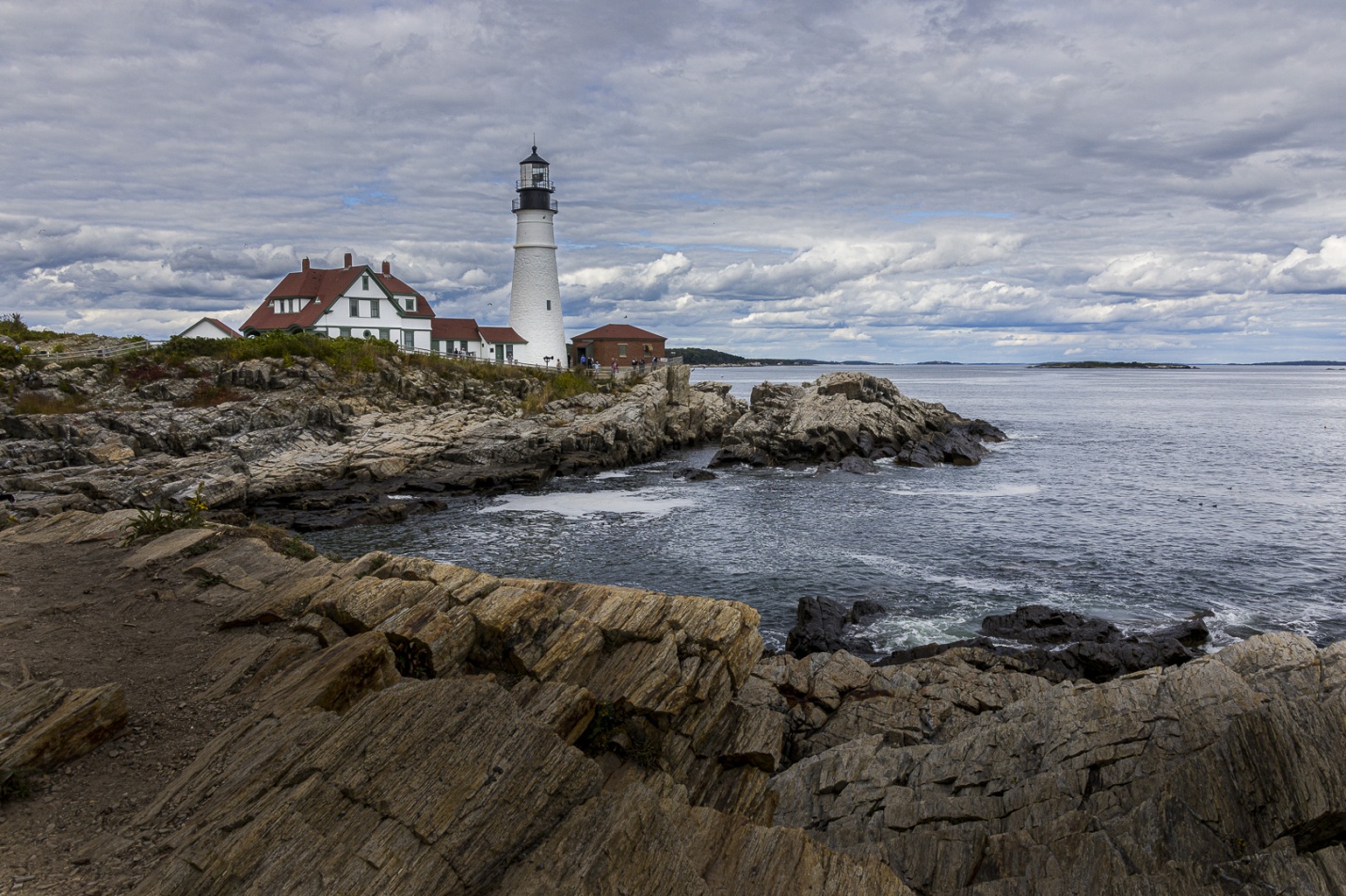
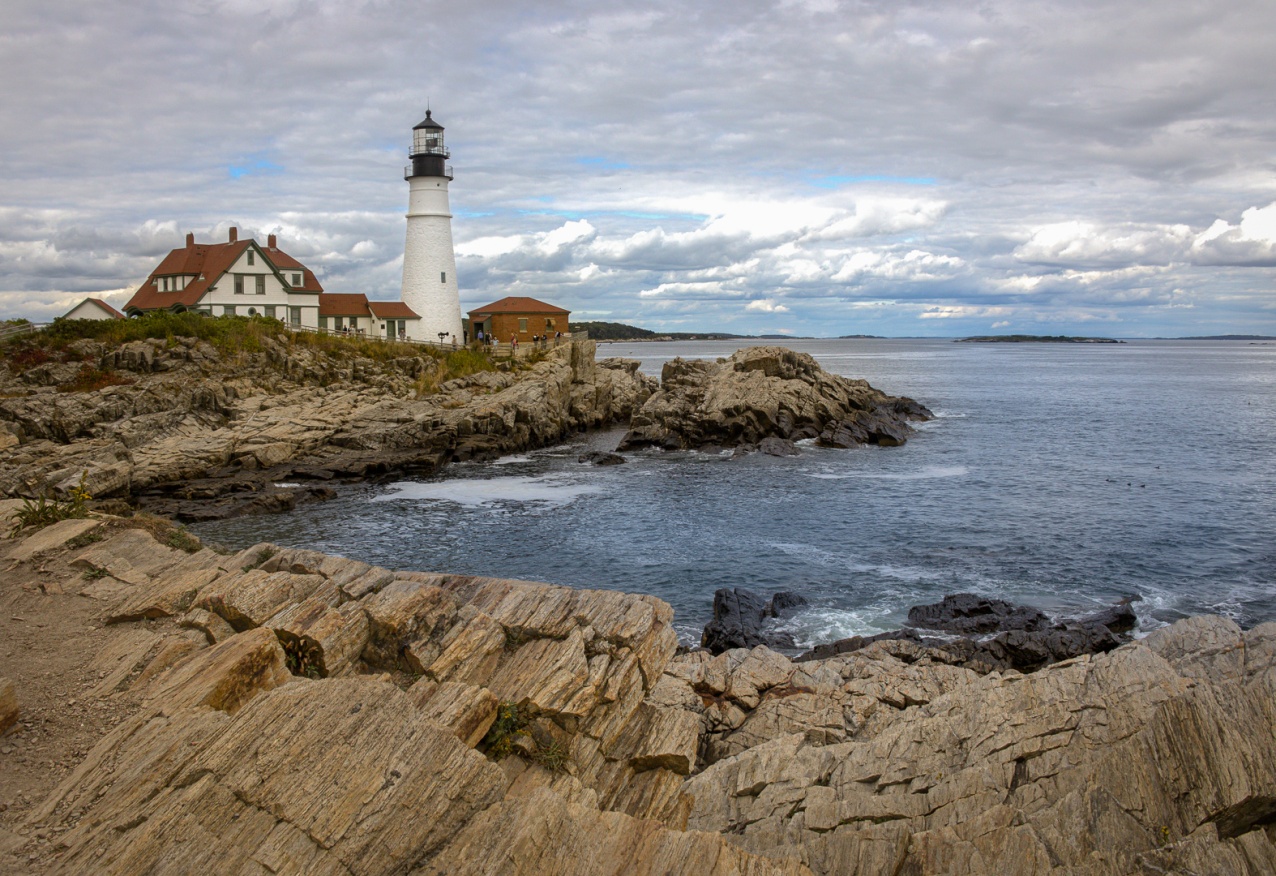
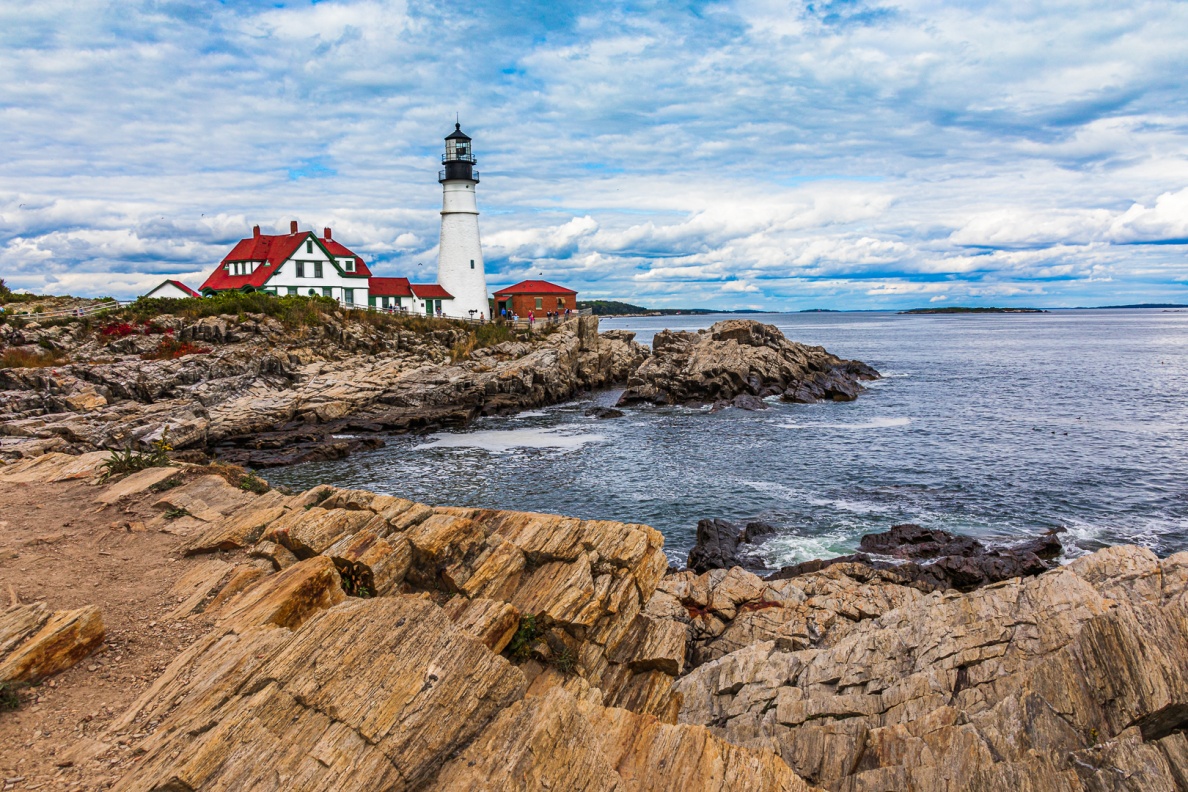
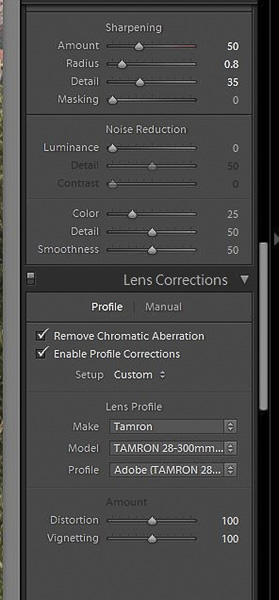
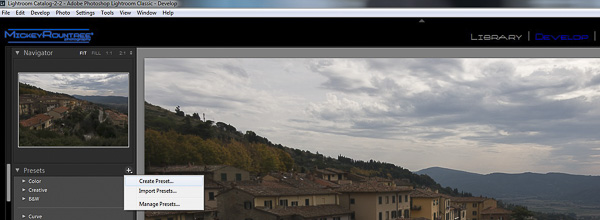
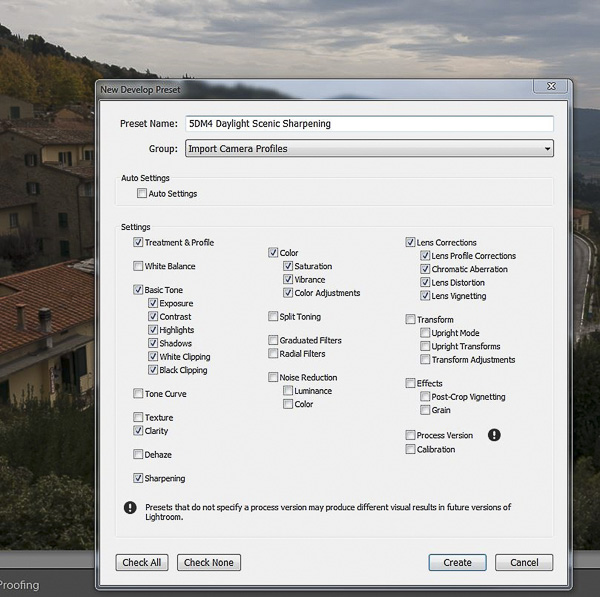
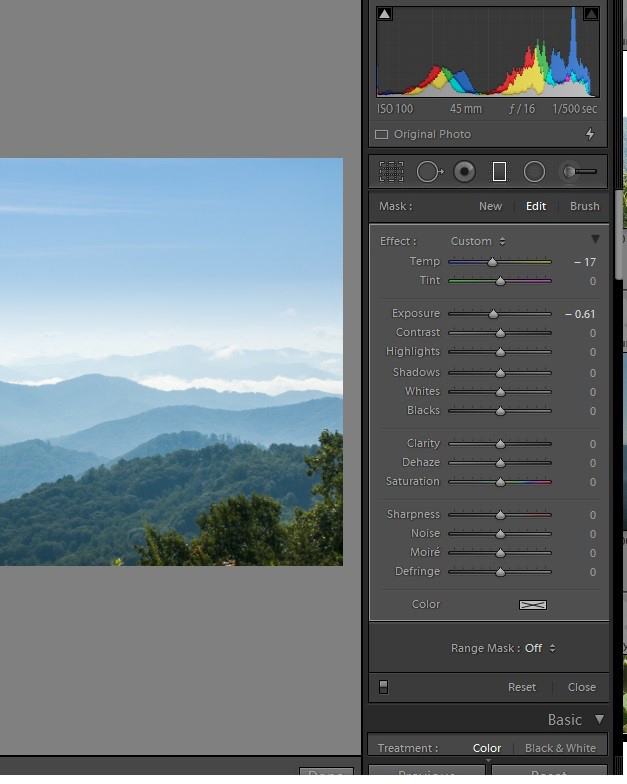
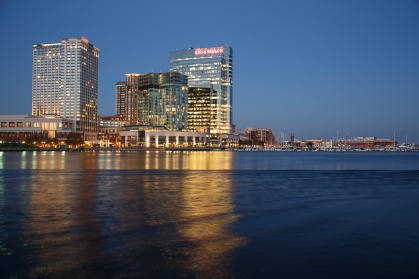
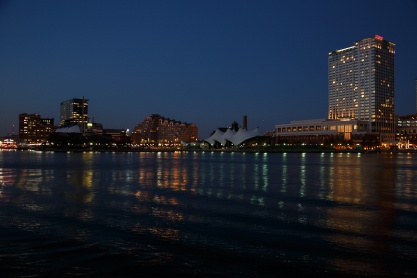
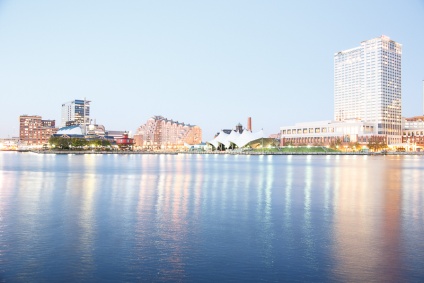
It may be subtle, but you should see a difference in the colors of your image. Below are the Adobe standard profile which is the default, and my “5DM4 article” profile. The differences are subtle, but the green trees and orange roofs are more vibrant and the is more color contrast. It may be hard to see in these small screen captures, but here are the before and after images.
Creating a profile for each camera in daylight, strobe, overcast and strobe is as far as I go and it works well for my needs. Some photographers go as far as to create profiles for each camera and lens combination. Still others shoot a test target and create a profile for each shoot, and each lighting change within the shoot. That may seem like overkill, but for fashion or product photography where colors must be completely accurate it is probably a good precaution. Here is a link to a YouTube video by X-Rite on how to create profiles.
Extra note for windows users. The camera profiles are stored in the directory: C:\users\your_name\app data\roaming\Adobe\camera raw\camera profiles
I always make a backup of this folder and store it on a separate drive in case I need to restore them or install Lightroom on a new computer. This would also be a good practice for Mac users, but I don’t know where they are stored on a Mac.
In addition to your cameras and lenses, here are some other accessories that you may find handy from time to time. I don’t carry all of these items all of the time, but will choose some of them depending on what, where and when I’m shooting.
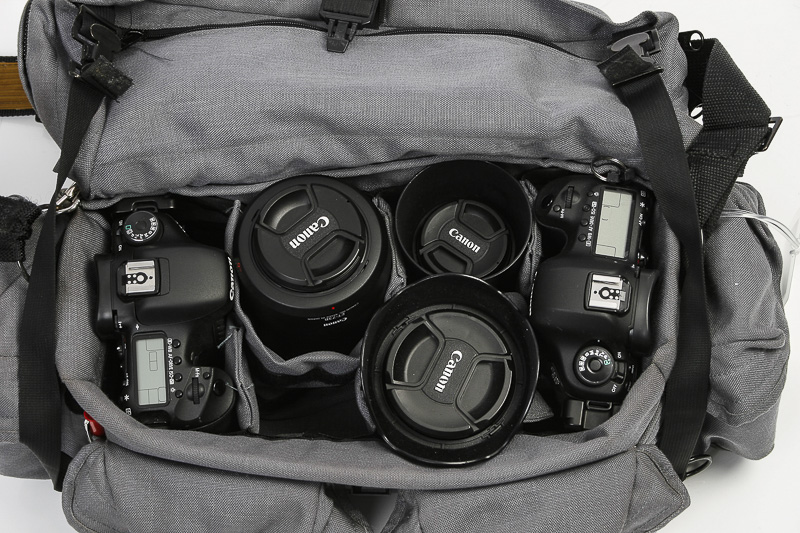
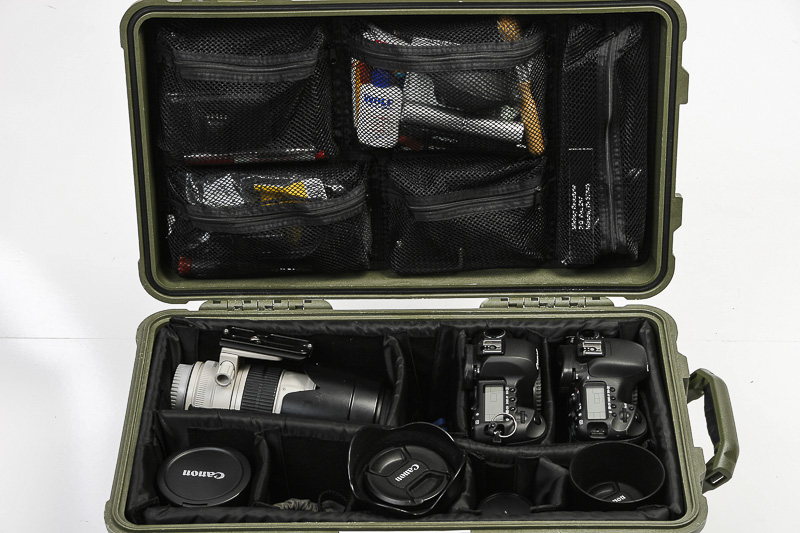
Bags and Cases For years I’ve been a charter member of the bag-of-the-month club. I have never found that one perfect bag that works all the time in any situation. For storage at home and travel by car, I have found Pelican hard cases to be the best in secure storage. They have holes for a lock and with a cable you can chain them to something in your car or at home making your gear harder to steal. One of my Pelican cases is even sized for an airline carry on, but only on the larger planes.
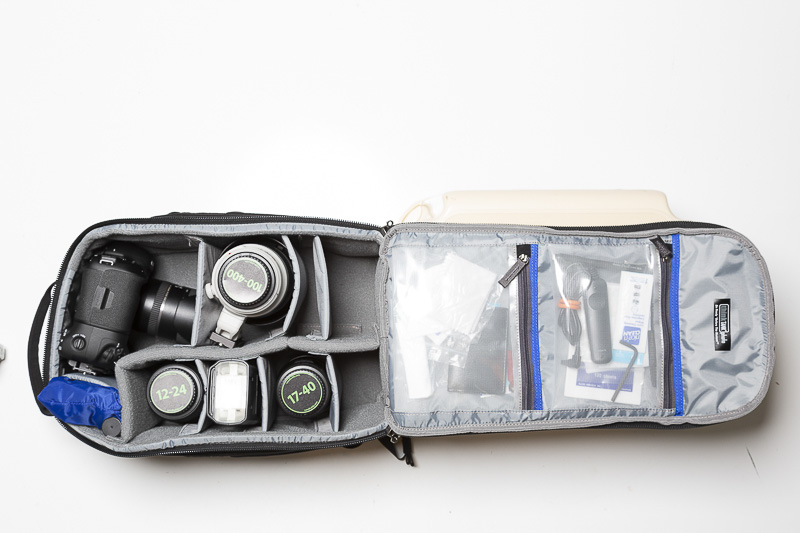
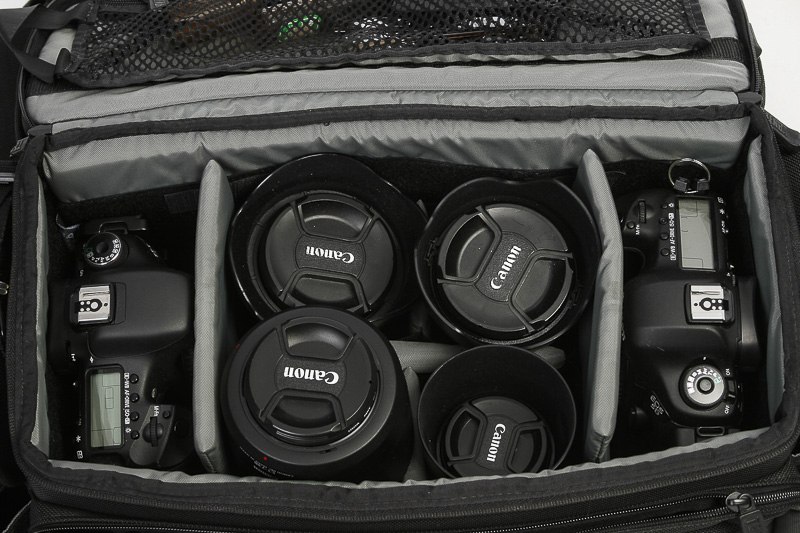
If you are frequently changing lenses or accessories, you may prefer a shoulder bag. For travel, and any situation where I’ll be walking distances I prefer backpacks. It is good to have one large bag or backpack that will hold a couple of bodies, several lenses, flashes and accessories. Unless you’re working close to your vehicle like at a wedding or portrait session, this bag will be too heavy to carry for long hours or long distances. So it’s good to have a smaller bag for travel and hiking. It should hold a camera body and a couple of lenses and some basic accessories. It should be light enough to carry comfortably all day, and small enough to fit in the overhead bin of even a small regional carrier plane. When I went to Montana for a wildlife workshop, I had a very large Lowepro backpack loaded with almost 50 lbs of heavy, expensive cameras and long lenses. The problem is it was too large for the overhead bin in 3 of my 4 flights and I had to gate check it after boarding. And to make matters worse, rather than find it waiting at the door of the plane after landing, it got thrown in with checked luggage and $12,000 worth of gear came out on the carrousel where anyone could grab it. I now use a Think Tank backpack that will fit in the overhead.
Carabiners Have a few carabiners in your bag. They can be used to attach gear to your bag and small ones can attach the zippers together to keep them from coming open.
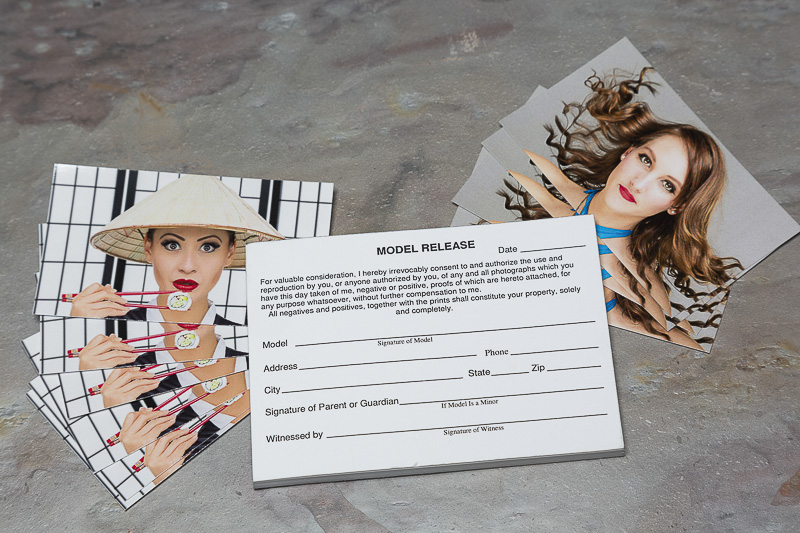
Business Cards and Model releases I always keep a supply of business cards in my bag. If I get a good shot of someone or someplace, I’ll give them a card and tell them to contact me if they would like a copy. This is much less threatening than asking someone for their contact information. If you make this offer, be prepared to follow up. I actually get responses about half the time. I also carry a pack of 3×5 model release cards in case I get a shot of a person that may have commercial use in the future.
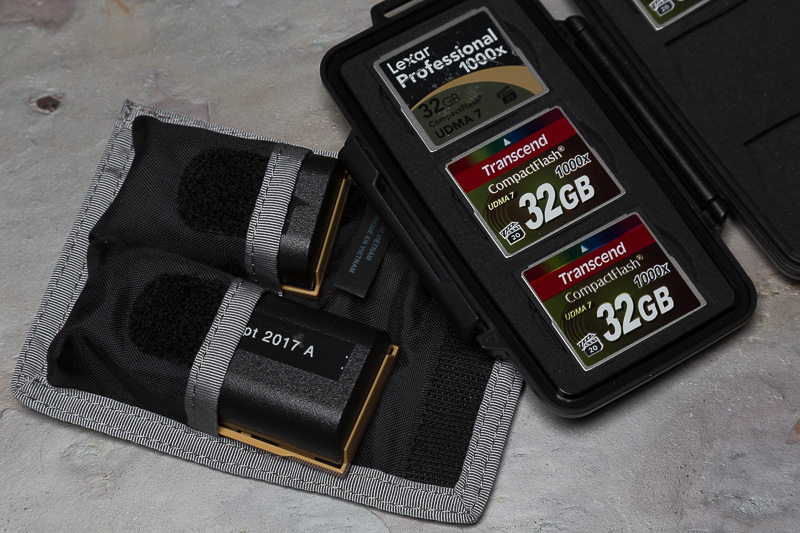
CF or SD Cards, and extra batteries If you’re traveling this is a no brainer. Even if you are just out for a day trip, batteries can and do fail (it’s happened to me more than once.) Also you may shoot more than you plan or a card could fail, so they are so compact it only makes sense to carry backups.
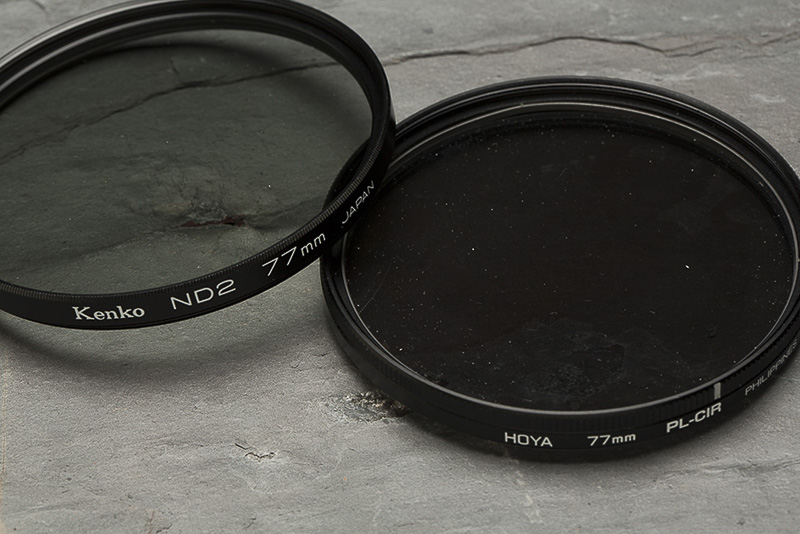
Filters For landscape photography, there are two filters you will probably want, a circular polarizing filter and a neutral density filter. The polarizer reduces glare on water and foliage, reduces reflections in windows, and darkens foliage. The ND filter reduces the amount of light that reaches the sensor so you can use longer shutter speeds. They are often used for blurring water in streams and waterfalls and for showing the movement of clouds. Good choices are both a 3 stop ND and a 10 stop ND.
Straps The strap that came with your camera is rarely the best option. If you prefer the standard design, the Optech neoprene straps seem to lighten the weight of the camera. I prefer a cross body strap like one of the Black Rapid models.
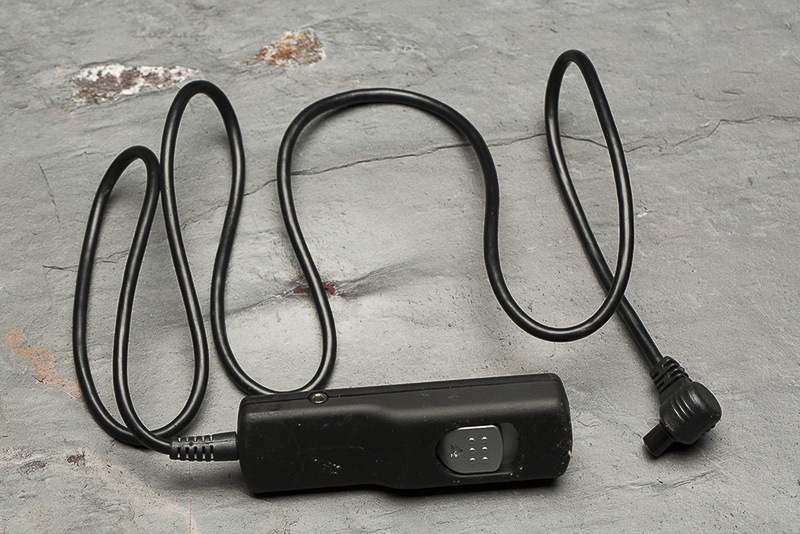
Cable release Even with a sturdy tripod, you can still cause vibrations pressing the shutter button. You can prevent that with a cable release, or if you have money to burn, use a wireless remote.
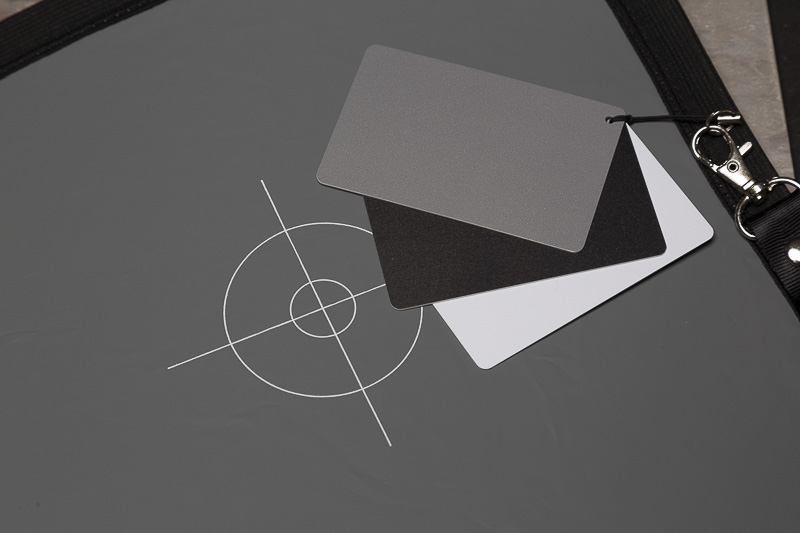
Gray Cards A gray card is handy to have in your bag for tricky light balance situations. Take picture of your subject with the gray card in it, and you can later use that to set your white balance. I use either a small collapsible model or a set of small cards on a neck lanyard.
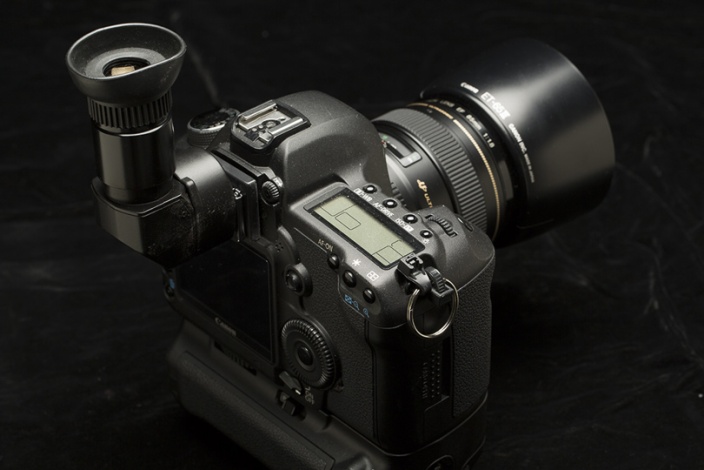
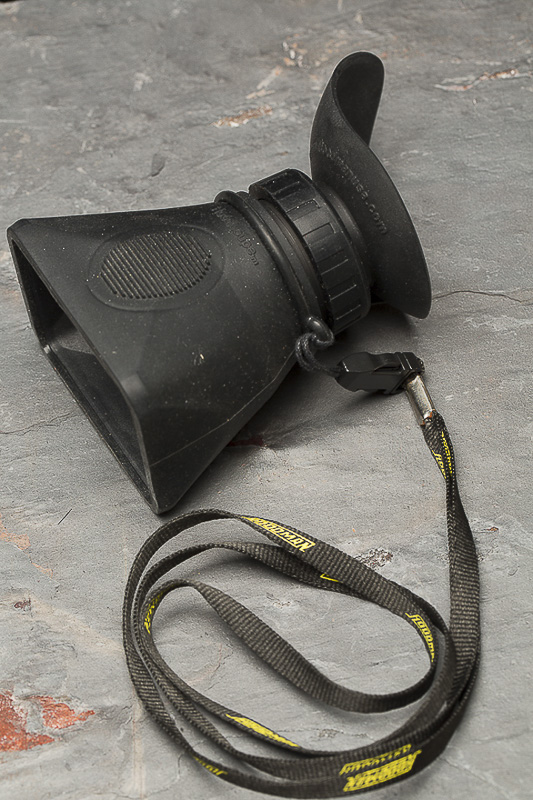
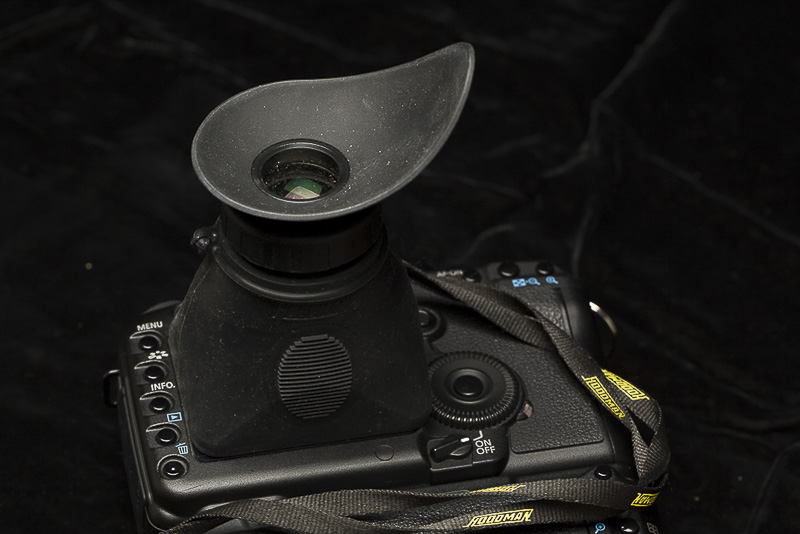
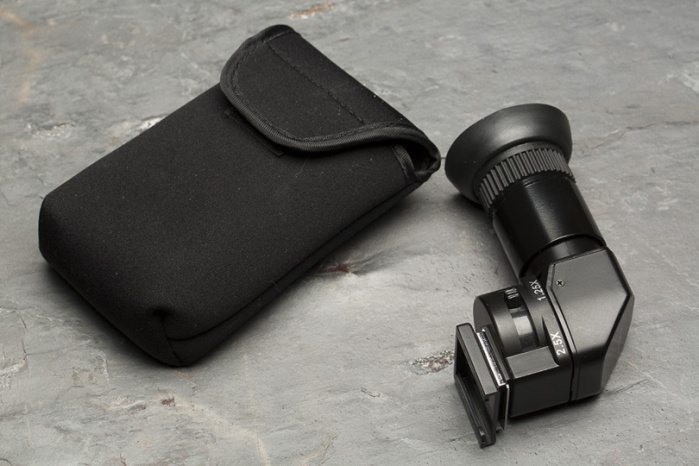
Right angle finder If your camera doesn’t have an articulated LCD screen, it can be difficult to see your viewfinder or screen to set up very low angle shots. A right angle view finder will save your back and knees.
Loupe A loupe for viewing the LCD is invaluable in bright sunlight because it covers and shield the screen and blocks glare. Get one large enough to cover your LCD, and preferably one that magnifies the screen a bit. This the best way to check sharpness in the field. Be sure to focus the loupe before checking sharpness.
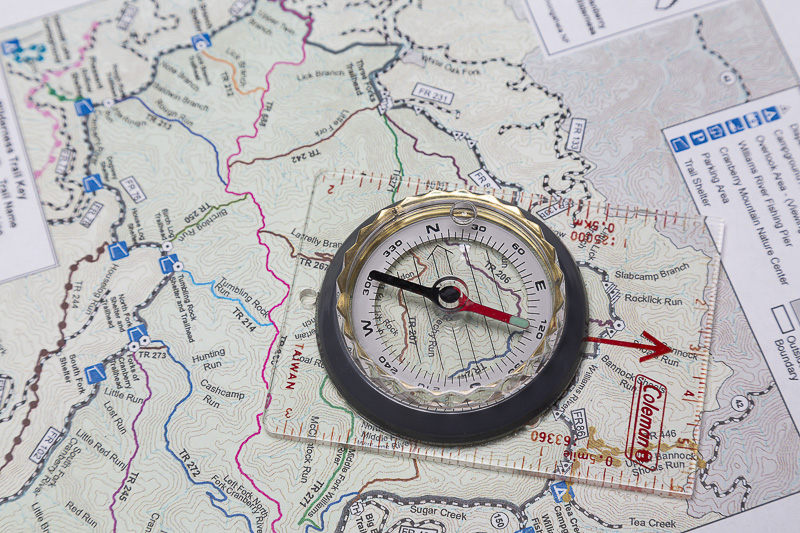
Compass I usually carry an old school lensatic compass. Sure you can get a compass app for your phone, but the old fashioned compass doesn’t depend on batteries. Trail maps or road maps of your area are good to have, if you know how to read them. (Don’t laugh, it’s amazing how many people can’t read a map)
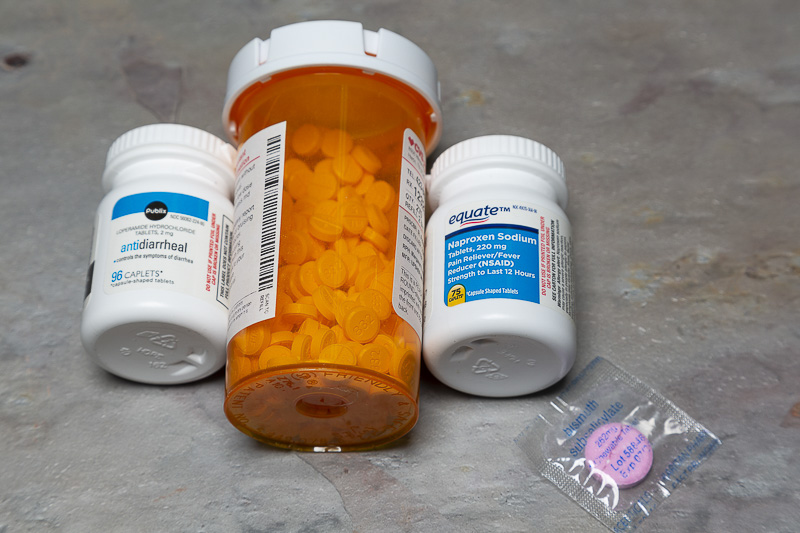
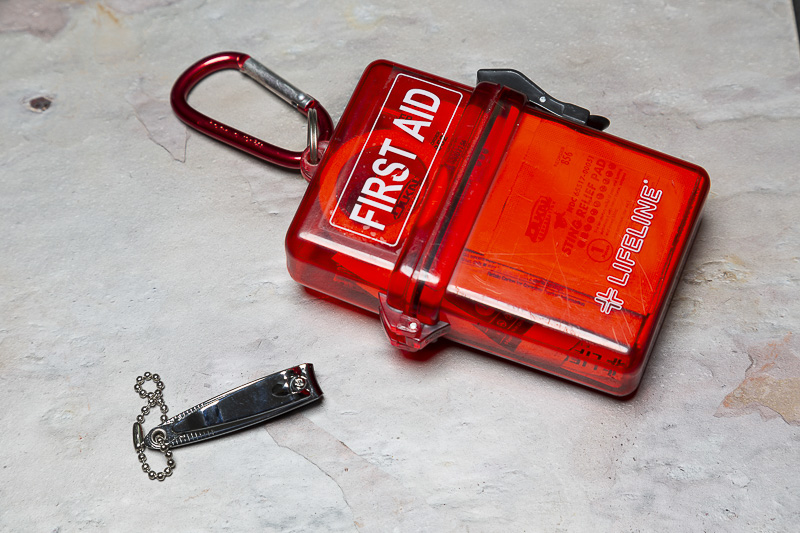
First aid kit and meds I always have a small first aid kit either in my bag, or clipped to it with a carabiner. Incude a container of hand sanitizer, and if you’re going to be outside bring sunscreen. If you’re traveling, you may it useful to carry Imodium for diarrhea, and Pepto Bismol tablets for upset stomach (Most of us made good use of these on our Cuba trip). Put a few pain relievers in your kit. And if your trip involves hiking any distance carry some Moleskin for preventing blisters. If you are travelling out of town or out of the country you should carry at least a day or two supply of any prescription meds, just in case you checked bag gets lost. I’m prone to hangnails and tearing fingernails, so I always carry fingernail clippers.
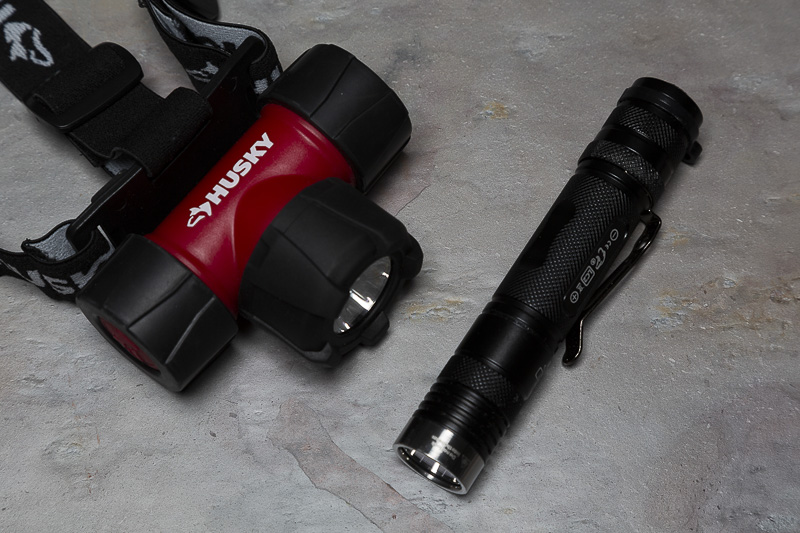
Small flashlight/headlamp These are useful for hiking in and out when shooting sunrise and sunsets, and organizing your gear in the dark. I’ve even used mine for light painting aircraft. I usually prefer a headlamp so mu hands are free. Be considerate and don’t shine it in the face of your fellow photographers.
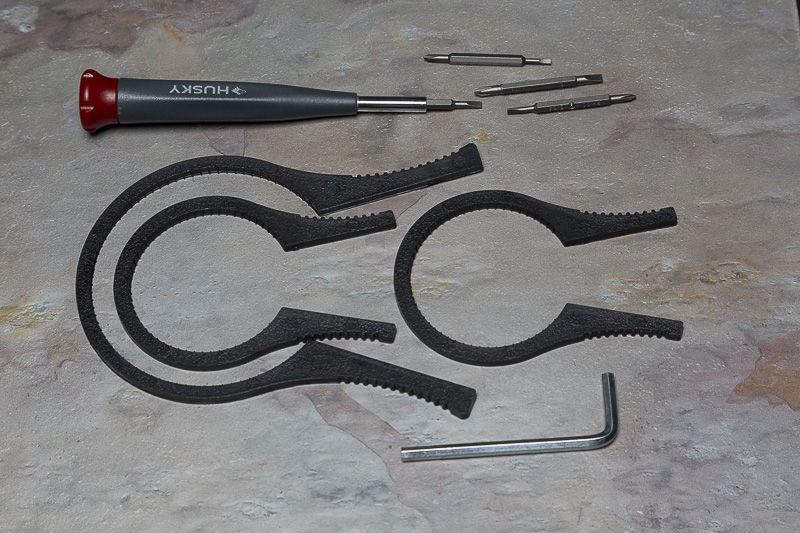
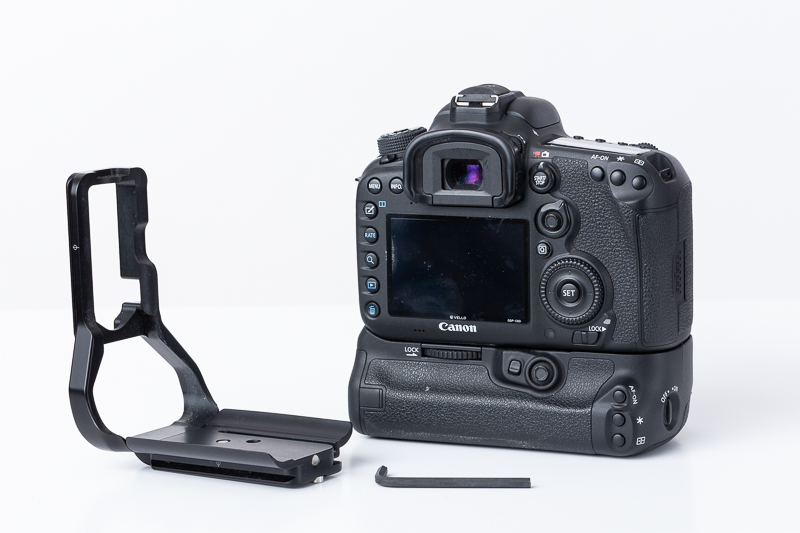
Small Tools I usually travel with a set of small screwdrivers, and a Swiss army knife (that obviously goes in checked baggage when I fly.) I also carry the Allen wrench (hex key) that fits my L-Bracket and tightens the legs of my tripod. I’ve seen other photographers carry a Leatherman tool or some similar variation. Filter wrenches can be handy if you over tighten a filter.
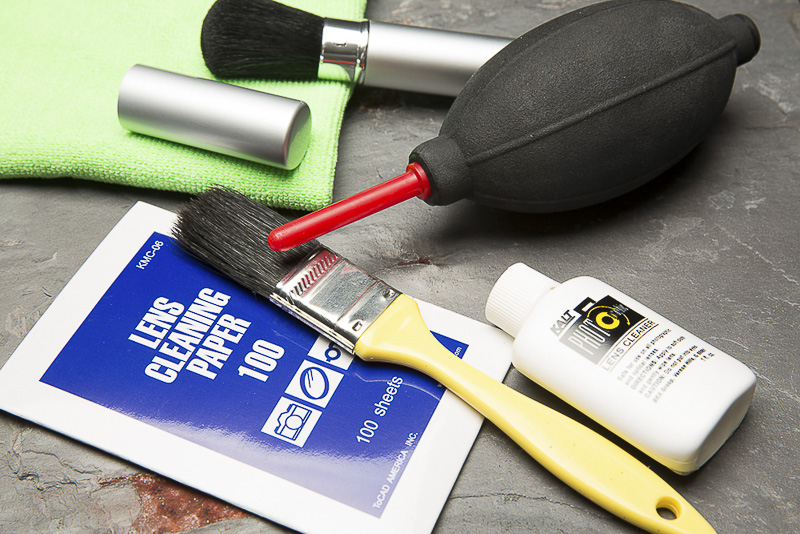
Lens and camera cleaning supplies I always have a blower bulb, a retracting lens cleaning brush, lens cleaning wipes, a micro fiber cloth and a small paint brush to clean the camera body. I carry a retractable eraser that can be used to clean camera and lens contacts, and also a washcloth or microfiber towel to remove mist and water if I’m out in rain or heavy fog.
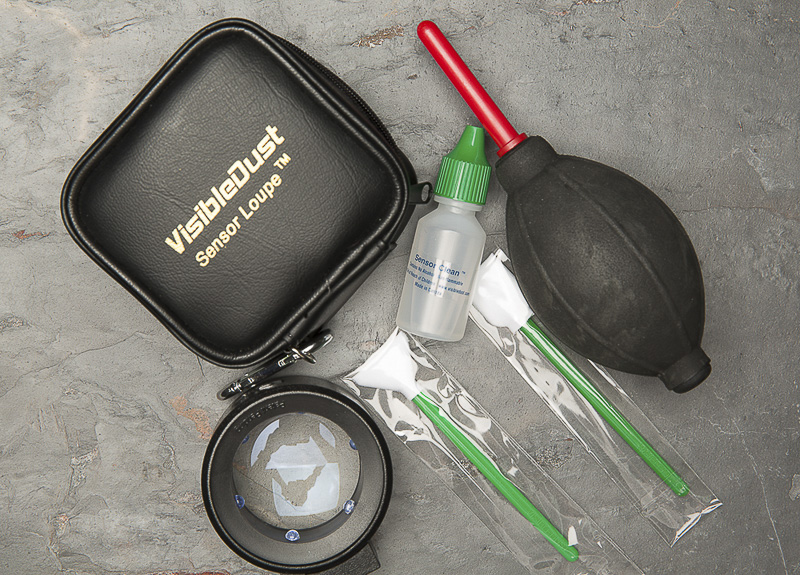
Sensor cleaning supplies For longer trips, I usually carry a sensor loupe, cleaning fluids, sensor wipes and a special sensor brush. I usually carry them in my checked luggage and use the loupe to check my sensor each evening. Cleaning a sensor isn’t that difficult, but read up and watch some videos before doing it yourself.
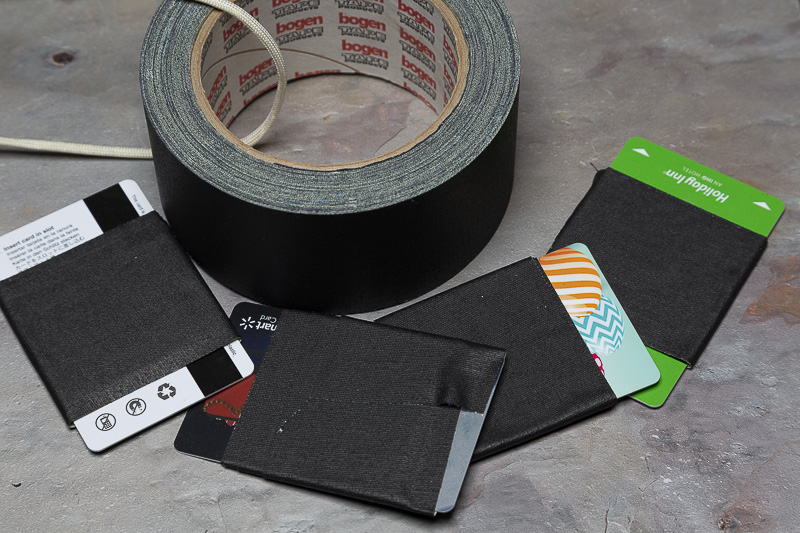
Gaffer’s tape Gaffer tape looks like black duct tape, but it is much different. It is designed to adhere very strongly, yet remove with leaving adhesive residue. It’s also lightproof, so it can be used to seal light leaks, and cover the eyepiece during long exposures. Rather than carry a roll, I use old gift cards and wrap about 18 inches of gaffer tape around them These cards are then small enough to fit between padding and out case, or between dividers. Gaffer’s tape has saved me on a couple of occasions.
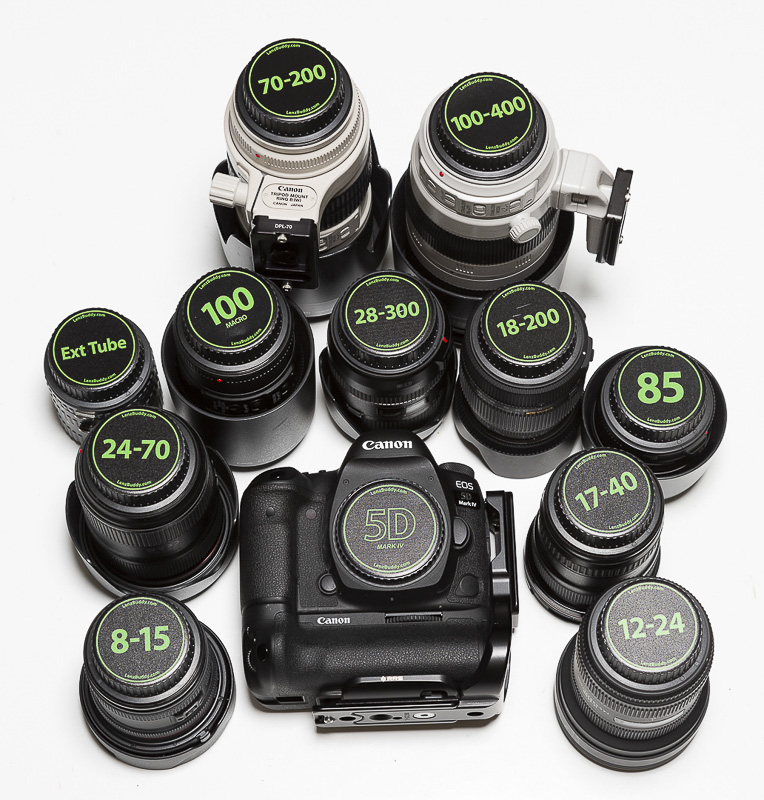
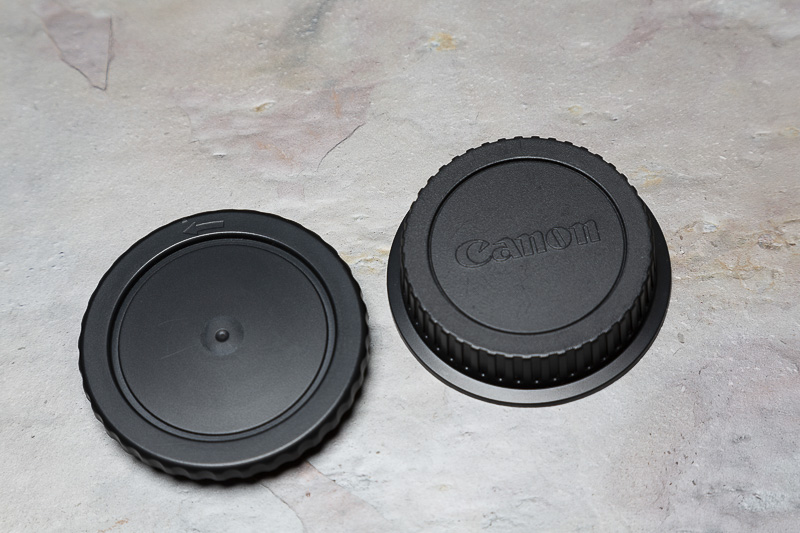
Lens Caps You should carry an extra body and rear lens cap, as they seem to get lost regularly. Carry them attached to each other so they don’t get dirt and dust in them. Even though they won’t help your photography, I like custom lens and body caps by Lenz Buddy that have the lens or body name on them, so I can see at a glance which lens I’m grabbing.
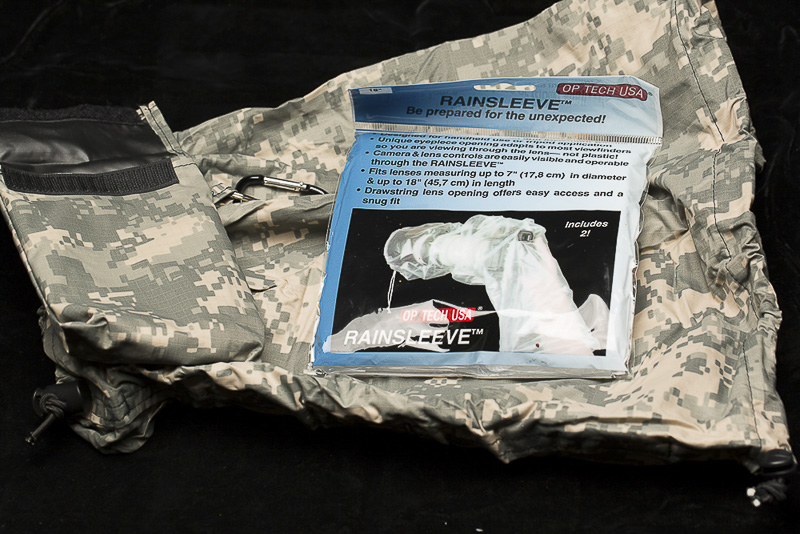
Rain Protection Sooner or later you’ll get caught shooting in the rain. Camera covers can be as simple and cheap as the Optech clear plastic sleeves, ($7 for two), or more expensive like waterproof nylon adjustable covers which can range from $25 to over $100. And to cover the photographer I carry a nylon poncho that packs into a case about 4×5 inches and 2 inches thick.
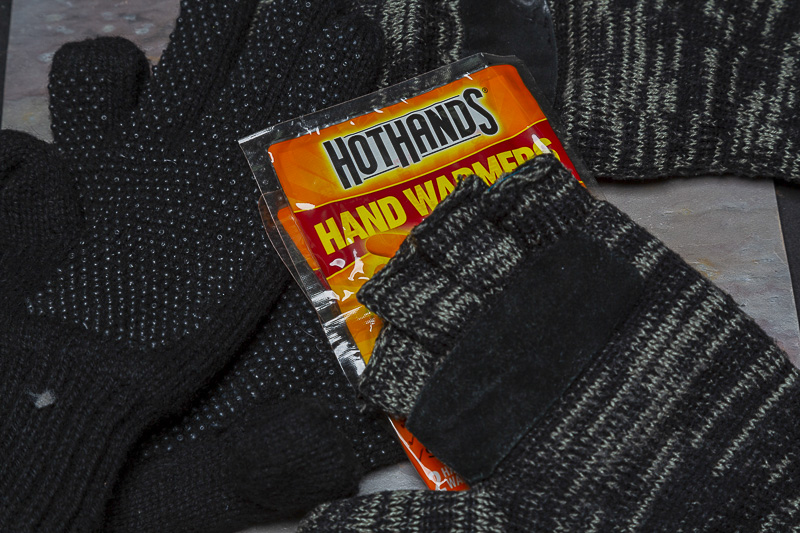
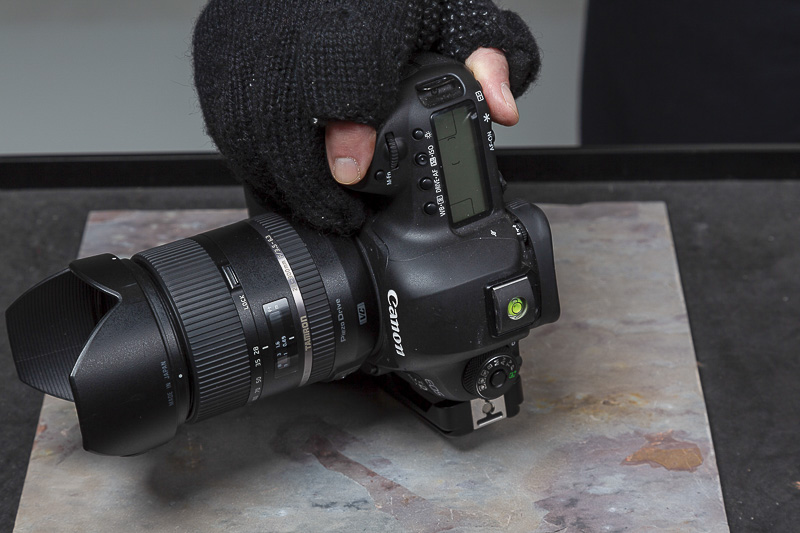
Gloves I have yet to find any gloves that will keep my hands completely warm and yet let me work my camera controls. Each of my bags has a cheap pair of knit gloves (Less than $1.00/pair on close out at Wal-Mart) so I won’t be caught by surprise. When I know I’m headed into very cold conditions, I either take a pair of Freehands (several styles available at Hunts or B&H) gloves made for photographers that feature index finger and thumb tips that fold back to let you work your controls. Or I carry a pair of mittens which fold back over fingerless gloves. These are usually in the hunting/camping section of Wal-Mart. I also carry chemical hand warmer packets that I activate and place in my pockets to warm my hands when I’m not shooting.
In Closing If you carry every possible camera, all of your lenses, flashes, and all of these accessories, there is one more thing you’ll be needing – a large muscular assistant. Learn to anticipate your needs and pick and choose your gear depending on where you’re traveling and the type of photography you plan to do. Carry only what you need (or can comfortably carry) and leave the rest behind.
Shooting in mixed light sources, with fluorescent lighting, or at varying times of day can result in inaccurate color balance. One of the simplest and most accurate ways to correct the color balance in post processing is to shoot a gray card in the same light as your subject in one shot, and then shoot the rest of your shots.
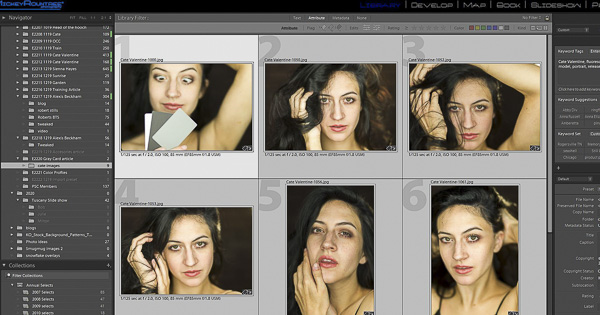
Once you import and open your images in Lightroom, select the image with the gray card, and then select all of the other images shot in the same light. With all of the images selected, go to the develop module, be sure that “autosynch” at the bottom left of the develop panel is turned on.
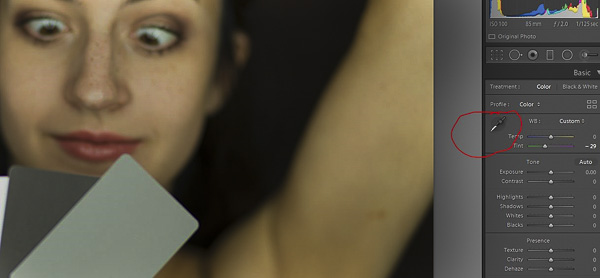
Select the white balance eye dropper.
Then click the eyedropper on the gray card, or middle gray card if you are using a set of three like this example.
At that point all of your images should be color corrected. It may take a few seconds for all of the previews to update to the correct color.
Here is an example where I was using a fluorescent ringlight, and the results are slightly green. After selecting all of the images and clicking on the middle gray card, you can see the corrected images.
Images have a slight green cast before correction
After clicking on the gray card, you can see the green cast is now gone.
At this point your color is technically accurate. Keep in mind that accurate may not be exactly what you want artistically. Some people prefer portraits of people to be a bit warmer (increased yellow and possibly slightly increased magenta) while landscape photographers may prefer a slightly cooler (more blue) image for some scenes. But the gray card gives you a good starting point to work from. While I always shoot RAW and feel that it gives you the best options for color balance, this technique works just as well with JPEGs and even cell phone pictures.
As I’m writing this it is 65 degrees on Christmas Eve and hard to believe it’s winter. But it is, and for many photographers, their season is over. It’s too cold, too wet or snowy, trees don’t look good bare, or name you own reason, we just don’t get out and shoot as much.
Imagine if Tom Brady did nothing after the Super bowl. For 6 months he doesn’t run or lift weights; he doesn’t study game films, he doesn’t touch or deflate a football, and then he shows up cold for the first preseason game. How do you think he’d do? I certainly don’t think he’d look like the quarterback we’re used to.
Why should we expect our photography skills to be any different? Photography is a frangible skill like many others; use it or lose it. So here are some ideas to train yourself during this “off season”. Also to be a bit clearer, training isn’t the same as shooting the same things in the same way over and over and expecting to get better. It’s working on specific skills that will make you a better photographer.
Probably the most important skill is to master your camera. Grab your camera and a lens, and get out the manual and practice some basic settings until you can change them without fumbling. Also download your camera’s manual and put it on your phone for reference in the field. The idea is to be able to quickly change your settings without having to think about it, so you can react quickly to changing subjects, changing light, changes in motion.
1. Learn how to change between aperture priority, shutter priority, and manual modes and understand what each mode actually does, Practice until you can change modes without taking the camera from your eye. In aperture priority be able to change aperture or in shutter priority be able to change shutter speed without lowering the camera. In all modes, be able to change ISO quickly, preferably while looking through the camera.
2. Learn your camera’s metering patterns, how they affect exposure, and how to change them.
3. Learn your camera’s focusing modes, how to change them, and how to select and move focus points around to precisely choose your focus point.
4. Learn how to dial in exposure compensation to increase or decrease exposure, and why and when this is necessary. Again learn to do this while looking through the viewfinder.
5. Learn how to turn exposure bracketing on and off and how to set the number of brackets and the exposure increments.
6. Practice changing lenses smoothly.
7. Practice holding your camera steady, and shoot a test pattern at different shutter speeds to see what speeds you can hand hold effectively. If you shoot moving subjects like horses, race cars or planes, practice panning.
8. Practice setting up your tripod (You do own one don’t you?), mounting your camera and adjusting it.
9. If you use off camera speedlites, practice using the on camera controller to change modes (manual, ETTL, High Speed synch) and how to change the power of each speedlite independently. Make sure all of your groups, channels and IDs are all set correctly, controller set to master, speedlites to slave and correct synch method and that each light fires.
Take the time to really clean your cameras, lenses, and filters. If you feel comfortable and have the supplies check your sensor for dust and clean it if necessary. Clean the front and rear elements of your lenses, and clean any filters that you use. Then when you do go out, everything will be ready to shoot.
Now that the year is ending, spend some time in Lightroom, Bridge or Capture One or wherever you organize your images. This is a good time to review the images you shot this year. Look at your good images, and see why they are good; is it great composition, great light, good post processing, just the right subject, or all of the above. Maybe more importantly, look at your failures, and try to figure out what went wrong and how to not make the same mistake in the future. Play with some images and see if you can improve them through different cropping or processing. Try taking an image you like and processing it multiple ways. Try some different presets. If you’ve been shooting for a few years, go back a couple years and look for images to reprocess. Between the changes in some of the programs like Lightroom and Photoshop, changes in your editing skills, and most importantly, changes in your taste and style, you may find images that were just OK when you first worked on them, but now have the potential to be good or great images with different processing.
Set a goal to learn at least one new editing skill in Lightroom or Photoshop every week. After three months of winter, you’ll have 12 new skills. Think how much and how fast you’ll progress if you commit to learning two or three skills per week?
Try shooting some still lifes, or “flat lay” photography (Shooting down on subject laying flat on a surface). Lighting can be as simple as window light, or take the opportunity to learn lighting with continuous lights or off camera speedlites, or studio strobe. Try light-painting with some small flashlights. Go to a florist or grocery store and get some flowers to photograph indoors. Search Ebay for small items like gears, keys, old watches, beads, fishing lure and flies, feathers, old tools, artificial fruits and foods. You can photograph colorful candies like M&M’s and the best part is you get to eat the props after the shoot.
One of my favorite still life photographers on 500 PX is Galina (https://500px.com/ustinagreen) from Uzbekistan. More on 500 PX later.
Read one or more photography books on a subject that interests you. Some of my favorite authors are Scott Kelby, Rick Sammon, Lindsay Adler, and Joe McNalley. At least 90% of my Photoshop and Lightroom skills have come from Kelby’s books.
Watch some videos. I’m a member of Kelby One and have learned a lot from the video courses there, or you can search on YouTube for photography skills you want to learn or improve on. One of the best photoshop instructors is Unmesh Dinda and he has his own YouTube Channel. (https://www.youtube.com/channel/UCMrvLMUITAImCHMOhX88PYQ)
If you have the opportunity, go to a workshop or seminar, although there seem to be fewer in winter. Imaging USA is the PPA’s (Professional Photographers of America) national convention, and it’s in Nashville Jan 19-21, 2020. There are free passes available for the exhibition hall where you can see new products, and meet representaives from all of the major print labs and manufacturers. Imaging USA will probably be in Atlanta in January, 2021.
Spend some time on Instagram and 500PX and see what others are doing and what inspires you.
Research and plan a photography trip. This could be anything from a local outing to an African Safari or a multi city or country trip to Europe, or out to the American South west. Look at locations, images others have shot, the time of year, time of day, weather conditions, and think what you’ll need and when to go. You go to Google and search for “best places to photograph in (City or Country, or Park)” and you’ll see lots of images and sometimes even very detailed directions for how to get to the good locations and best time to shoot.Â
Download the app “Photopills” for your IPhone or Android. This has just about every tool a photographer could need, but it is particularly useful for figuring out the position of the sun, moon or even the Milky Way on any date and time. They have a PDF manual for download and several videos on YouTube, and there is even a video course on Photopills on Kelby One.
Please note that in all of this, I didn’t say go out and buy new gear. As much as I love gear, it is far better (and cheaper) to master the gear you own, rather than expect new gear to make you a better photographer. If you’re like me, you’re probably holding your gear back much more than it holds you back.
If you are serious about your photography, be serious about your training and practice. It would be good if three months from now, when everything is warm and pretty, you can go out and shoot without having lost any of your photography skills. It would be great if three months from now you can go out with new and even better skills.
In this article I’ll show you the basics of how to do focus stacking using Lightroom and Photoshop. Focus stacking is the process of shooting multiple images of the same subject at different focus points and then merging them into a single image with great depth of field. It can be used in landscape photography, photomicrography (photography through a microscope), but it is particular useful in macro photography where depth of field is very shallow, even with very small apertures. There are a couple of specialized focus stacking programs on the market such as Zerene Stacker and Helicon focus, but you can do basic focus stacking in Photoshop alone. There is more involved than just blending the images together and all of these programs do all of the necessary adjustments. The biggest problem comes from what is called “focus breathing” which is the tendency for image size to change with changes in focus. This occurs in varying degrees in most lenses, at all distances, but is particularly pronounced at the very close focusing distances involved in macro photography.
For this image I started with four images of an iris. All images were shot on a tripod, and I really feel this is a must. Because of the close focus and high magnification, even the least movement between shots will make it hard or impossible to align the layers later. I started by focusing on the closest edge of the flower, and then shifted my focus further back on each successive image. I only shot four images, because I did not really want the far back petals to be sharp. If I had wanted to have the back petals sharp, I could have shot two more images with increasingly further focus and made them sharp.
Here are my four original images, and I’ve circled the approximate areas of focus in each.
I first selected all four images in Lightroom, went to the develop module and edited the first picture. By making sure auto synch was turned on at the bottom of the develop module, all four images were developed identically, which is important so that they would blend properly in our later steps. Back in the library module I selected all four images, right clicked and chose “edit in” and then near the bottom of the list of choices “open as layers in Photoshop”.
This opens Photoshop and then opens all four images as layers in a single Photoshop image. I then selected all of the layers by clicking on the top layer and then shift clicking on the bottom layer. I first went to “edit” and then “auto align layers”. It’s necessary to do this because of the size differences caused by focus breathing.
After the images were auto aligned, and with all four images still selected I chose “edit” and “autoblend”.
That will bring up a dialog box of options. I chose “stack images” and checked seamless tones and content aware fill transparent areas.
At this point Photoshop has created masks for each of the four layers and created a new layer that is a merger of the four layers and their masks.
I then selected “layer” and “flatten image” and my basic focus stack was done, and you can see the resulting image below.
Of course I didn’t stop there (some would say I never know when stop editing), so I used NIK Color Efex and Tonal Contrast to emphasize the details in the image as you see below.
Just to take it over the top, I used the Fractalius G4 plugin from Redfield and a preset I created in some earlier edits. This plugin goes crazy finding lines and patterns and creating some glows within the image. It is doing a ton of heavy calculations in several passes, so this plugin can take several minutes to complete. Here is my final image after running Fractalius.
For the last ten years, whenever the situation permits I have always preferred to shoot on a tripod. So I’ve learned a few things that can make tripods more effective and easier to use.
Legs
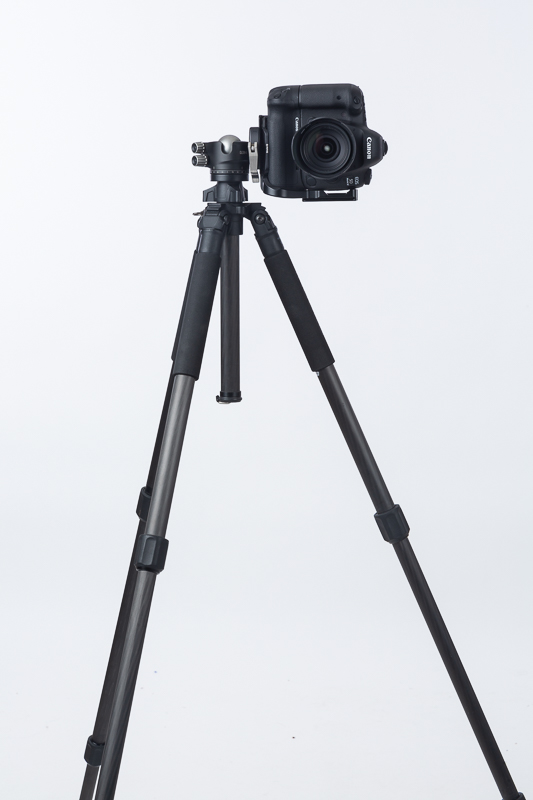
First some general points about tripods. A good tripod and head will not be cheap. Tripods can be sturdy, inexpensive, or light. You can pick any two criteria. Also remember that a tripod that is too heavy to carry will do you no good. Sometimes the best tripod is the one you have with you. Spend the money on a good tripod once, rather than starting with a cheap tripod that doesn’t meet your needs and then working up through more and more tripods till you get a good one. It’s usually better to buy the tripod head and legs separately, as you may prefer different brands of each. Also one of the major choices in tripods is aluminum vs. carbon fiber. The same tripod in carbon fiber will be 25-40% lighter and 75-100% more expensive than the same model aluminum. Carbon fiber doesn’t resonate like metal, so it may have less vibrations, and they don’t feel as cold as metal in winter. Get a tripod that will be sturdy with your heaviest camera and lens, and ideally one that will bring the camera viewfinder up to or near eye level without raising the center column.
I have a Goldilocks collection of Induro carbon fiber tripods. For almost any situation, one is too big, one is too little, and one is just right. My 313 is large, heavy, and with the legs fully extended puts my camera above eye level. It is rock solid, but not the tripod I want to go hiking with. Within 50 ft of the car it will do everything I could ever need, but it’s not going on a waterfall hike. My 213 is smaller, lighter, puts my camera almost at eye level, and yet still supports a full size DSLR and my longest telephoto. I can and have carried this on long hikes. My 113 is the smallest and lightest. It doesn’t put my camera all the way to eye level, but it is small enough to pack in my suitcase. It will hold a DSLR with a normal zoom lens, And it’s perfect for a mirrorless camera. I also have a MeFOTO backpacker travel tripod. It’s best for a mirrorless, but it can hold a DSLR with a normal zoom if it’s not too windy. It’s big advantage is that it folds down to about 18in, so it fits in the smallest suitcase, or attaches easily to a small backpack. Costs range from almost $1000 for the 313 with a BH55 head ($450 for just the legs), down to $70 for the MeFOTO that I found on sale.
When extending the legs on a tripod, start by extending the thicker upper leg sections, and then extend the smaller sections if you still need more height. The exception is when your tripod will be in water, sand, mud or snow. Then you start by extending the smaller leg sections to minimize dirt and grit getting into the leg adjustment screws or clamps.
Bonus Tip for Using Your Tripod in Sand or Snow
To keep your tripod legs from digging into sand or maybe even snow, cut and fit tennis balls and slip them over the end of each leg. This will keep the legs from settling into the soft surface, and when you’re through and slip the balls off, your leg tips will be clean. I’ve seen buildings that require this to keep tripods from scratching marble floors, but it really worked well on my recent Florida trip. Cut a large “X” (about 1.5 inches each way), and then press your tripod legs through the “X”. Be very careful cutting the tennis balls. They are very tough, and it may take a lot of pressure and then the knife suddenly stabs in or through the ball. Never hold the ball while you are cutting it, because of the risk of cutting yourself. Just ask me how I know. It’s not because I lost a finger, but because from an early age my Dad always drilled “Never ever cut toward yourself and have your work supported” into me.
Here you see the lower leg sections extended first and a close up showing how the balls add stability in soft sand.
Always cut safely. Use a clamp or vise to protect your hands and fingers.
Heads
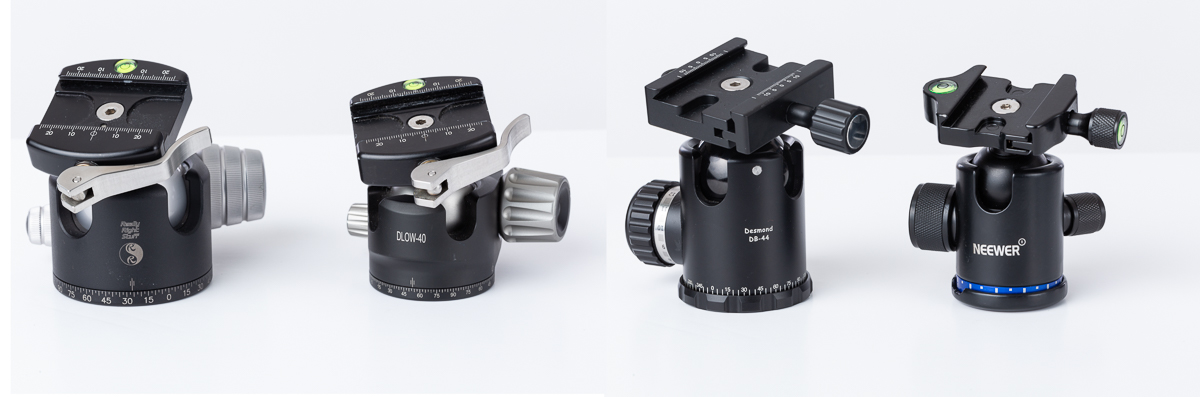
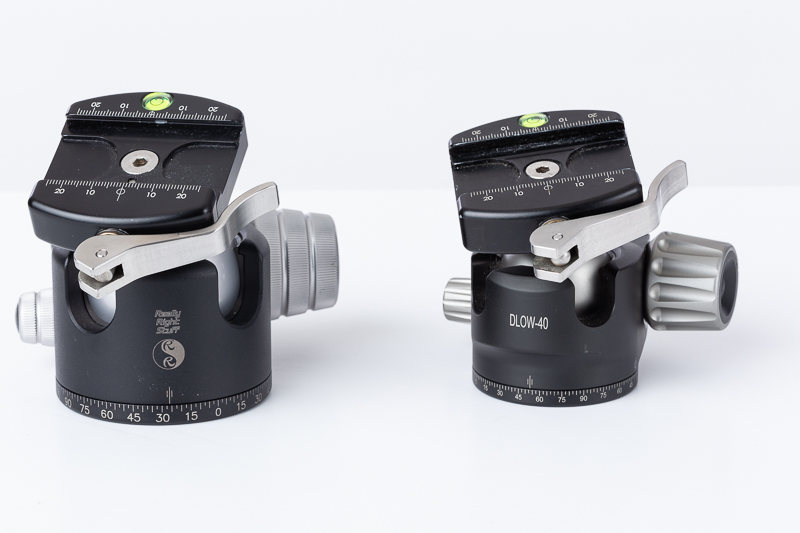
Tripod legs have a 3/8 in threaded stud that the head screws onto. Ballheads are definitely the way to go. You can adjust your camera in any axis just by loosening a single knob, positioning the camera and tightening. The better ball heads have a tension adjustment so that when you loosen the main knob, the camera can be moved, but it won’t flop down uncontrolled. Also most ballheads have a separate panning knob that is loosened to swing or pan the camera side to side. Do not get a ball head where a single knob does everything, and has no tension control. Ballhead prices vary widely. More money gets smoother controls, larger weight capacity, and greater stability. My RRS (Really Right Stuff) BH-55 with quick release plate cost right at $500. I found a Chinese DLOW 40 on Amazon for $140 that is a joy to use, but I did spend $130 to add a RRS lever quick release plate to it. the DB-44 on EBay was about $80, and the Neewer head from Amazon was under $25. It’s not smooth, but for a lighter camera it is fully functional.
Attaching the Camera
Most ballheads attach the camera with the Arca Swiss system, This is a beveled plate that attaches to the camera. It has become an industry standard (except for Manfrotto which uses their own proprietary system) and it makes swapping cameras and lenses quick and easy between different ballheads and even among different photographers which can be very useful. The most basic system is a plate with a screw clamp that attaches to the ballhead, and a beveled plate that attaches to the 1/4-20 tripod hole of the camera (or lens). The disadvantage of the single plate is that it may twist on the camera, and to shoot a vertical image the whole tripod head must be turned to vertical.
L Plates or Brackets
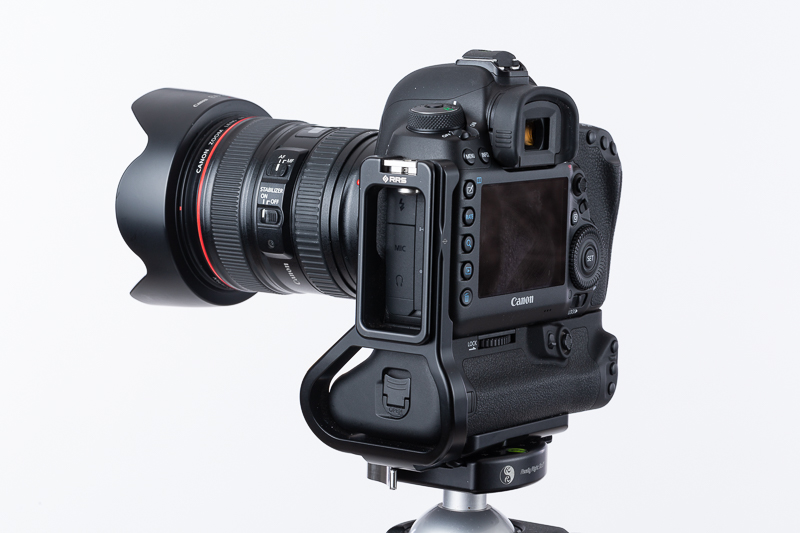
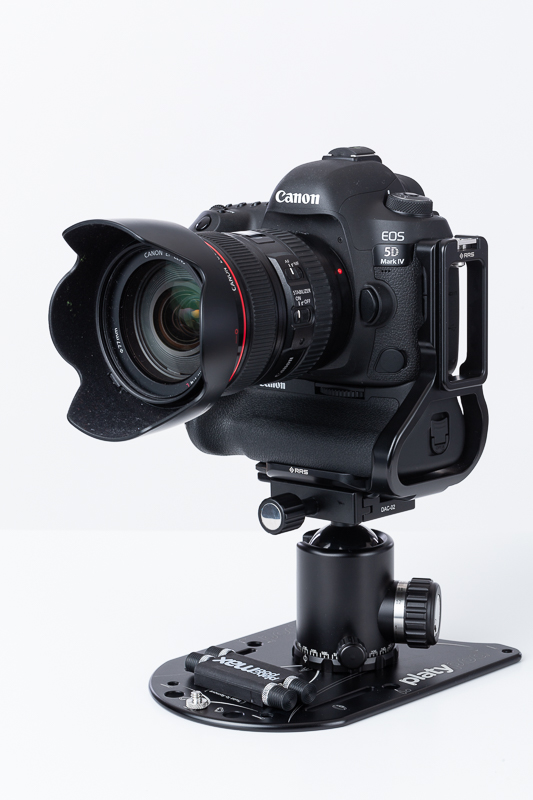
One of the biggest improvements I’ve found for efficiency and ease of use and speed is the L plate. These attach to the camera tripod screw hole, but have an Arca Swiss bevel on the bottom of the camera, and on the left side. Once the ball head is leveled, to switch from horizontal to vertical, just unclamp the plate and rotate the camera to vertical and tighten the clamp back up. The camera stays centered, the composition doesn’t change, the ball head stays level and the weight stays centered over the tripod. Using a single plate, going to vertical shifts the composition, the head must be readjusted and leveled and the weight is off center, making things less stable.
RRS makes custom L Plates for most current cameras. These fit perfectly, allow access to batteries and cards and cable connections, but they aren’t cheap. Other companies make cheaper fitted L Plates, or you can buy universal L Plates that fit (or misfit) most cameras. I have also found that a lever quick release plate really speeds up mounting the camera and switching between vertical and horizontal. I use the RRS plate which is $130 and sometimes costs more than the head I attach it to. There are cheaper ones, but I tried one and it didn’t grip my L plate tightly. You really don’t want a cheap plate to allow your $6000 camera and lens to slide off.
Attaching Telephoto Lenses
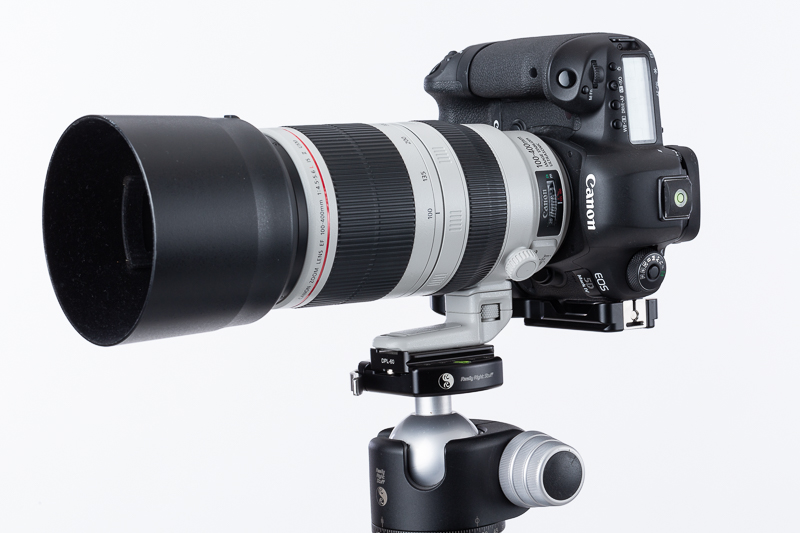
Most telephoto lenses include a tripod foot that is mounted to the tripod. This takes the weight of the lens off of the lens mount, and also centers the weight over the tripod for greater stability. To use these with a ball head, get an Arca Swiss plate for the lens tripod foot. These can be ordered in different lengths to fit your lens foot, and they have two tabs which snug up to the foot and keep the plate from twisting. Almost all lenses with a tripod foot have a collar that swivels, so to switch from horizontal to vertical, loosen the collar and rotate the camera without adjusting the head.
Leveling the Camera
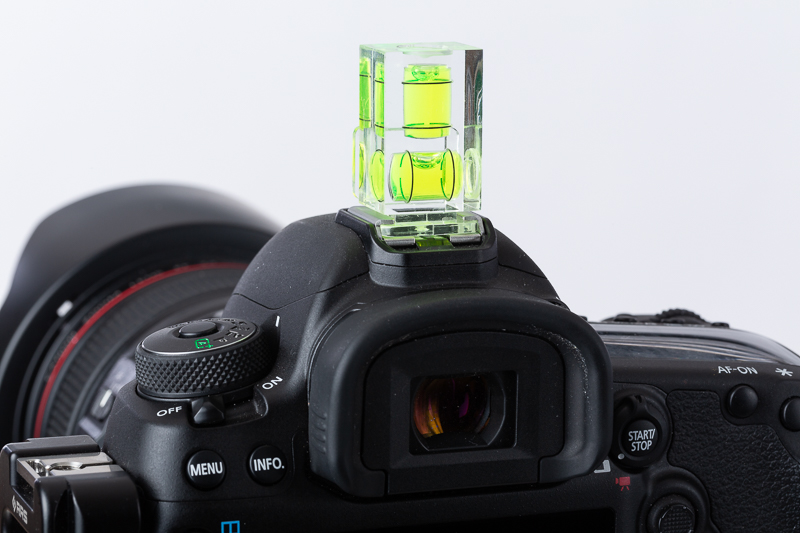
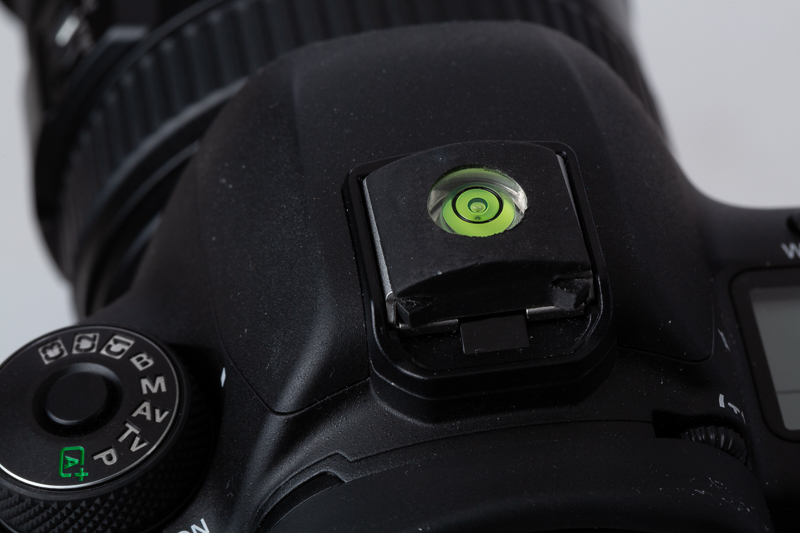
Most modern cameras have an electronic level indicator either in the viewfinder, or the LCD. If your camera doesn’t, you can get levels that fit in the hot shoe. The simplest is small and cheap and is a small bubble in a circle. It’s good if you need your camera level in every axis, but not so good if you need to tilt up or down. Or you can get bubble levels that are more like a carpenter’s level, This works better when you need to tilt up or down. And once your camera is level, if you have an L Plate, you stay level when you switch from vertical to horizontal.
Attaching Straps
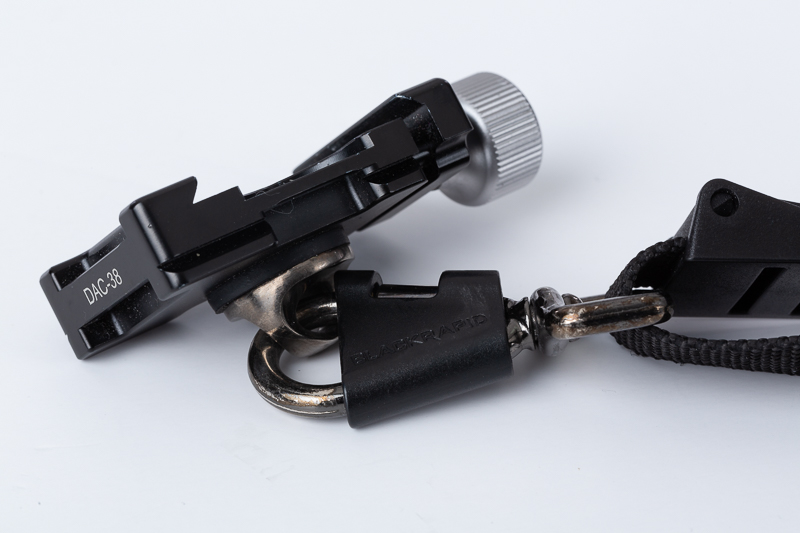
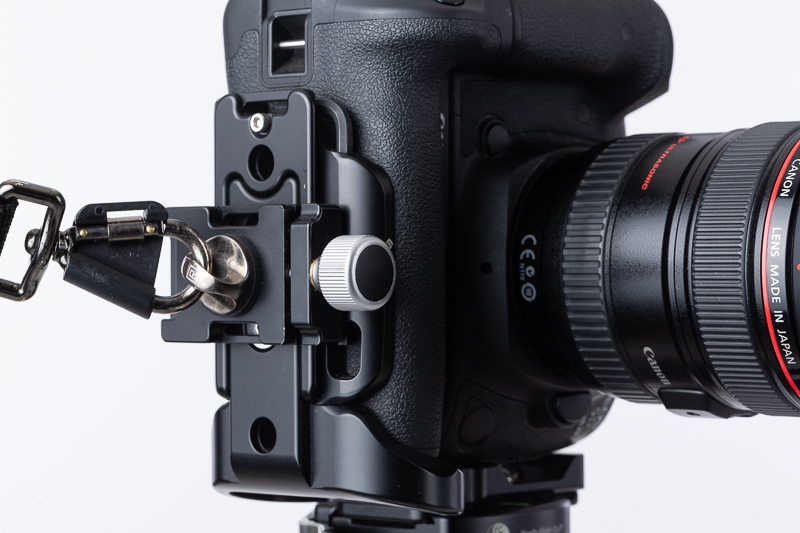
If you use the old fashion strap that came with the camera, it will work fine with Arca plates or L plates. But be aware that if your camera is on a tripod with a wind, that strap can blow and create movement in you tripod. If you use a sling strap like the Black rapid, there is a conflict between mounting the strap and using a tripod. The sling straps have a connector that screws into the tripod hole of the camera. So to use a tripod, you have to unscrew the connector and attach the mounting plate. What I do is leave my L plate attached to the camera at all times, and mount the strap and its connector to an Arca screw clamp and then clamp that on my plate for carrying, and unclamp it to mount on a tripod. Be sure to get a screw clamp that has a 1/4-20 threaded hole. Do not use a 3/8 to 1/4 adapter as it might come out and drop your camera. I would be hesitant to use this on a single universal Arca Plate as they might twist, loosen and let your camera drop. There are fitted base plates available that won’t twist and I would trust these, but why not just go all the way and get a L plate? In use, point the screw toward the front of the camera, so it is out of the way and you won’t accidentally bump it.
Flat Tripod Base as an Alternative
Platypod and a few others make a flat aluminum plate with a 3/8 screw for mounting a ballhead. It can used flat as is or it has adjustable feet that screw on to the base. These plates can give you an ultra low viewpoint, or you may be able to set them on the floor, in a chair or on a table in places where regular tripods are not allowed. You can buy a smaller, lighter (cheaper?) ball head to keep on your flat base, or just swap the head from your regular tripod. Platypod makes the smaller Ultra and the larger Max. Below is a generic base from Amazon with and without the feet, and the Platypod Max.
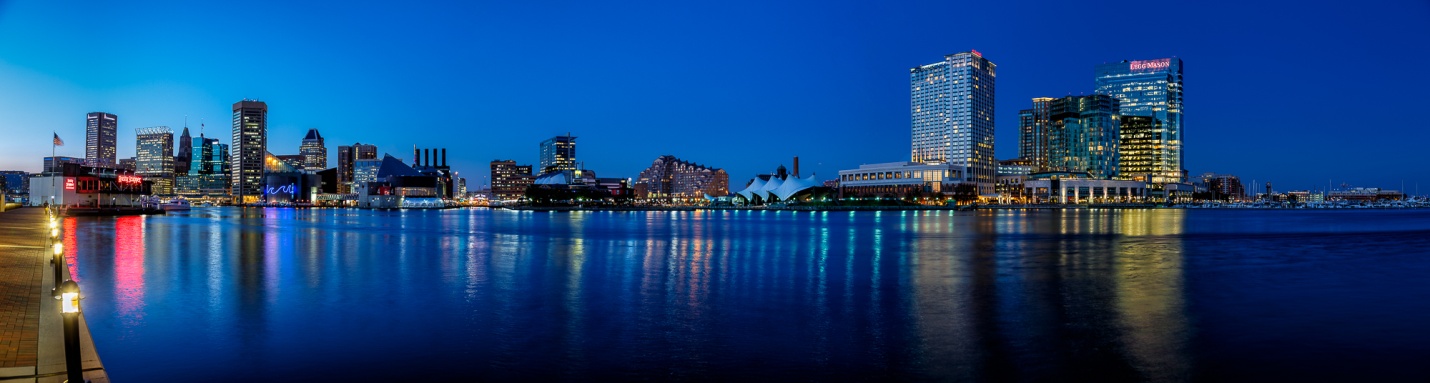
In an earlier article I described how to do an HDR Panorama. Back then it involved creating HDR’s from each set of brackets, then selecting each of those HDR images and merging to a panorama. Back in about October 2018 Adobe added a new feature in Lightroom called merge to HDR Panorama that makes it much more simple than before.
First shoot the images that will make up the panorama. I usually set my camera to auto-bracket at -2 stops, normal and +2 stops. In extremely contrasty light, I might use five brackets from -4 to +4 stops. It is important to shoot in manual mode so the exposures will be consistent. Otherwise there will be bands in the sky where the exposures vary and they are very hard to correct. It is also much better to shoot on a tripod that has been carefully leveled. But if there is enough light to allow handholding the slowest shutter speed shots, it is possible to shoot handheld. After shooting the first set of brackets pan your camera left or right and allow about 20% overlap and shoot the next set of brackets. Repeat the pan and overlap until you have everything you want in your panorama.
Here is the new technique in Lightroom. First select all of the bracket sets that will go into your panorama. I don’t do any editing at all until after the panorama is complete.
With all of the images selected, right click, choose photomerge, and then choose HDR Panorama.
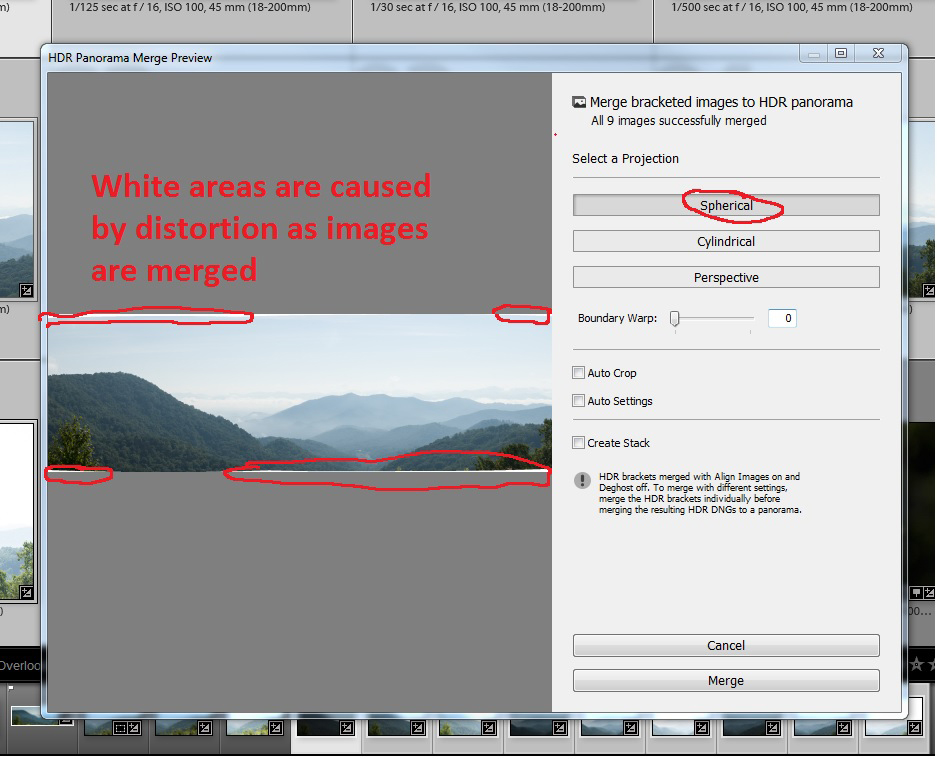
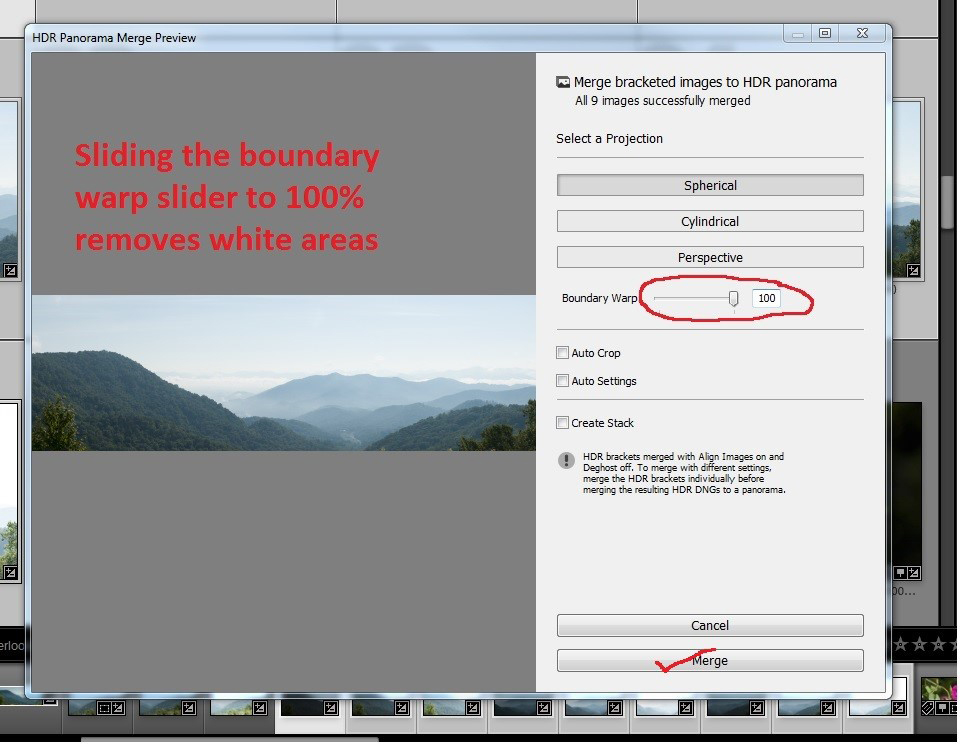
This will bring up the preview window. Generally I choose the spherical projection. You will notice some white areas along the borders of the image that are caused by the distortion of combing the images. These will probably be larger if you hand held or shot on a tripod that wasn’t leveled. In the old days, we would have to crop in to eliminate these areas.
You can eliminate the white areas by sliding the boundary warp slider all the way to 100%. Click on merge and Lightroom will create an HDR Panorama in DNG format. This may take a minute or so depending on how many images you are merging, and the speed of your machine.
When it is complete you will see your panorama usually with the name of the first image plus HDR Pano and the DNG extension.
My preference is not to edit any of the files until the panorama is complete. In the develop module I make my basic local adjustments like white and black points, overall and highlight and shadow exposure, contrast vibrance and saturation. You can see my basic adjustments below.
Since the sky was very light, I added a graduated filter to decrease the sky exposure and also increased the blue a bit.
And here is our final HDR Panorama. It’s pretty good as is, or from here you could take it over to Photoshop for some further adjustments.
A couple of years ago I wrote an article on how to enter a photography contest. At the 2018 Photofest in St. Augustine, FL, I went to a class on “How to Judge a Photograph” by Lisa Langell. It struck me that if you knew what the judges look for, and used the same criteria to judge your own images as you make your contest selections your chances of success would be much better.
So first of all, from the PPA (Professional Photographers of America) web site, here are the twelve criteria PPA judges are trained to look for.
Impact Viewing an image for the first time always evokes some kind of feeling. Sometimes they can make us sad, happy or angry. Sometimes they force us to look inward at ourselves.
That’s called an impact, and the more powerful the image, the more powerful the emotional response of the viewer.
Technical Excellence This is the print quality of the actual image itself as it’s presented for viewing. There are a lot of aspects that speak to the qualities of the physical print. These can include:
Retouching
Manipulation
Sharpness
Exposure
Printing
Mounting
Color correction
Creativity Your point of view is exactly that– yours. And it’s unlike anyone else’s.
This element speaks directly to that perspective. It shows your imagination and how you used the medium to convey an idea, a message or a thought to the viewer. This is how you differentiate yourself from others.
Style There are many, many ways to apply this element to your work. Maybe you use light in a specific way on a subject, or maybe you make a technical decision for the express purpose of underscoring desired impact.
When subject matter and style come together in an appropriate manner, the effects on an image can be spectacular. But remember, when subject matter and style don’t work together, the results can be, well, less-than-spectacular.
Composition When all the visual elements of an image come together to express intent, that’s when the magic of composition happens. Good composition captures a viewer’s attention and directs it where you, the artist, want it to be. Depending on your intent, you can make something that pleases the viewer– or disturbs them.
Presentation How you showcase an image is just as important as how you compose it. Everything in the presentation should work to enhance your image and not distract from it. Keep this in mind when choosing mats, borders and everything in between.
Color Balance Proper color balance can bring a sense of harmony to an image. When the tones all work together to support an image, the emotional appeal is that much greater.
But color balance doesn’t have to be used to bring harmony to an image. You can use color balance to evoke any number of feelings from a viewer. The choice in how to take advantage is entirely up to you, but no matter what, be sure your choice enhances rather than distracts.Â
Center of Interest This is where an image’s creator wants a viewer’s attention focused. Sometimes there can be a primary and a secondary center of interest. Sometimes everything in an image will work together to create that center of interest.
Lighting The use and control of light has an effect on every aspect of an image. It informs dimensions and shape, it sets tone and mood, and, like every other technique, proper lighting can be used to enhance your image while improper lighting can detract from it.
Subject Matter Even though it lacks words, your image is still telling a story, and your subject matter is central to that. So make sure that your subject matter is right for the story that you’re trying to tell.
Technique How you choose to execute your image is key. It’s also a holistic decision. Technique informs everything in the creation of your image. From lighting and posing to printing and presentation, it all works to show off the techniques that you’ve mastered and applied to your craft.
Story Telling What does your image evoke in a viewer’s imagination? What do you want your image to evoke in a viewer’s imagination?
Keep in mind: You are creating art. And while the act of creating is a personal thing, so too is the act of viewing. Your image is a story, and the one it tells your viewer may be one you never knew you were telling.Â
As part of Lisa’s class, we did a quick judging of 50 images. Of 50 images, we judged 15 to be good. We then evaluated what we liked and why we selected them.
In our group, the most important criteria wasimpact. Keep in mind that in a contest, most judges will only spend 3 to 10 seconds on an image. Impact is that WOW Factor that makes a judge want to really look at an image. While all of the twelve criteria can contribute to (or detract from) impact, you have to catch the judges eye quickly. Some of the things that our class felt contributed to impact were action, separation of the subject, a clearly defined subject, eyes, and eye contact, expression, color, simplicity, bokeh (the soft out of focus background), and contrast.
Once you get past the WOW Factor, then the other criteria come into play. As competition chairman, I get to view the judging in most of our contests, and the most common comments I hear from judges involve lack of sharpness, lack of contrast, and compositions that could be improved with cropping. From there it becomes the little things like dust spots, stray highlights, distracting border elements, overly obvious vignetting and color balance.
Most importantly, realize that the judges are human, and art is subjective. Winning or losing is just a reflection of how a panel of judges saw an image on a given day. As one of my judges told me, “If I judged the same images tomorrow, I might get totally different results.”
So with all of that in mind, here are the first, second and third place print and digital images from the PSC’s 2018 annual contest, and the three 2018 quarterly contests. As you look at these images, keep these twelve criteria in mind, and see how they apply to winning images. Also as always, be aware that the quality of these images may suffer through reduction in size, and the conversion to PDF format.
Lately I’ve been trying to cut back on the gear I carry when travelling. And while there are times where the situation demands a case full of large lenses and multiple bodies, and maybe even lighting gear, there are lots of times when simpler is better. In the film days, I used to carry a bag full of prime lenses, usually 20mm, 24mm, 35mm, 50mm, 100mm and 200mm. Add to that a couple of bodies and it adds up to nearly 40 pounds. Walking around with 40 pounds of gear for a whole day can quickly suck the fun out of almost any photography. It also seems I spent a lot of time deciding what lens I needed and then changing lenses.
A few years ago I bought a 18-200mm f/3.5-6.3 “all in one” lens for my Canon 7D Mark II. With the 7D’s 1.6 crop factor, that makes it the equivalent of a 28-320mm lens. That will cover all but the most specialized needs. This year I broke down and bought the Tamron 28-300mm f/3.2-6.3 lens for my full frame 5D Mark III and Mark IV. I have done numerous outings carrying only one of these do all lenses, including major trips like Cuba and the Durango Railroad photographer’s weekend with no regrets. And I’ve even purchased the Canon EF-M 18-150mm (28-240 equivalent) for my new M50 mirrorless.Â
There are some real advantages, and a few minor disadvantages to the all in one lens. First here are some of the advantages I see.
1) The Murphy’s Law of Lenses is “whenever you have more than one lens with you, the lens on the camera will always be the wrong one”. When you approach a scene or subject with an all in one lens you don’t have to decide which lens to use. You don’t have to change lenses, or worse yet change lenses in rain, snow or blowing sand. All you have to think about is your subject and how to compose; the lens choice is already made for you.
2) One lens takes the place or two or more lenses. That’s less weight, less to pack and less to keep track of in the field.
3) Less gear means less discomfort from lugging around a big heavy bag and that makes you a happier and more productive photographer.
4) You’ll never get caught changing lenses right when something good is happening; you’re always ready.
5) They are much less expensive than the multiple lenses they replace.
6) By not changing lenses, you’ll have much less chance of getting dust on your sensor.
Now for some of disadvantages.
1) To be small and yet have such a huge zoom range, there are some tradeoffs in sharpness. There is no way these lenses are as sharp as a prime lens, or even a really good zoom with less zoom ratio. But they are probably sharp enough for almost all of your travel photography. If the only thing people are looking at is how sharp the image is, it’s probably not a good image to begin with.
2) They tend to be slower (that is they have smaller apertures or higher f numbers) and they are usually variable aperture lenses. That means that as you zoom from wide angle to telephoto the aperture becomes even smaller. For the cost and versatility this isn’t a bad tradeoff. Any relatively recent camera can shoot high quality images at ISO 800 or even 1600 and beyond so you can still get a safe shutter speed for hand holding. And these lenses usually have image stabilization to help when hand held (turn this off when on a tripod). If you can’t get a shutter speed fast enough to hand hold, well you did bring a tripod didn’t you?
3) They tend to have more distortion, especially at the wide angle end. Most of the time, you’ll probably never notice it unless you’re shooting brick walls or other subjects with a lot of straight lines. And it’s easy to correct it just by checking the lens distortion checkbox in Lightroom’s develop module.
4) If it’s the only lens you’re carrying and it breaks, your shooting is done. True, but in 300,000 shots with five cameras and a dozen lenses, I’ve never had one fail in the field. That even includes a camera and lens that fell off a tripod, and bounced on a sidewalk. With a quick gaffer tape repair they worked for the next week until I could send them off for repair.
5) They aren’t as wide as I’d like at the wide end. I love the look of a 24mm lens and find there is huge difference just going up to 28mm, which is the common wide focal length. Tamron does make a 16-300mm for APS-C bodies which is an amazing 25-480mm equivalent. But most of the time I find I can work around not having a 24mm.
Here’s a bonus tip. Photograph with friends who use the same brand of gear. In Cuba four of us shot Canon and between us we had at least one spare body and a couple of spare lenses. The two Olympus shooters had coordinated their backup gear so they were covered without duplication, and the lone Nikon shooter, well who cares, after all he shoots Nikon.
Here are some shots from a couple of recent trips. I might even consider a couple of them once in a lifetime trips, and yet I trusted the whole event to a single all in one lens. And like I said, no regrets and I’m more than happy with my images, even though I am very picky about image quality. As usual, at this size and with the conversion to PDF you may not be able to fully appreciate the image quality, but trust me it’s there.
In 2017 I shot horses at the beach for the first time using a Canon 5D Mark III and 24-105mm and 70-300mm lenses. It seems like I was constantly changing lenses with sand and salt water spray flying. And I had to protect that extra lens while I was sometimes past knee deep in the surf. In 2018 I decided to use the 7D Mark II and only the 18-200mm Sigma. It covered everything I needed with ease. There was no lens changing, no extra lens to carry and keep dry, and I never missed a shot because I was busy changing lenses. Here are some shots from the 2018 St. Augustine Photofest and the horses on the beach. All are taken with the 7D Mark II. The first two are at 18mm (28mm equivalent), the third is at 39mm (64mm equivalent) and the last is at 200mm (320mm Equivalent).
In September I went out to the Durango to Silverton Photographer’s Weekend. I only used my 5D Mark IV with the 28-300mm. I didn’t want to be juggling multiple lenses climbing on and off the train frequently, and I sure didn’t want to be caught changing lenses as the train went past. The first shot is at 28mm, and the second at 300mm.
The last shots are from our recent Cuba trip. By the time of this trip I was so comfortable with the performance of the 28-300mm on my 5D Mark IV that once again it was my only lens. The first shot of the bar was hand held at ISO 4000. The second shot was at 50mm and ISO 1600 due to the shade of the porch (we asked them to come out the harsh sunlight where everyone had been photographing them). The third shot was at dusk at 179mm (On a tripod) and the last two shots were at 300mm. I hope you’ll agree that the quality of all of these shots with the 18-200mm or 28-300mm lenses is more than good enough, and the zoom range can handle almost everything you’re likely to shoot while travelling.
You might assume the answer is always yes, but I’m finding that the answer is maybe, maybe not. With the cold and rainy weather, I’ve spent more time inside working on editing or re-editing some old images, and I’ve found a surprise or two when it comes the need for three or more images to create an HDR image. In past articles I’ve talked about the need for HDR when the dynamic range of a scene exceeds the sensor’s capability to record it. I’ve also tried to show the look of Lightroom and Photomatix HDR images, both when the scene is within the sensor’s range and when it exceeds it. Here I’ll try to show if and when you need multiple brackets to create an HDR.
Part of the reason for this article results from my recent Cuba trip. I returned with over 6,000 images, many of which were three image brackets of -2, 0, and +2 stops. Partly to avoid buying more hard drives, and partly because I felt that I was in the mood for more realistic images, I combined the brackets into HDR DNG images in Lightroom, and then deleted the brackets to save hard drive space. After a few weeks I came to regret that decision, when I decided some images would have been more my style if I had the three brackets to send to Photomatix. So I began to experiment by sending some of the Lightroom HDR’s over to Photomatix. Photomatix will tone map a single image, but usually the results are not as good as sending bracketed exposures. I was surprised to find that the LR HDR’s processed as well as the brackets. It makes sense when you realize that the LR HDR may look normal, but it contains the greater range of highlights and shadows that were contained in the three brackets.
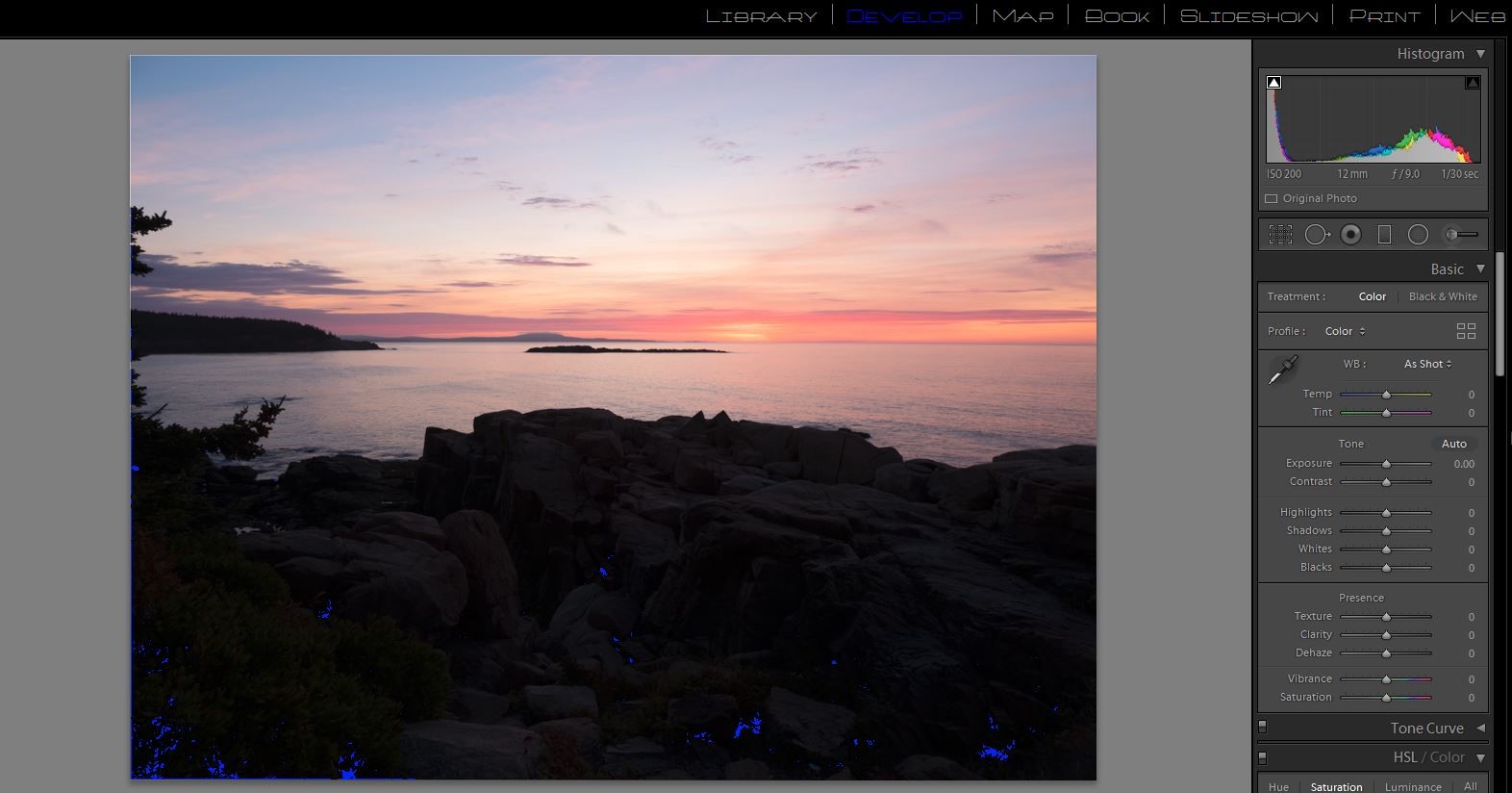
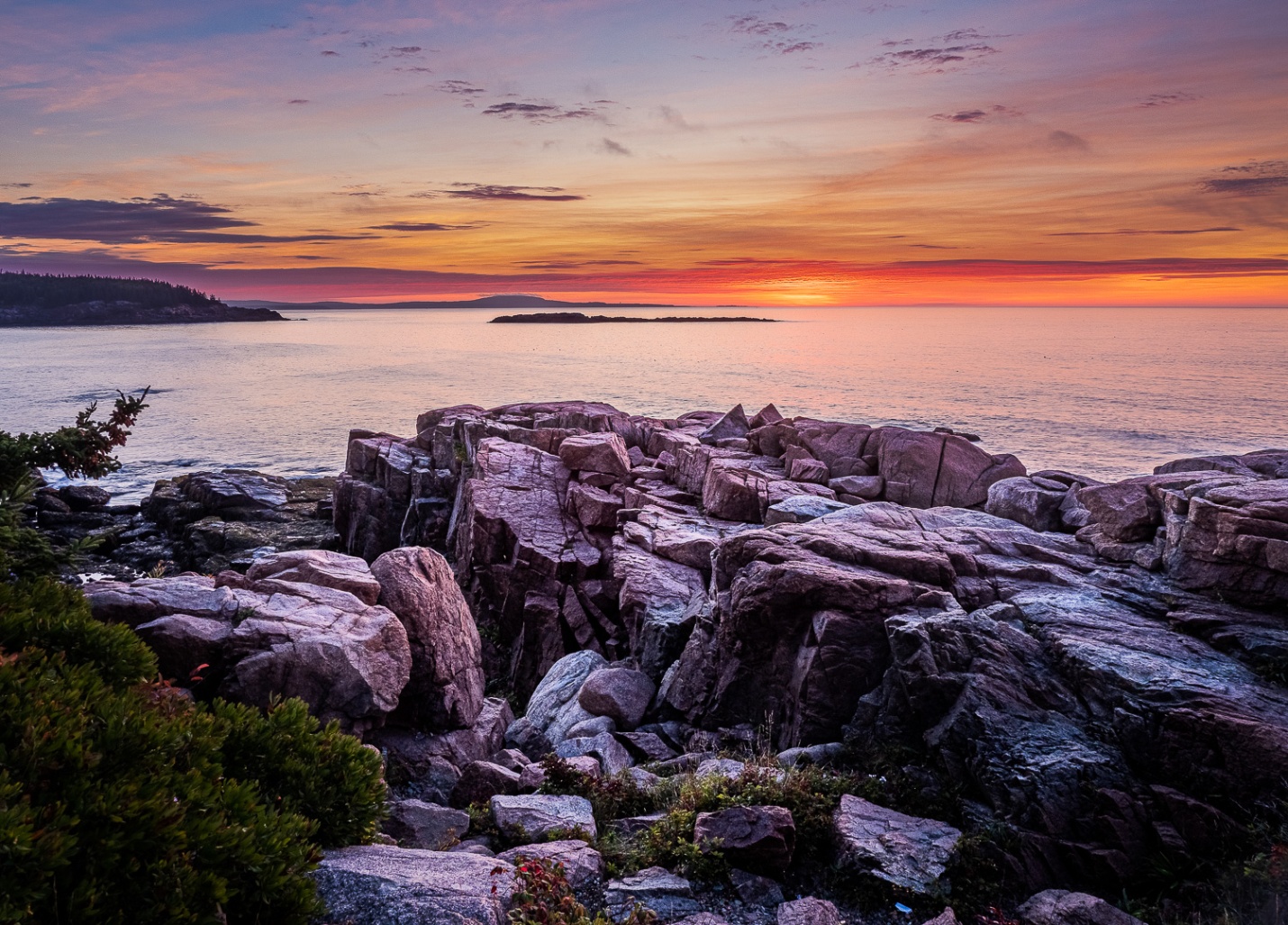
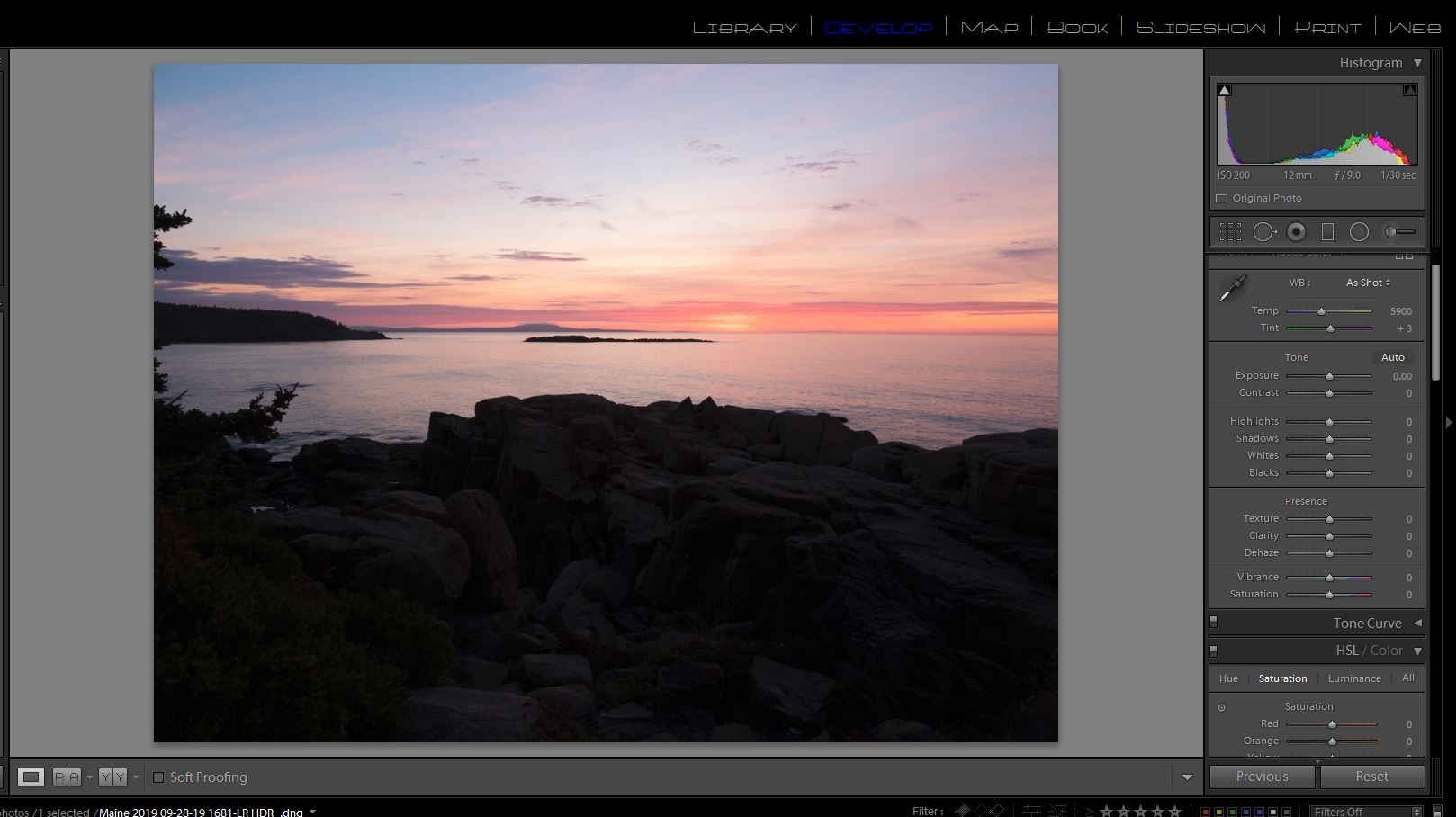
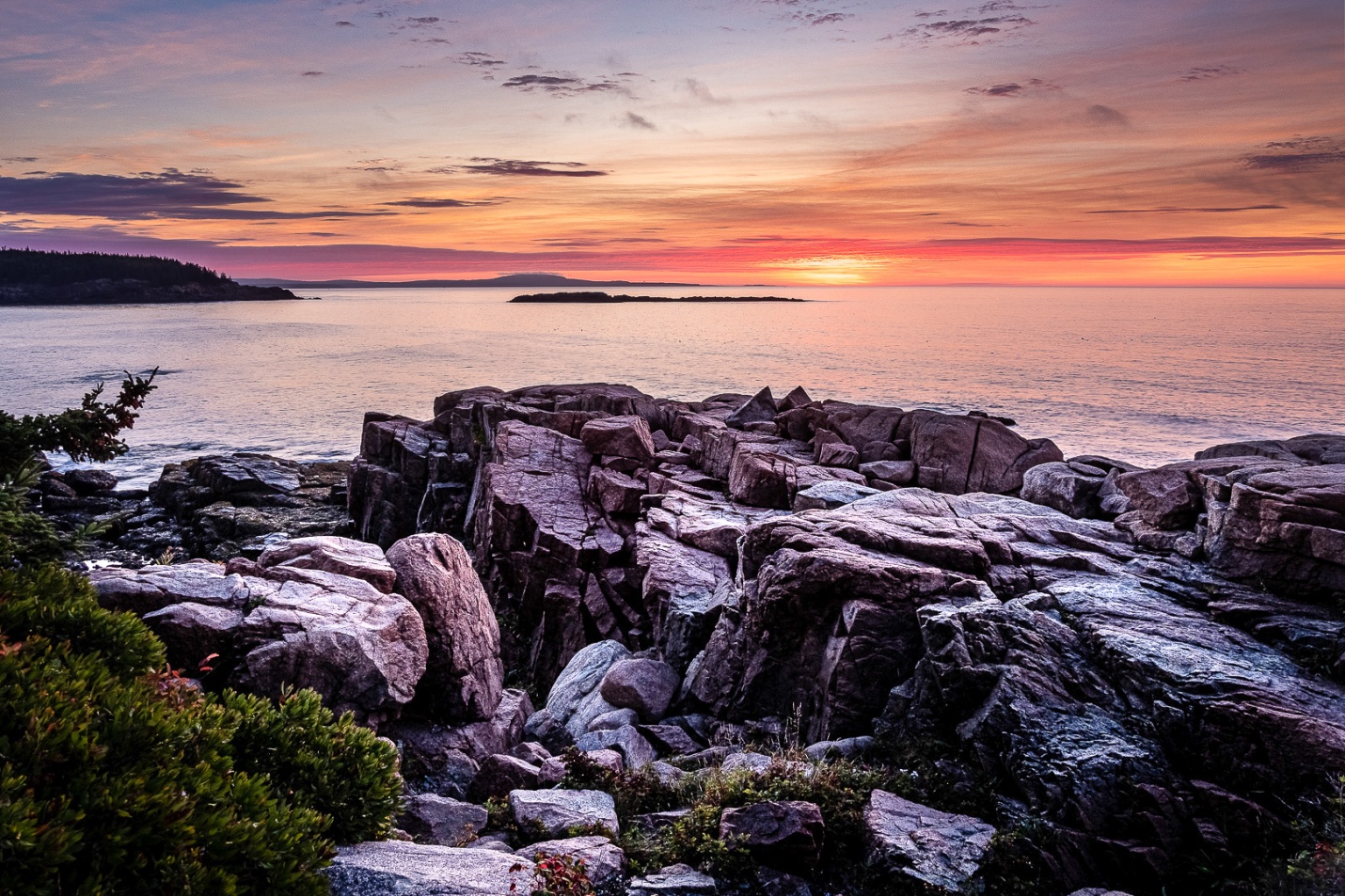
I found one sunset image where I kept the three brackets. This allowed me to do some comparisons in HDR processing. While it looks contrasty, this image did not have the sun showing and it was within the range of my sensor. Results would probably be different with a wider contrast range, at least when trying to process a single image in Photomatix.
Here are the three original brackets: -2, normal, and +2 stops.
Below is the normal exposure edited just using the basic tonal controls in Lightroom. It’s an acceptable image, but not very exciting. The drama in the sky that I remembered just isn’t there.
Below is the LR HDR image with no editing, with basic editing in Lightroom, and after mild high pass sharpening and NIK Color Efex 4 Tonal contrast in Photoshop. Now the drama in the sky is starting to pop.
This is the result of sending just the normally exposed image to Photomatix. This worked fairly well, because the scene contrast didn’t exceed the range of the sensor. The image on the left is just as it came from Photomatix. The second image is after high pass sharpening and NIK Tonal Contrat were added in Photoshop. It’s not too bad, but the clouds are pretty noisy.
Here is the result of sending the three brackets to Photomatix. High pass sharpening and Tonal Contrast have been applied. I fully expected this to be the clear winner.
And here is the result of sending the unedited LR HDR to Photomatix. Again high pass sharpening and Tonal Contrast have been applied. I was somewhat surprised to see that it’s virtually identical to the image created from the three individual brackets. It is obviously much better than sending just the single normal exposure to Photomatix. Even though I only sent one image to Photomatix, it contained all of the information available in the three brackets.
So, to answer my question “Do you need multiple Brackets?”
If your scene exceeds the range of your sensor, yes.
If your scene exceeds the range of the sensor , but you have created a LR HDR DNG image from multiple brackets, then no.
If your scene doesn’t exceed the range of the sensor, then maybe not. You can send a single image to Photomatix, but the results are somewhat less than optimal.
If your scene doesn’t exceed the range of the sensor , but you have created a LR HDR DNG image from multiple brackets, then no.
And to answer the question that started all of my experimentation: “Do I need to keep all 3, (or 5 or 7) Brackets?” The answer is now “Not really”, if you combine them into a LR HDR DNG before deleting them, and as long as there is no “ghosting” caused my movement from one image to the next. Photomatix needs the multiple images to fix that.