Photography Basics – Removing People From a Scene
by Mickey Rountree
As I usually do, I’m calling this article Beyond Basic because it involves Photoshop rather than just Lightroom.
When these articles are converted to PDF and sized for the newsletter, the resolution and quality of the images is seriously degraded. If you would like to read the article and see the images as I did, you can see this article on my website at this link.
https://mickeyrountree.smugmug.com/Articles/Basic-Photography-Series/
I hate having people in my photo that don’t belong there, or add to the image. I will usually will try to wait (im)patiently until people are out of my scene if at all possible, but sometimes there are so many people moving in and out of a scene that there is always someone in the way. And the more popular the photo location, the bigger the problem. I did have a hard time coming up with images for this article, because I normally wait until the people are gone, or I just don’t take the shot.
I used to use a combination of content aware delete and cloning, but now there is a better, easier and faster method. This is the remove distractions/people option of the AI remove tool. In theory it goes over the image and finds and selects all people that it doesn’t consider part of the main subject. It’s the cousin of the “remove wires and cables” from my last article. Sometimes it works incredibly well, and even when it doesn’t it’s pretty easy to manually select the people it misses. Since I originally wrote this the remove people option has been added to the rome tool in Lightroom.
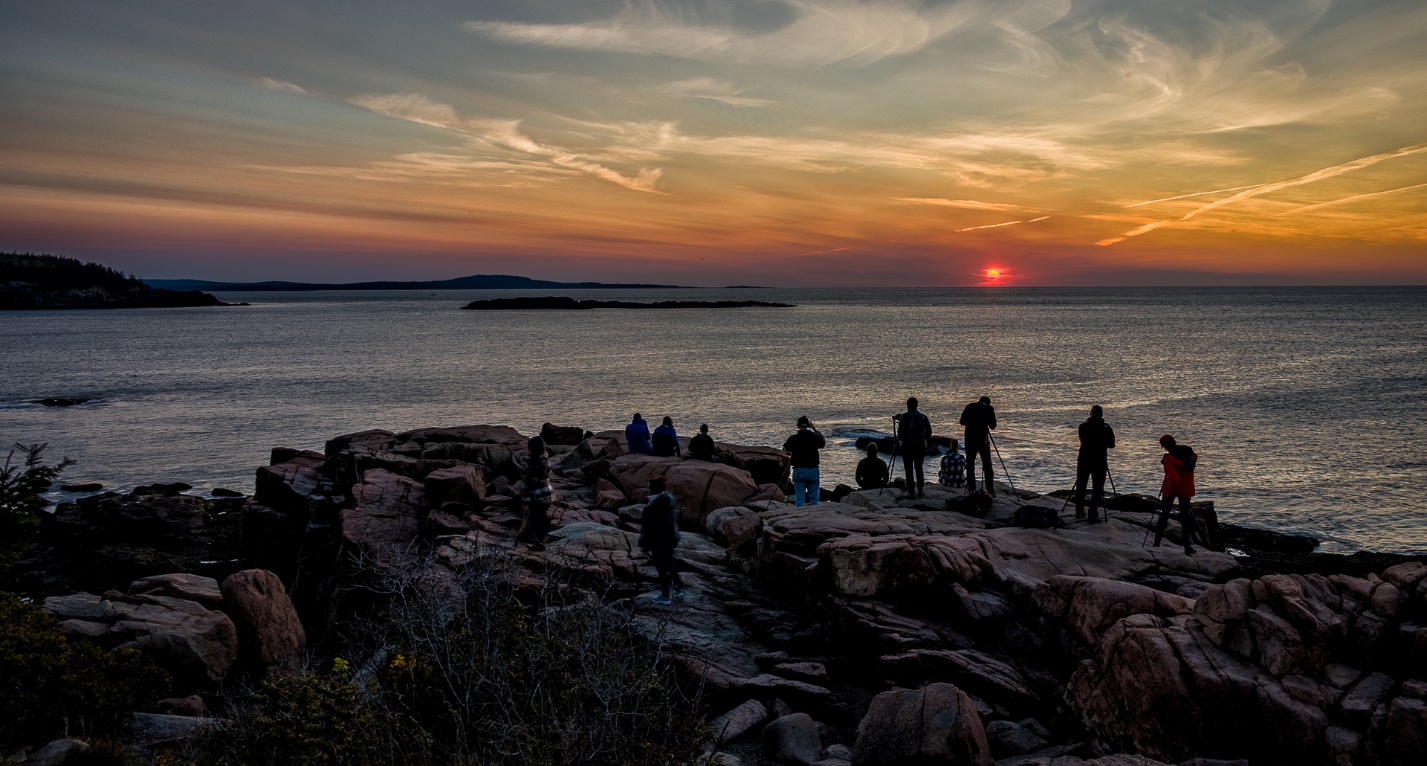
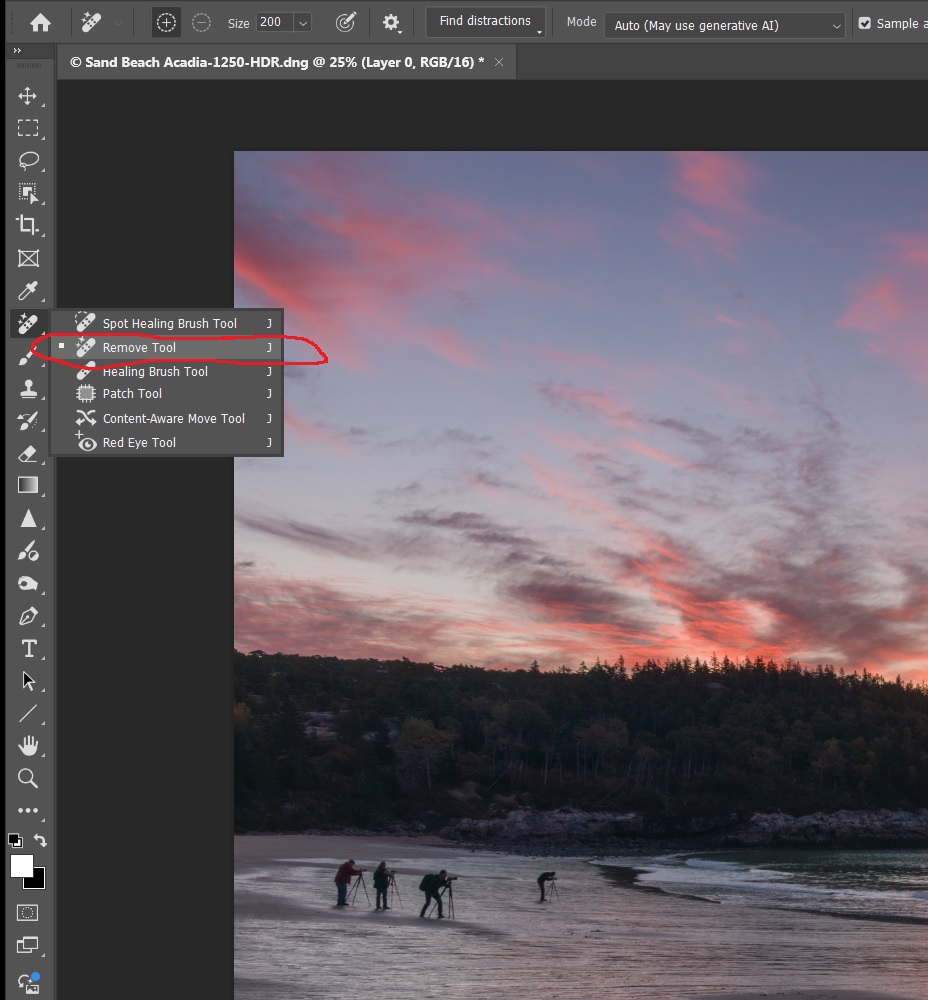
Here is a sunrise shot at a popular beach in Acadia National Park Maine. And it’s no surprise there are other photographers in my shot, especially as I’m shooting with a wide angle lens.

Just as in my last article on removing wires, go to the toolbar and select the remove tool.
Then on the top options bar select find distractions/people.
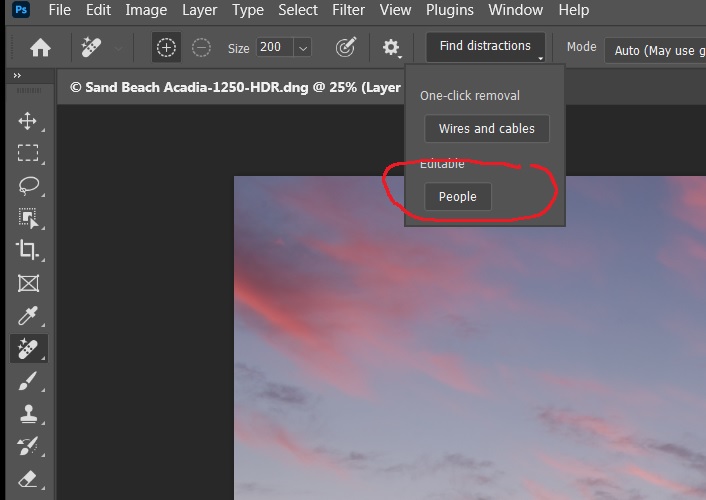
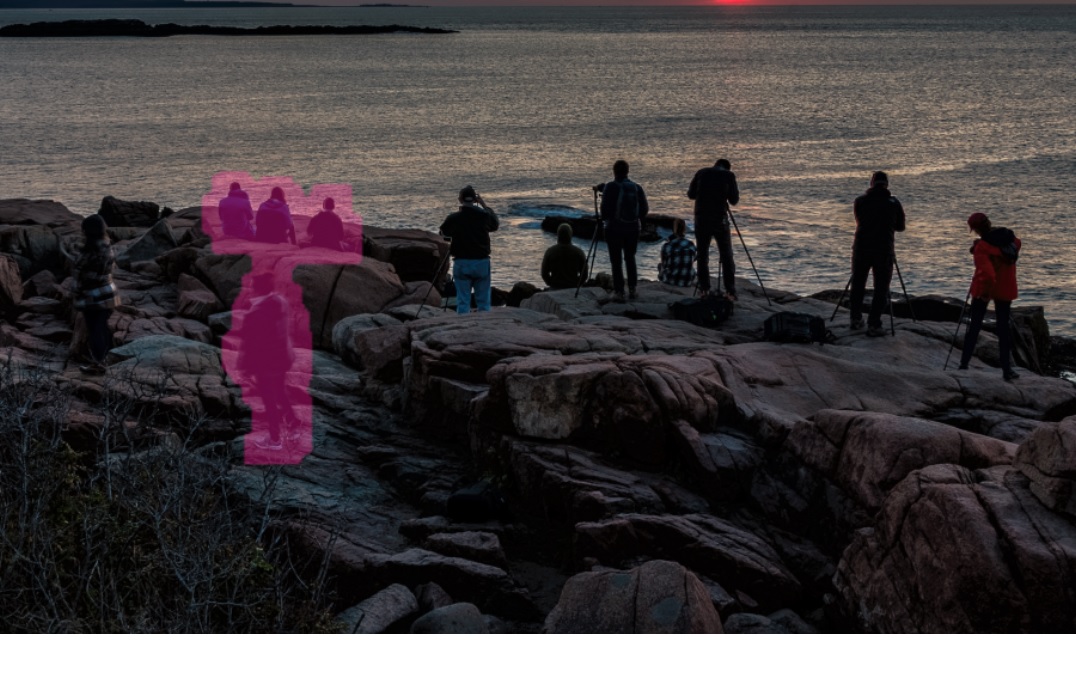
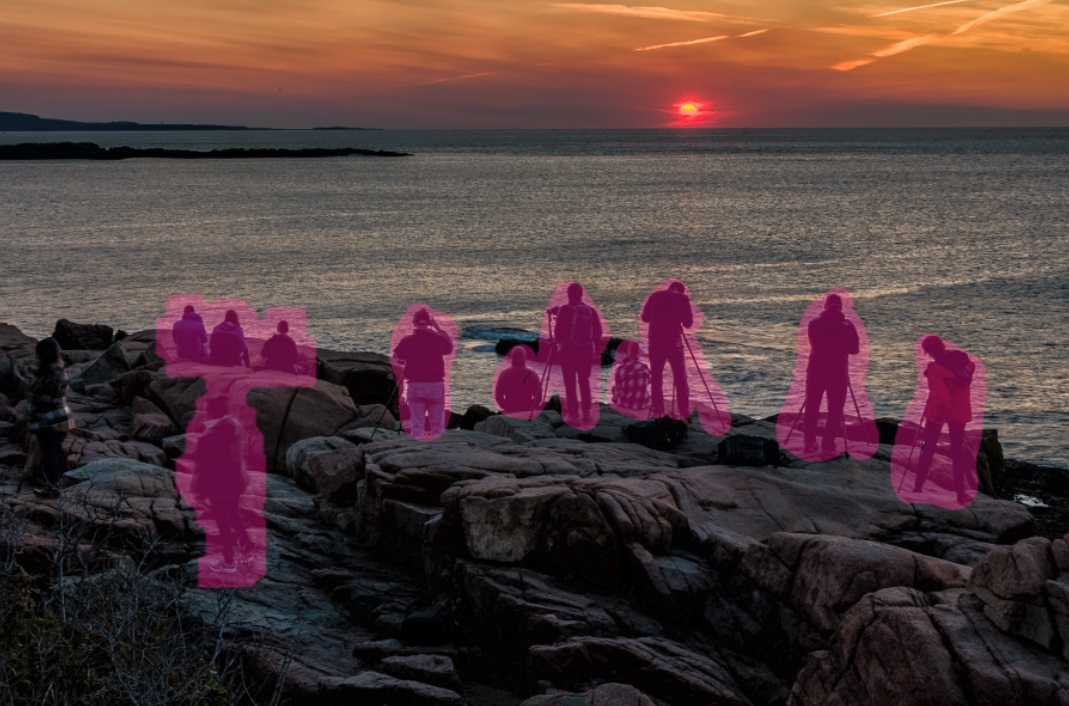
At his point AI searches through the image and selects any people it thinks are distractions and not part of the main subject and highlights them in red. Here it has done a really nice job. Hit enter and once again prepare to be amazed. The people are usually replaced very cleanly and if necessary the program will use AI to create replacement image where a person was.


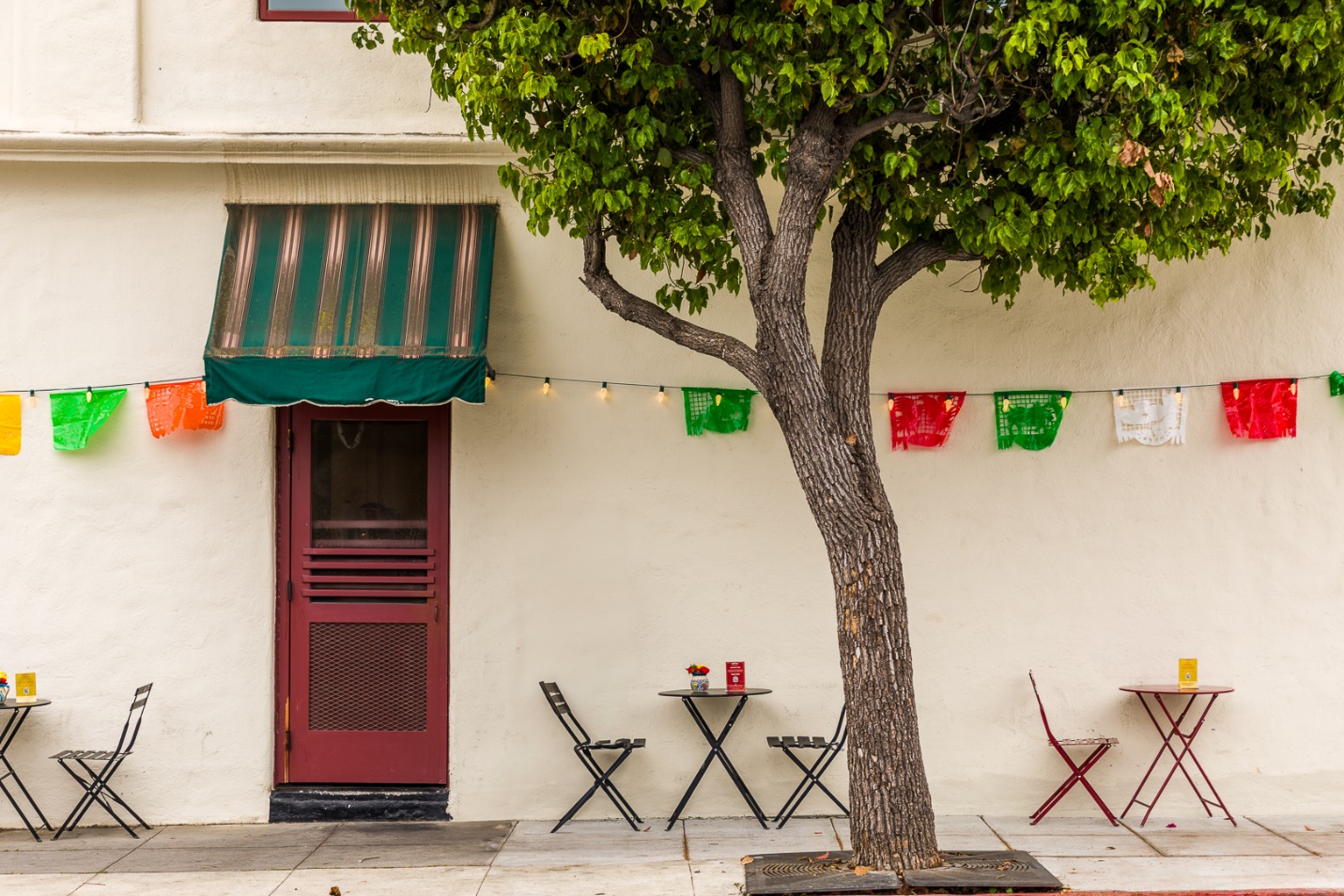
Here is another example of a street scene in Santa Barbara. I was using my 2 second timer and that was all the time it took for these two people to walk into my scene.
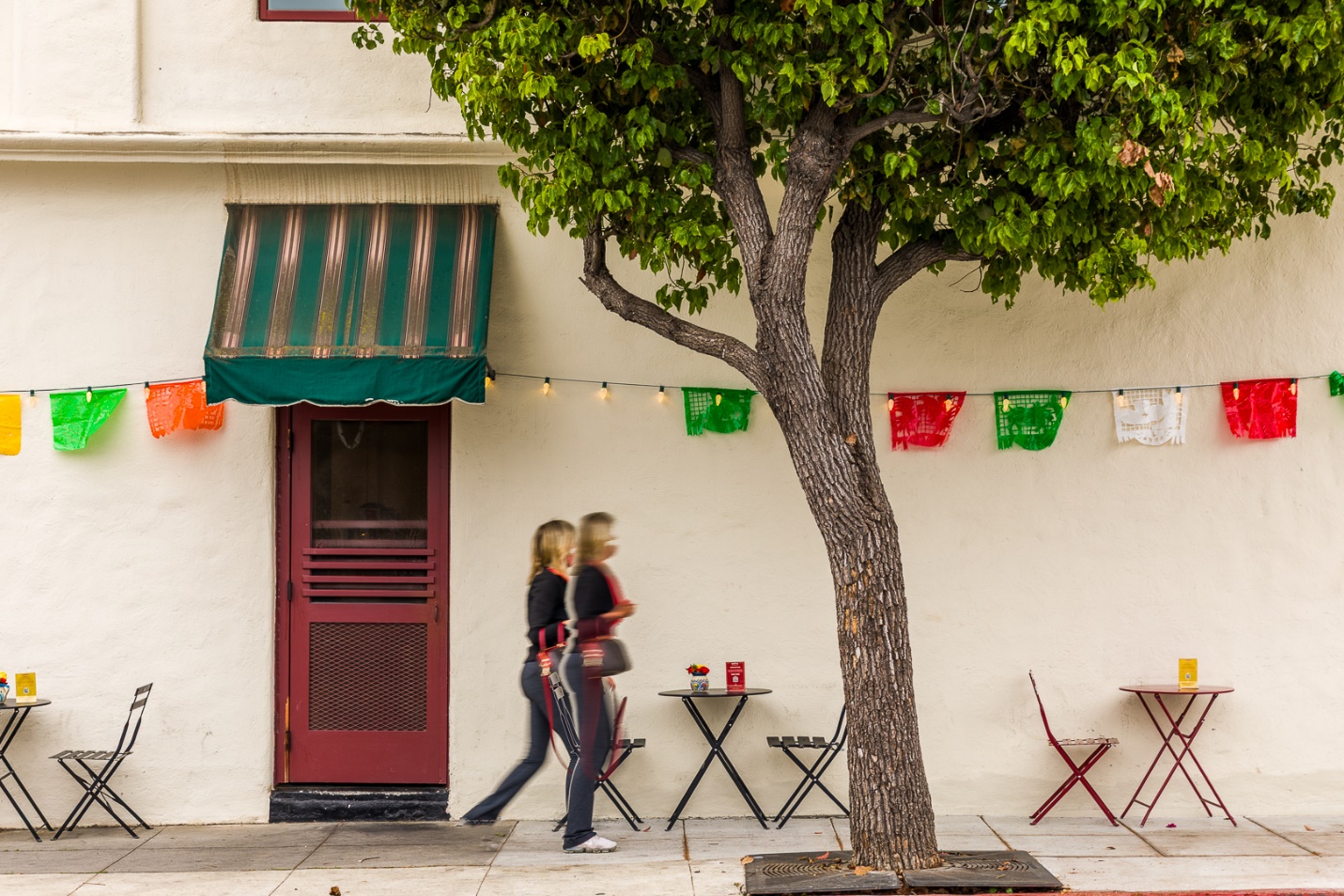
Here is the image after using the remove people option. Notice that not only are the people gone, but AI has generated a whole chair where the people had been. Just a year or so ago this would have required some tricky cloning to replace the chair. Now one click and done.