Basic (and Beyond) Photography – Practice for Photographers
by Mickey Rountree
“Practice makes perfect.” Or as my late friend and fellow drummer and photographer put it: “Practice doesn’t make perfect. Perfect practice makes perfect.” We’re told “repetition is the mother of skill.” We’ve heard these or similar expressions all of our lives. From childhood we hear “You learn from your mistakes.” Actually you only learn from your mistakes if you recognize them, analyze them, and fix them.
So, what is perfect practice, and why do some people improve faster than others with the same or even less amount of practice? And how many photographers actively practice at all? At a recent workshop at Photofest, our instructor Lisa Langell said that photography was one of the few pursuits where people don’t feel they have to practice. Photographers think nothing of going months without shooting or any kind of practice and then expect to go out cold and produce good images.
I’ve touched on practice in several articles in the past, but let’s take a much deeper look. I recently read (and re-read) “The Talent Code” by Daniel Coyle. It looks at the science and even neuroscience of how skills are developed. And he shows that what we often think of as “natural talent” is just effective practice. Most of his examples are from athletes or musicians, but the principles apply to almost any discipline including photography. I would highly recommend this book to anyone interested in improving a skill. And no medical background is required; he presents the neuroscience in an easy to understand way.
The short story is that repeated actions build neural pathways, and the more we practice, the more these pathways become wrapped and insulated by a myelin sheath. The thicker this sheath, the more the skill becomes ingrained in us. But there are different levels of practice, and the myelin sheath is built faster and thicker by what Coyle refers to as “deep practice”. Or as my friend said, “perfect practice”.
Deep practice is not just repeating an action over and over mindlessly. It is performing an act with intention, and looking for any mistake or shortcoming, and immediately breaking down that mistake into its component parts (chunks) and working through them step by step until they are perfect and only then moving on. It means constantly reviewing your performance for any weakness or errors and then working through them, fixing those errors step by step before moving on. Deep practice is not easy. It’s tiring, challenging and physically and/or mentally challenging. If you aren’t feeling challenged, you are not practicing or learning at your best.
To use a music analogy, you could play a song over and over, and even if you make a mistake you keep playing through the whole song. (And yes this is what sometimes happens and has to happen in a live performance.) But in deep practice you are constantly monitoring for errors, and when one happens you stop, analyze what went wrong, break it down to its component steps, practice the steps slowly until you feel that everything is right and then build up to tempo. Did you miss a note, hit the wrong note, was your timing wrong, or every note was right, but the phrasing didn’t feel right? Find and fix these errors throughout the song and your playing will improve. More importantly this type of practice builds stronger neural pathways, but it builds them faster and more efficiently than mindless repetition. We don’t like to admit or dwell on our mistakes, but deep practice forces us to constantly look for the smallest errors, analyze them, and fix them step by step.
Here are some ways to incorporate deep practice into photography
- Deep practice is about analyzing the whole photographic process and looking at what worked and what didn’t work well.
- Go beyond your comfort zone: Instead of only shooting what you’re good at, deep practice encourages you to tackle areas where you struggle. This could involve experimenting with challenging lighting conditions, unfamiliar subjects, or advanced techniques.
- Embrace and learn from mistakes: Deep practice acknowledges that mistakes are an integral part of the learning process. When a photo doesn’t turn out as intended, instead of deleting it immediately, take time to analyze what went wrong and how you could improve next time.
- Analyze and refine: Deep practice involves a cycle of experience, reflection, generalization, and application. After a photoshoot, don’t just move on to the next shoot. Review your images, identify areas for improvement, and think about how you can apply those lessons in future shoots.
- Focus on specifics: Instead of trying to master everything at once, break down photographic skills into smaller, manageable chunks. For example, dedicate a session to practicing only composition, or focus solely on understanding and controlling aperture, shutter speed, or ISO.
- Seek feedback and collaboration: Share your work with other photographers or mentors and actively solicit their constructive criticism. This allows you to gain fresh perspectives and identify weaknesses you might not have noticed on your own.
- Experiment and be intentional: Don’t just “spray and pray” (taking many random photos hoping for a good one). Instead, be deliberate with each shot, considering the composition, lighting, and storytelling you want to achieve. Actively try different angles, perspectives, and techniques, even if they seem unconventional. A few good shots can be much more effective than hundreds of carelessly shot bad images.
In essence, deep practice in photography means being intentional about your learning, pushing yourself beyond your current abilities, actively seeking out and correcting mistakes, and relentlessly refining your skills through focused effort and reflection.
- Deep practice doesn’t mean shooting constantly without reflection: Deep practice is not just about taking a large volume of photos, it’s about being intentional with each shot, analyzing results, and learning from mistakes. Simply taking many photos without critical evaluation will not lead to significant improvement.
- More experience doesn’t mean better photographs: While experience is beneficial, it does not automatically equate to higher quality images. Deep practice emphasizes structured learning and intentional effort to hone skills. Instead, the biggest factor is knowing lighting and editing.
- Deep practice does not require expensive equipment: It is not about the camera or lens; it is about the photographer’s ability to use their gear to create impactful images. Many renowned photographers started their careers using basic gear, honing their skills through practice and observation. Deep practice involves making the most of what you have.
- Deep practice is not always about achieving technical perfection: The eye and mind do not create mental images in the same way a camera does, and a technically correct image isn’t always aesthetically pleasing to the human mind.
- You don’t need to be in an exotic location to practice deep photography: Practicing locally allows you to revisit scenes under various weather conditions and lighting, offering diverse photographic opportunities.
Breaking down the steps of the Photographic Process
In deep practice we are looking for errors in our photography, and looking at what step or steps caused the problem. Coyle calls this breakdown into smaller components “chunking”. Master all of the individual chunks and you master the whole process. The problem is that too many photographers think of photography as a single act: finding a scene or subject and pushing the button. Let’s break photography into some smaller steps. While I’ve broken the process into lots of steps, many of these steps happen simultaneously, and with proper practice they become ingrained and we do them almost subconsciously.
Fortunately, with digital photography we have near instant feedback with our LCD on the back of the camera. Think of how much more difficult all of these considerations were in the days of film when we didn’t see the results for days or weeks. The learning curve for photography is much easier and faster with digital than it was with film.
- Vision- How do you want your image to look? Is it high key or low key? Color or B&W? What feeling do you want to convey?
- Composition What will you include or leave out? Where will you stand? What height will you shoot from?
- Lens selection What focal length gives you the composition and perspective from that position that you want?
- Lighting
- Time of day – We all know that light is more interesting around sunset or sunrise, and general harsh and less flattering at midday.
- Character- Is the light soft with overcast skies, or harsh unfiltered sunlight? Can you modify it if necessary?
- Color temperature – Different light sources produce different color temperatures. And the color of sunlight varies throughout the day or with clouds and shade.
- Natural, artificial or mixed – Again color balance becomes a factor. If you are lighting the scene yourself, what light source will you use (Continuous, strobe sppedlite) and how will you balance it with the ambient light? What modifiers (Umbrellas, softboxes, reflectors) will you use?
- Aperture – Do you want a shallow depth of field, or everything in focus?
- Exposure – The meter is a technical instrument and doesn’t take into account for your vision. Do want to increase or decrease from the meter’s recommendation?
- Sharpness- What shutter speed can you hand hold safely? Will you be using a tripod?
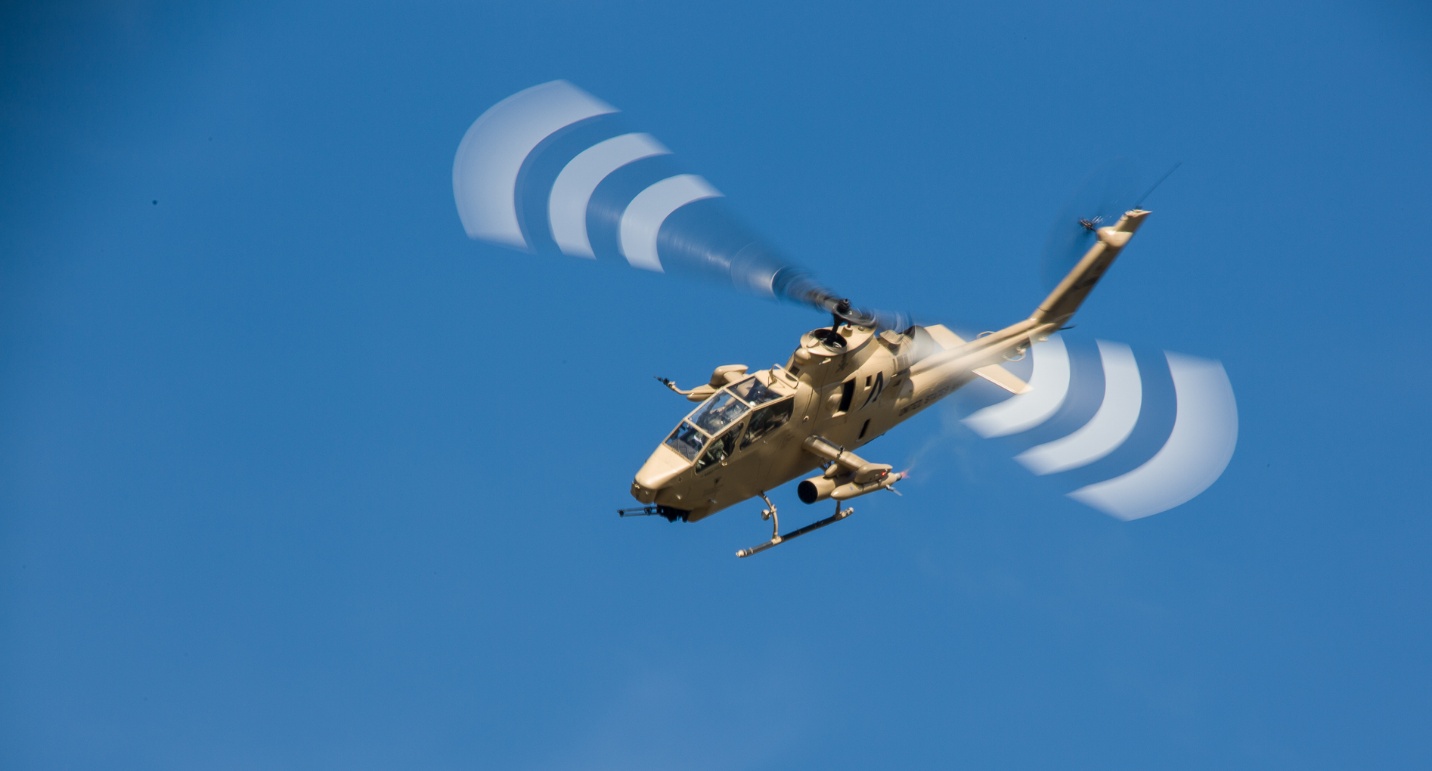
- Capturing or freezing movement- Do you want to freeze all motion or will you be panning, or even using intentional camera motion?
- Image Processing – Even after shooting, think of all of the control processing gives you in determining the look of your image.
- Basic exposure and contrast
- Color
- Cropping
- Straightening
- Sharpening
- Local Adjustments (masks)
- Finishing touches such as vignettes and textures
- Printing
After a shoot review your images critically looking for the errors that kept the image from being good. Try to identify the step or steps that hurt the image, and figure out how to correct the problem and how to prevent repeating the error in the future. That can be one of the harder parts of practice. We don’t enjoy looking for or finding errors in our photography; it’s much easier to just delete the bad images without reflection or analysis. But that is probably the most important step in deep practice.
All of these steps sound like a lot to think about every time you take an image, but with proper practice they become instinctive. Eventually as you practice and integrate all of these steps, you will begin to visualize the final look of an image including processing even before you touch the shutter button. That’s a powerful feeing, but it doesn’t happen quickly or without proper practice. I’m just starting to feel that I can visualize the final result, and I’ve been shooting for 50 years. And I will also say that I’ve made more progress in visualization in 18 years of shooting digital, than in 32 years of shooting film. That’s the power of being able to see at least a preview of your shot immediately after shooting.
That’s plenty of information to think about for now. Or as one of my teachers used to say, we’ve probably reached the point of information overload. Next article I’ll try to give you some practical exercises to develop your deep practice skills and techniques.