(Slightly Beyond) Photography Basics – Creating a Pencil Sketch Effect
Mickey Rountree
As I usually do, I’m calling this article Beyond Basic because it involves Photoshop and layers. If the idea of layers frightens you, just follow along step by step and you can make this work.
When these articles are converted to PDF and sized for the newsletter, the resolution and quality of the images is seriously degraded. If you would like to read the article and see the images as I did, you can see this article on my website at this link.
https://mickeyrountree.smugmug.com/Articles/Basic-Photography-Series/
When these articles are converted to PDF and sized for the newsletter, the resolution and quality of the images is seriously degraded. If you would like to read the article and see the images as I did, you can see this article on my website at this link.
https://mickeyrountree.smugmug.com/Articles/Basic-Photography-Series/
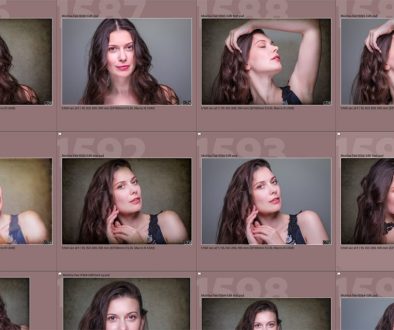
We are going to take the normal photographic image below:

And turn it into the pencil sketch below.

Start by opening an image in Photoshop or by sending it to Photoshop from Lightroom. This will be our background image.
Duplicate this layer by entering CTRL J (CMD J if you use a Mac)
Enter CTRL U (CMD U) to desaturate this image. This will bring up the adjustment panel below. Drag the saturation all the way to the left or -100 and hit OK. We now have a Black and white layer.

Duplicate this layer by entering CTRL J (CMD J)
With this new layer selected enter CTRL I (CMD I) to invert it.

Right click on this layer to the right of the thumbnail and select convert to smart object. What this does is allow us to come back to the filter we apply next and change the value until we get the effect we like.