In the bad old days of shooting film, we had no suitable means of backing up our images, and most importantly, making sure we got home with good images. We had no reliable way to ensure our camera was working properly or that our exposure settings were correct. Even if we shot everything perfectly, the film could still be lost or damaged in processing. Once it was processed, we had original negatives or slides, so backup meant making and storing prints or having duplicate slides made. Prints, slides, and negatives could all deteriorate if not stored properly. And of course, in case of fire or theft, everything would be lost if copies weren’t stored off-site. Now in the days of digital, we have the option of having important slides and negatives scanned into digital and stored in a safe location (keep reading.)
We are now in the digital age; we can see on the camera that everything is working and we have good exposure, and we don’t have all of those physical negatives, prints, and slides to store. We can store thousands of images on a single memory card and literally hundreds of thousands of images on a single hard drive. But that also means we could lose thousands or hundreds of thousands of images in an instant.
As Adam Jones reminded us at his Winter Wildlife Workshop, your most important job as a photographer is to come back with good images. It’s no fun to invest the time and money of going to a weeklong workshop or safari and have nothing to show for it.
1) It is important to protect your memory cards, whether they are CF, C-Fast, SD, or micro SD. The SD and micro SD are a bit more delicate than CF cards, but you should handle them all with care. While I tend to use high-capacity cards, like 128 GB, I often use two cameras or change cards before they are full.
2) Store your cards in a protective case and not just loose in your pocket. I use Pelican card cases. They are a bit bulkier, but they are crushproof and waterproof. I trust them to protect my cameras, so why not my cards? Be particularly careful not to get dirt and finger grease on any exposed contacts, and be gentle when inserting or removing cards in the camera.
3) If you are shooting a commercial job or a once-in-a-lifetime event, don’t trust everything to just one card. Some cameras have two card slots and let you save images to both. It slows down your fast shooting speed, but it may be cheap insurance since you essentially back up as you shoot.
4) Place a label on each of your cards with a minimum of your name and phone number. If you misplace a card, whoever finds it has a way to contact you. Without that info, even the most honest person can’t help.
5) Have a system, so you know which cards have been filled and which are empty at a glance. I put ready-to-use cards face up with the manufacturer’s label showing in my case. Used cards are face down with my name label showing. Or use separate cases.
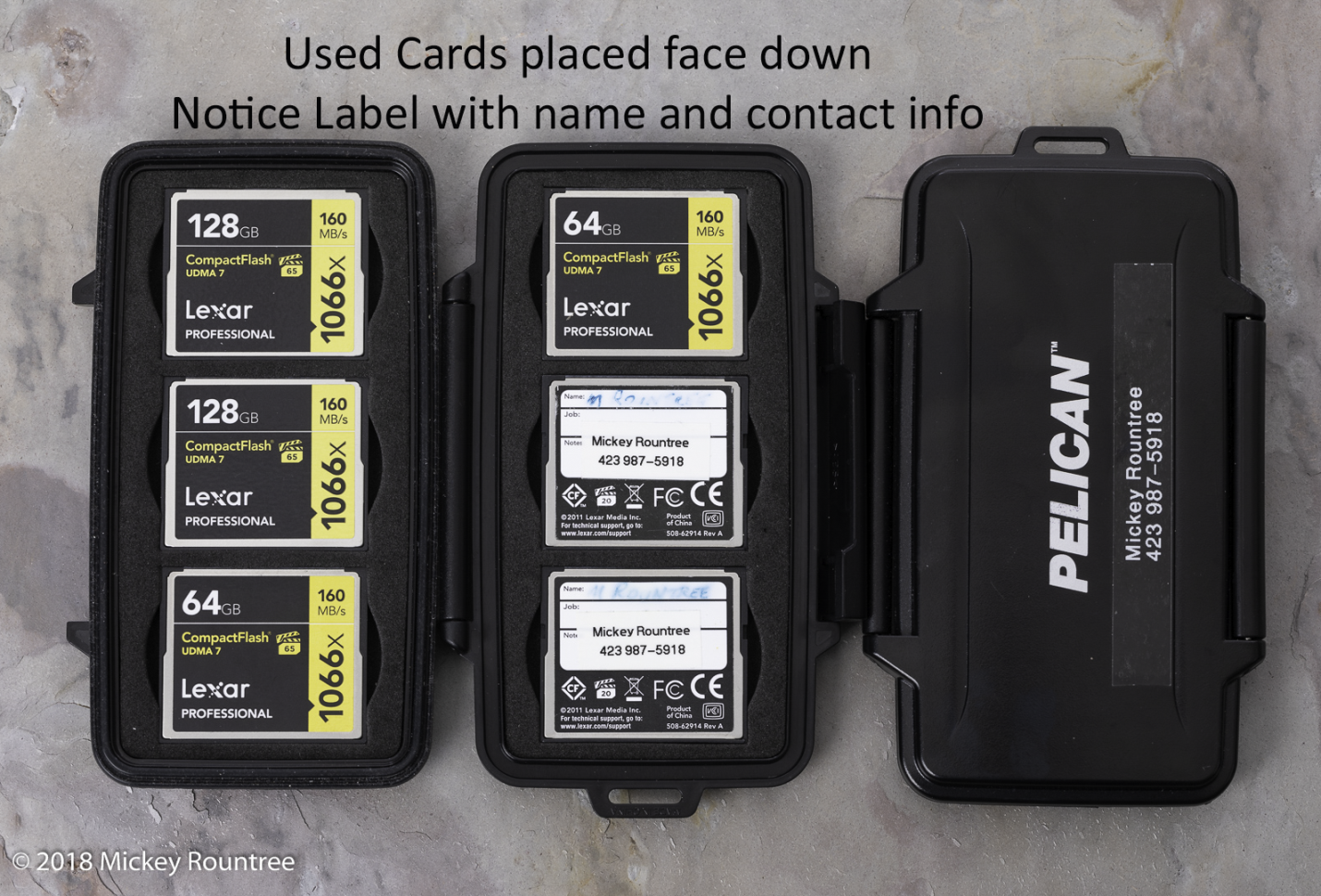
6) Always format a new card in the camera before using it, and reformat it in the camera, but only after you have downloaded the images, and they are stored in at least two places. I’m even so picky that I format each card only in the camera I’ll be shooting with. All of my Canon cameras use the same format, but why take chances. I also never swap cards that have images on them from camera to camera. Never format a card in the computer; always use the camera! Never format your cards until the images are in at least two different places. If you accidentally format a card that has not been downloaded, immediately set it aside. Do not shoot with it. You may be able to recover the images later with a recovery program.
7) Never go out shooting without an extra card or two. If you shoot more than you planned, or your first card fails, you can switch cards and keep shooting.
8) Never delete images from the card individually. It can be tempting to delete a bad image when you see it or delete images to make room when your card is almost full, but DON’T. According to one of the manufacturer’s reps, this is the leading cause of corrupted cards. Pretend that the delete button on your camera doesn’t exist. Change to a new card when it is nearly full and reformat the card in the camera only after it has been downloaded and is stored in two places.
9) Stop shooting with a card before it is full. I usually change cards when there are fewer than 100 images left. I have heard of cards being corrupted when trying to write an image when there isn’t enough room for it. Not only does the last image get lost, but the card may become corrupted, possibly losing hundreds or thousands of images.
10) Download a card recovery program for your computer and learn to use it. Recoverit, Puran File Recovery, and Recuva are free. Lexar cards come with a link to download their “Image Rescue.” An internet search will find several others. Have one on your home computer and on any laptops you travel with—practice recovering images from a card you have already downloaded and backed up. Format the card and run your recovery program. You may be surprised to see it recovering files from several past shoots. Recovery can be slow; a large card could easily take 12 hours or more.
After the Shoot
1) When traveling, carry a laptop and an external hard drive if possible. At the end of each shooting day, download your cards into the computer (I import mine into Lightroom) and copy them to the external drive. Now your images are in two places, and only then do you reformat your cards if you have to. Never format your cards until the images are in at least two different places. Keep the external drive and laptop separate, so if one is stolen or misplaced, you still have the other. Also, if you have a computer, you may create Lightroom catalogs and do some image editing. The disadvantage is you may do some image editing; you have to sleep sometimes. Also, there’s the extra bag, weight, and bulk when you fly; it’s less of an issue driving.
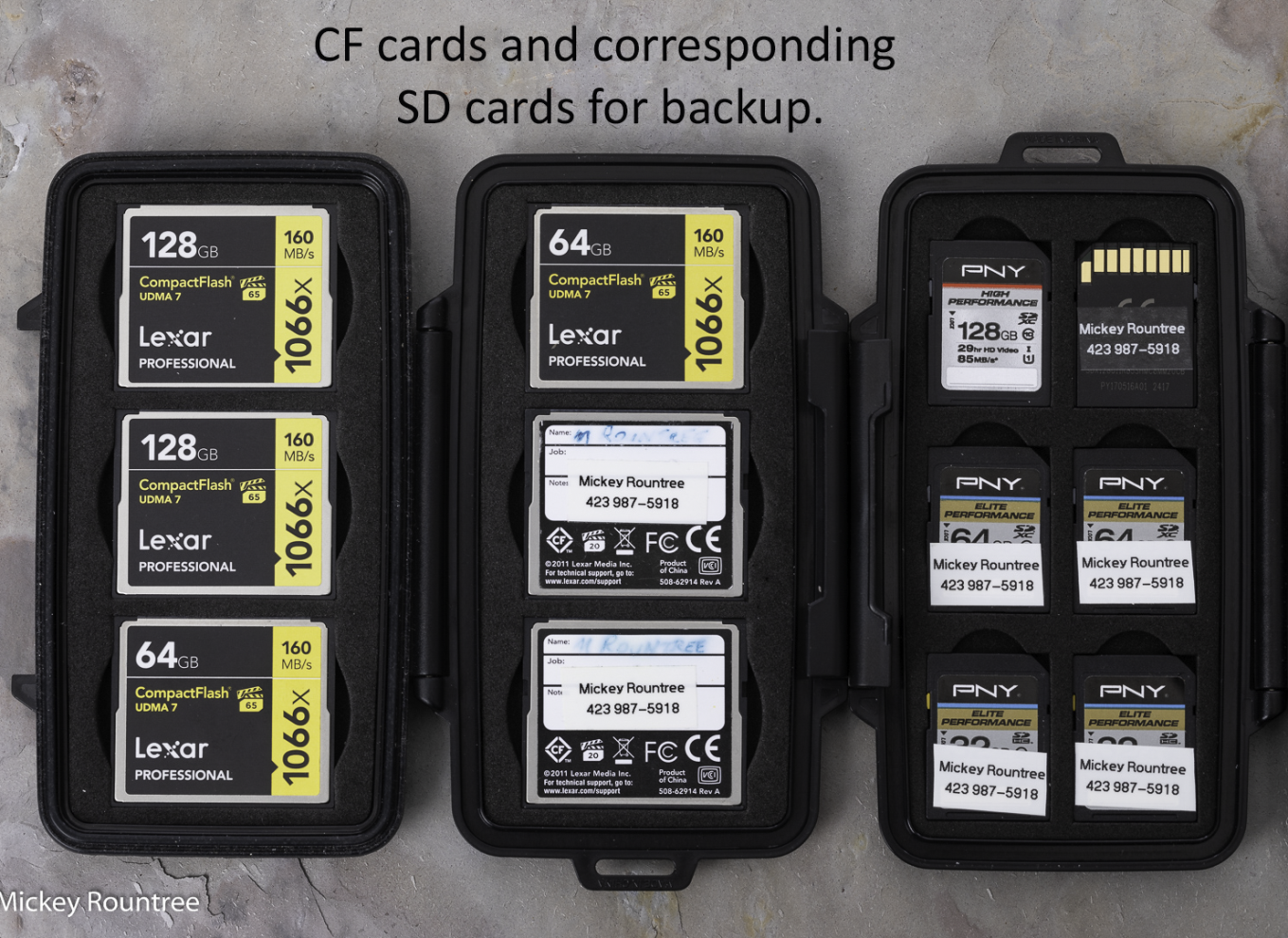
2) If you don’t carry a laptop, use a more portable system. My Canons have a CF card slot and an SD card slot. I can copy all of my images from the CF card to the SD card. Now my images are on two cards, and I keep them in separate places. When I’m traveling, one set of cards stays in my pocket. I also don’t reformat either card until I have downloaded them to my home computer and backed up. The disadvantage is that I have to have a corresponding size SD card for each CF card, and I have to carry enough cards to cover the whole event or trip. I usually don’t save to both cards in the field as this slows down my maximum frame rate and the number of shots in a burst.
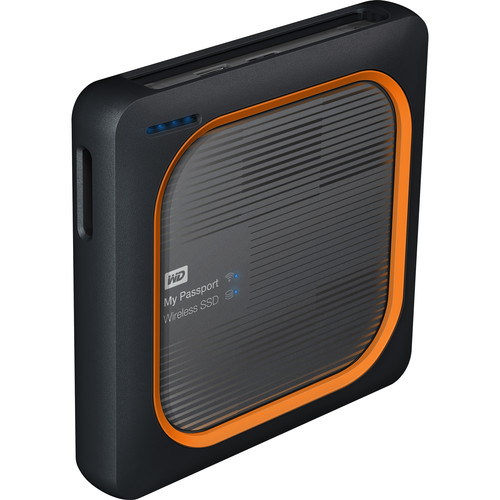
3) Western Digital makes an SSD backup drive with a built-in SD card reader and USB port if you don’t have two card slots. You can download images to it without a computer. It has a built-in battery that can last 10 hours and can be recharged when you have power available. And it has apps that allow you to set up a network with your phone or tablet to view or organize files. You still only have one backup, so I wouldn’t reformat my cards until I’ve downloaded and backed up. Never format your cards until the images are in at least two different places.

On The Computer
Remember two of the most important of Murphy’s laws: 1. Anything that can go wrong will. 2. If there is the chance of more than one thing going wrong, the one that will cause the most damage will happen. Also, remember that there are only two kinds of hard drives in the world- those that have crashed and those that are going to crash. Imagine if you were to lose all of your images, including irreplaceable family memories, due to drive failure. It happened to my stepdaughter. It just happened to one of my fellow photographers. One of the bands I played in worked for two months recording an album. We had all the basic tracks down and were about to add some overdubs when the hard drive holding all of the work crashed. Of course, there was no backup. A data recovery company said they could “probably” recover everything for $1200 upfront with no guarantees. Our producer/bandleader decided to walk away from the project, and we had nothing to show for literally hundreds of hours of work.
1) Always think worst-case scenario. You’ve backed up your data, but your backups are right there by your computer. What if your home burns or a burglar steals your computer and all of your external drives? Your backups are internal, but what if a lightning strike or power surge fries all of your drives.
2) Everything must be stored in at least two places. At the very least, this means on two different hard drives. This could be two internal hard drives, an internal and an external, or on two different computers. Never format your cards until the images are in at least two different places. Most experts recommend a 3-2-1 backup system. There should be three copies of your data, two copies onsite, and one copy stored off-site.
3) Have off-site storage to protect against fire, floods, tornadoes, burglars, electrical surges, enraged spouses, jealous ex’s, destructive pets…you get the idea. You could have external or removable hard drives that you back up to weekly and then store off-site with a friend, at the office, or in your safe deposit box at the bank. Each week bring them home, update your backup and get them back off-site ASAP. In a catastrophic situation, you might lose a week’s data, but that is better than losing everything.
4) Some photographers will consider backing up to DVDs or BlueRay. This is slow and tedious and requires storing and indexing a lot of disks. With a large image collection, it could be several hundred disks. And most importantly, disks are not archival or permanent. Disks deteriorate in storage even without being used, so they may not be usable when you need your backups.
5) Someone also asked me to address “Photosticks.” These are flash drives with incorporated software that searches for images and copies them to the flash drive when attached to a phone or computer. The largest I’ve seen is 256 GB, and that wouldn’t even cover a week of serious shooting for me. My current collection is over 7 TB and would require almost 30 256 GB Photosticks. It’s probably a good option for casual photographers or those who only shoot with their phones. Still, most serious photographers will probably have much larger image collections than a “Photostick” can handle.
6) Use an online or cloud-based storage service. I use Backblaze, my friend Bill uses Carbonite, and both are about $7/mo. I believe Apple has a cloud backup, but I’m not an Apple authority. When you first set the service up, you install their software, which runs in the background and copies your files to the server. This initial upload can take several weeks or even months if you have as many images as I do. That sounds intimidating, but those weeks are going to pass whether you back up or not. For me, it’s worth the peace of mind. Once that huge initial upload is complete, the software backs up at whatever interval you set. If you lose a few files, you can download them online. Most services can download your files onto a hard drive and ship them to you if you lose a whole drive. You can either install this drive or copy the files and return the drive for credit. The big advantage of the online backup services is that you don’t have to keep physically swapping drives, and after the initial download, your files are continually backed up. Even in a catastrophic failure, you only lose a few hours of work or none at all.
6) There are disk recovery companies that can retrieve data from failed hard drives. They remove the data platters from the dead drive and build a new drive with them. As I mentioned above, they can be costly, and there is no guarantee of success. This should be your last line of defense, and if you’ve planned and implemented a good backup strategy, you should never need this.
7) Here are some tips about ransomware since it seems to be in the news daily. Ransomware encrypts files on your computer and offers a solution to decrypt them for a fee. Sometimes this works, sometimes not. Ransomware will try to infect all of the files on your computer, so if both sets of images are on drives in the same computer or external drives that stay connected and turned on, those files may also be infected. The best practice is to have an “air gap” between drives to prevent the virus from seeing and infecting all of your files. The best protection against ransomware is not to get it in the first place. Malicious websites usually transmit it, and often a link to one of these websites is included in an email directing you to click on a link. If you get a suspicious email from someone you don’t know, or even from someone you do know with a message that doesn’t make sense coming from that user, DO NOT CLICK ON ANY QUESTIONABLE LINKS. Also, don’t download and install pirated software. Almost all pirated programs contain viruses, so it just isn’t worth the risk. On Windows 10, you can turn on “Folder Access Control” and make sure the drives or folders containing your images are protected. While they are less commonly attacked, Macs are not immune to ransomware, but I don’t know Macs well enough to recommend a preventive strategy.
Lightroom
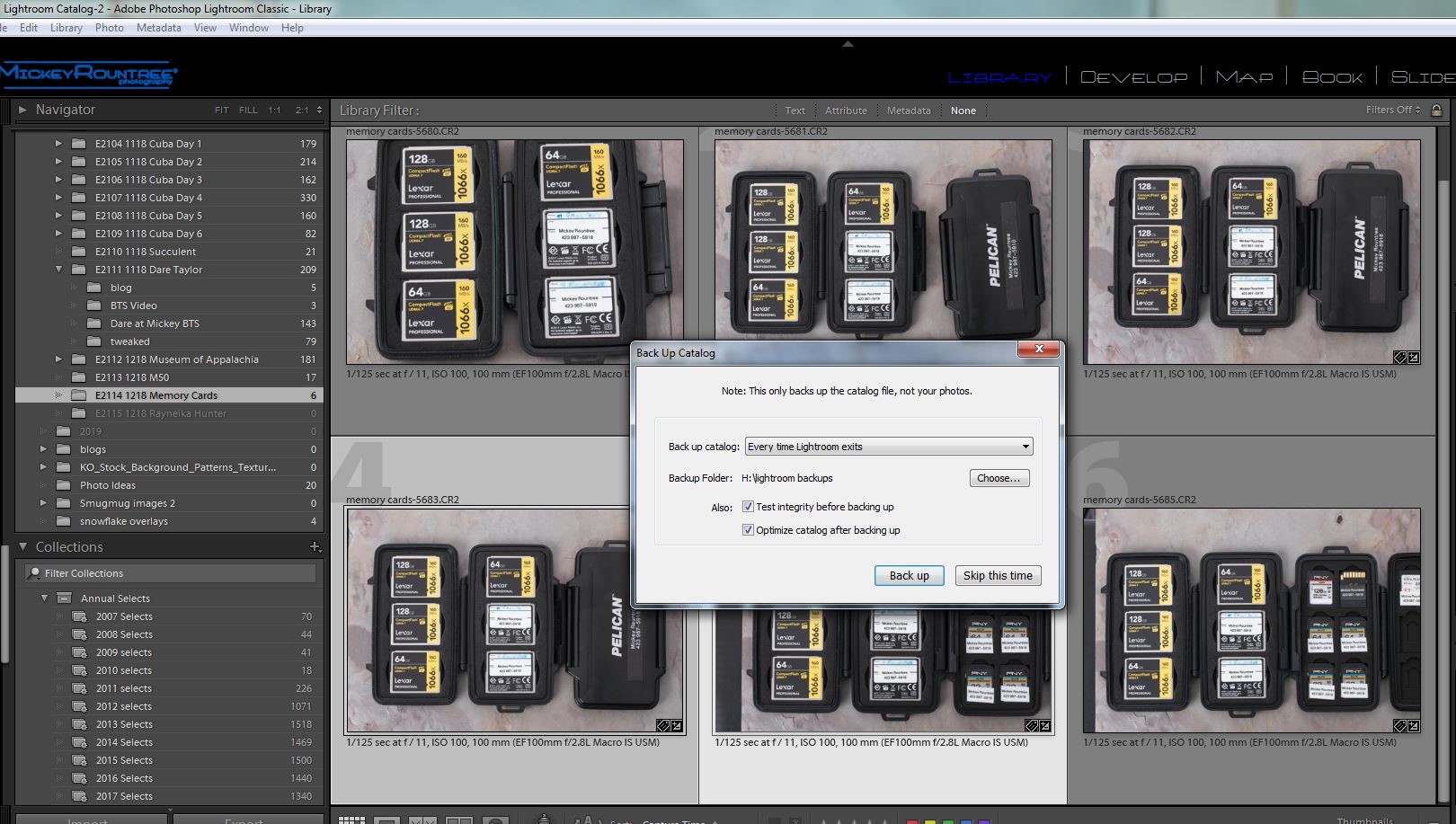
If you use Lightroom, all the information about your images and the development instructions are stored in the LR catalog (but not the actual images or previews). Make sure to back this up regularly and on a different drive than where your catalog is typically stored. I have my LR set to back up every time I exit LR. I don’t always choose to if I haven’t added images or made many changes, but I always back up at least every two days. I go to my backup directory regularly and delete all but the last two LR catalog backups. If your LR catalog becomes corrupted (it happened to me once), copy your backup to the location of the old catalog and rename it, and you’re up and running. You may have to re-import any images added since your last backup, but that beats creating a whole new catalog. By the way, backing up the catalog does not back up the LR previews, but you can have LR recreate them. Also, backing up the LR catalog does not back up your image files.
Summary
If you use all of these strategies, hopefully, your images will be around for years to come and be easily restored if or when disaster strikes. Some of these strategies may also make setting up a new computer quicker and easier.