In this article I’ll show you two of my favorite plugins for landscape photography. Glamour Glow and Foliage are found in the DXO NIK Collection as part of Color Efex. Version 6 has just recently been released, but I am still using version 5. Also as I said in my earlier article, even though this can run as a stand-alone program, or from within Lightroom, I use it as a plugin in Photoshop. This gives me the benefits of masking, blend modes, and “blend if” controls. The NIK plugins offer “control points” which allows for localized adjustments within an image. You may find them useful, but my workflow has always revolved around layers and masking, and that’s what I’ll be describing.
You can find more detailed information on how to use any of the NIK programs, including the use of control points at:
When these articles are converted to PDF and sized for the newsletter, the resolution and quality of the images is seriously degraded. If you would like to read the article and see the images as I did, you can see this article on my website at this link.
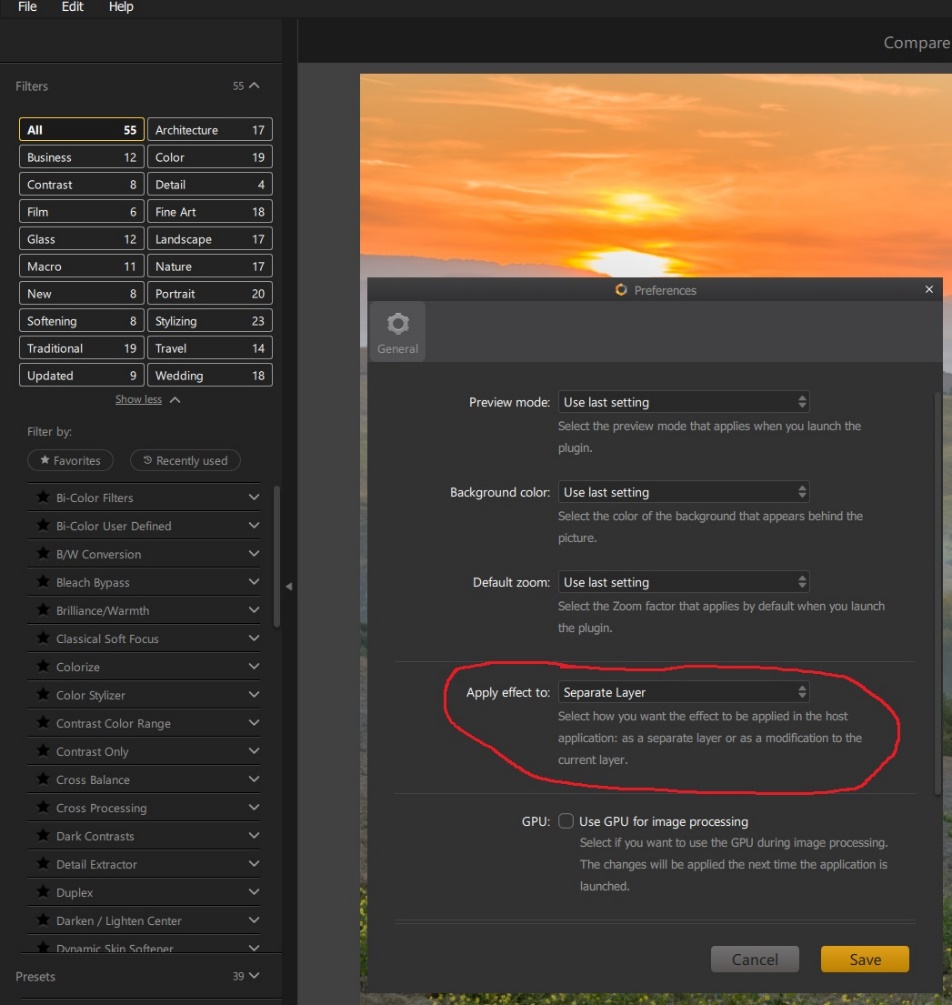
Since I work in Photoshop and use layers, I open Color Efex, and go to File/Preferences and choose “apply effect to separate layers”. This gives me the ability to use masks and opacity for greater control.
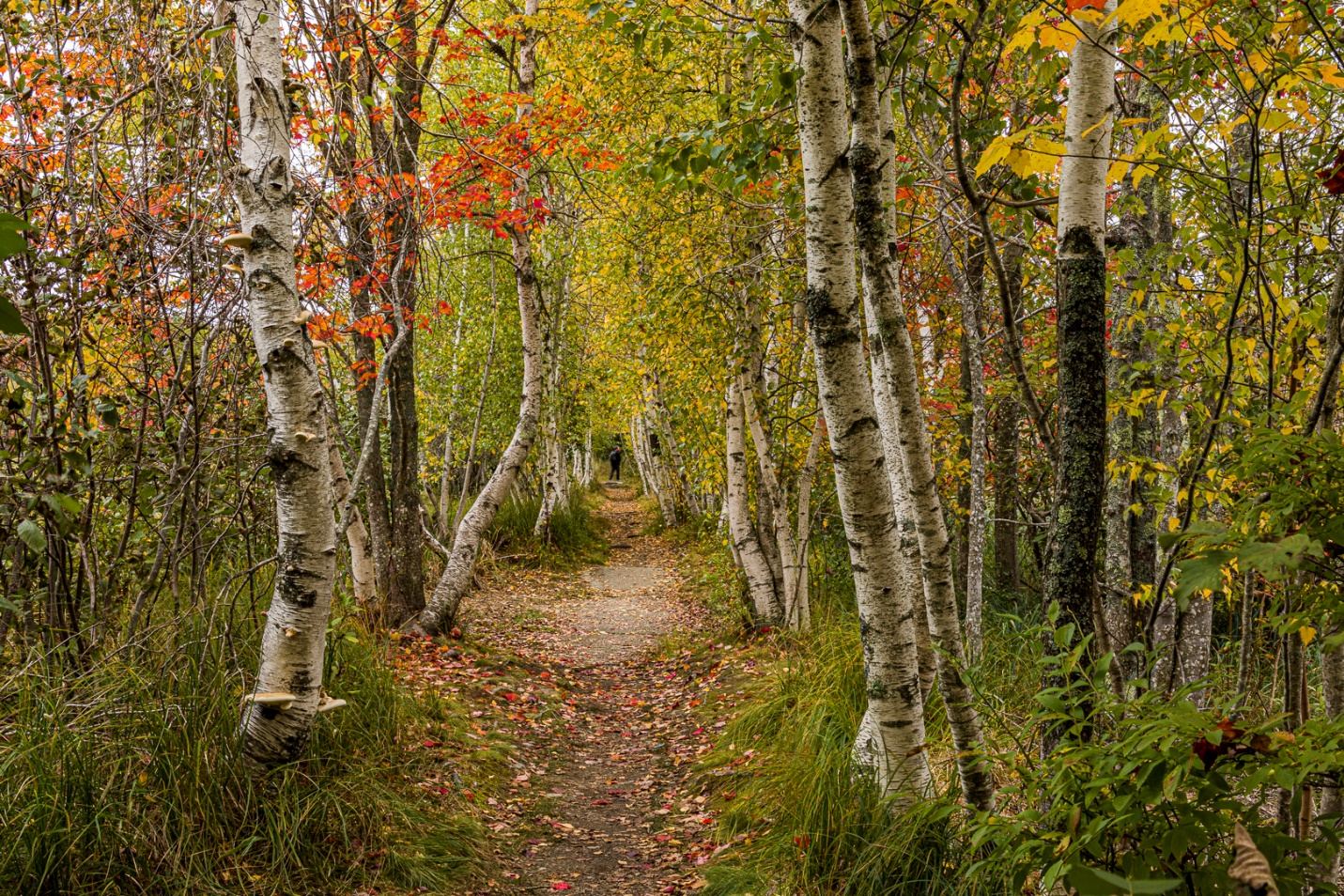
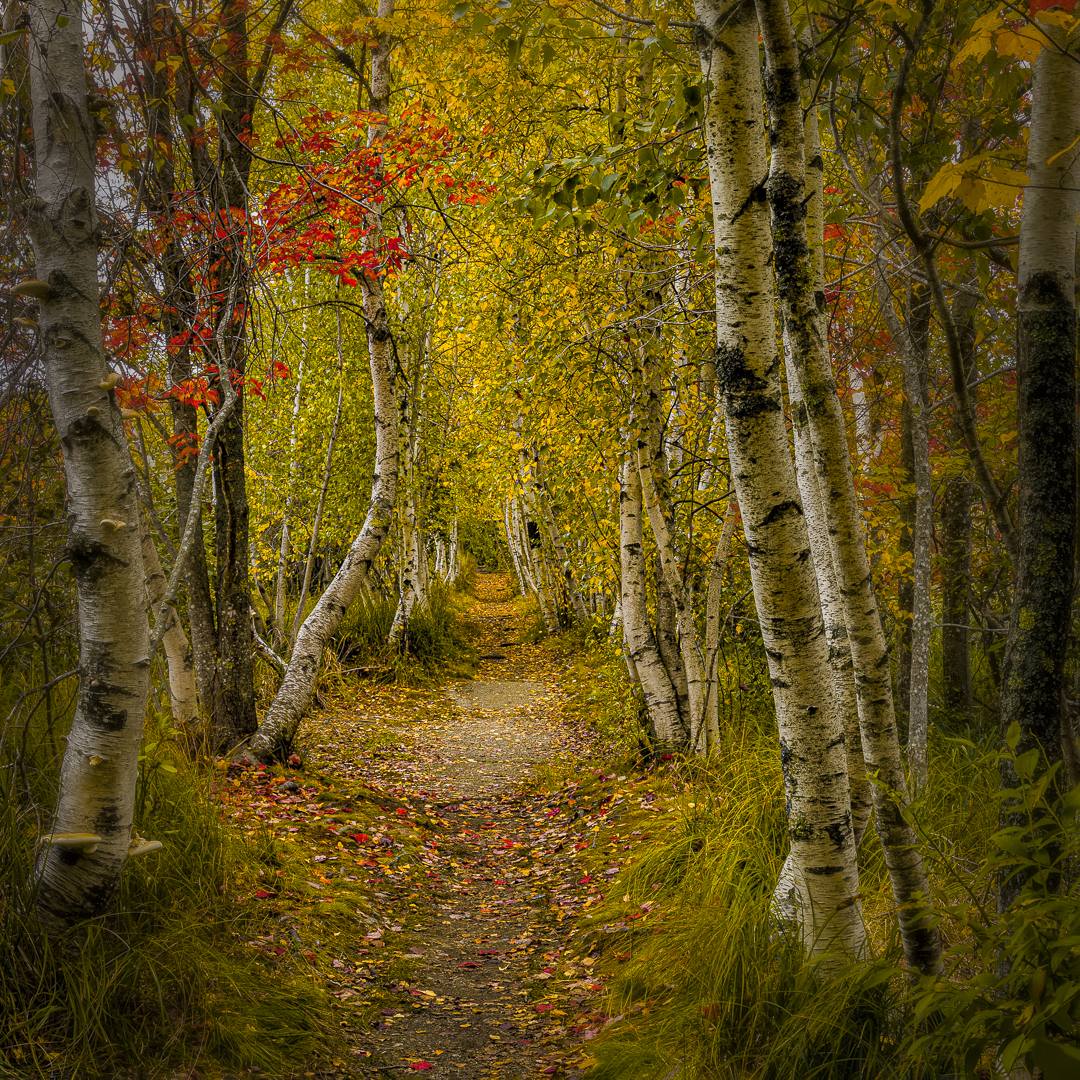
I’ll start with this image from the Sieur de Monts boardwalk in Acadia National Park. This is the image with only basic editing in Lightroom.
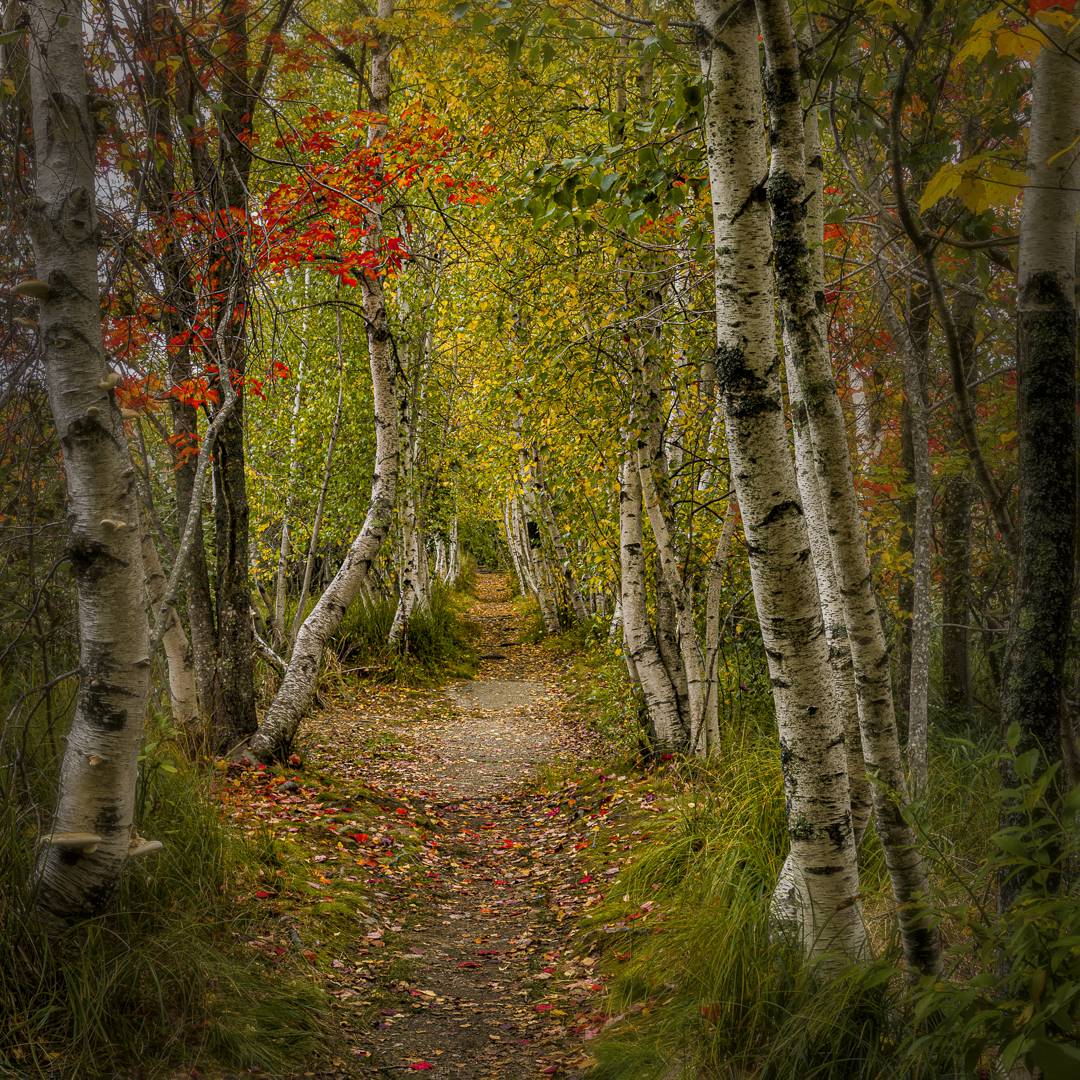
Here I’ve brought the image into Photoshop, cropped to a square format, removed the hiker, and, no surprise I’ve used the Tonal Contrast filter I discussed in my last article.
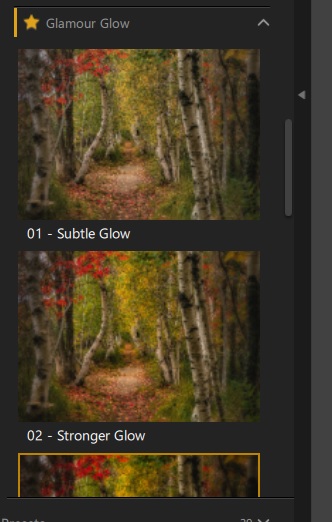
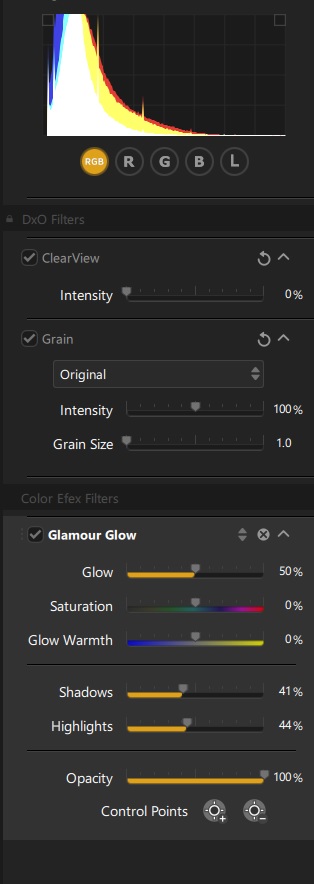
Next I opened NIK Color Efex and applied Glamour Glow. There are presets for subtle glow, stronger glow, strong glow, cool glow and warm glow. I general use the stronger glow (50% of the glow effect), or strong glow (100% of the glow effect), or a preset I saved which is 75% of the glow effect. I generally use one of the presets, but the right hand panel allows adjusting multiple characteristics of the preset. If you find settings that you like, you can save that as a custom preset. Glamour glow darkens shadows and midtones, increases saturation, and applies a soft blur.
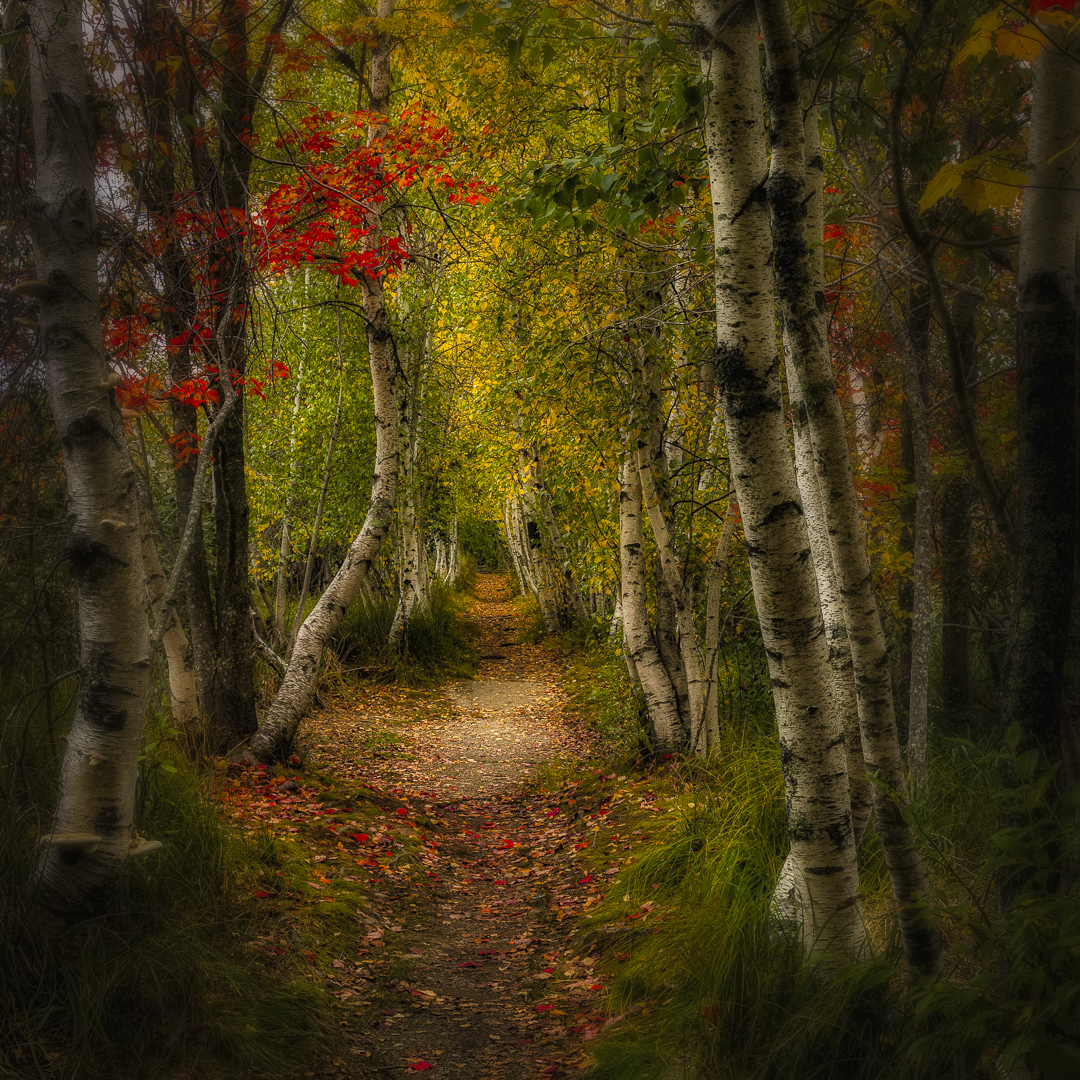
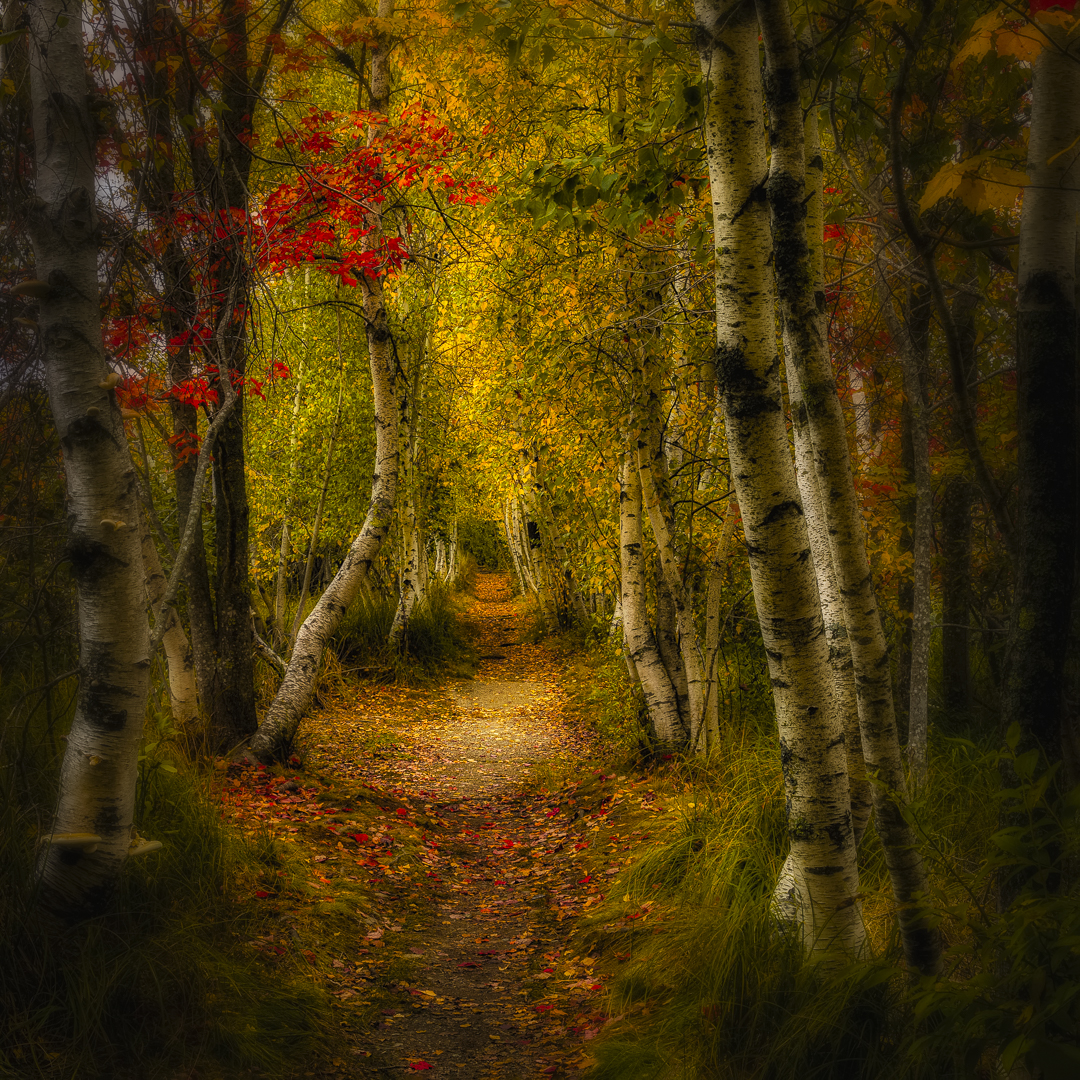
Below is the image with strong glow applied. It’s quite a dramatic change, with just a couple of clicks, and it really works well for this image.
The other filter I use frequently for landscapes is the foliage filter. There are presets for warm green, yellow green, and strong green. Again you can change individual parameters in the right hand panel, but I find myself using warm green at its default setting most often. Below is the image with the warm green foliage filter, but with no glow added. This preset seems to work well with Fall foliage. Notice the saturation in the reds and yellows.
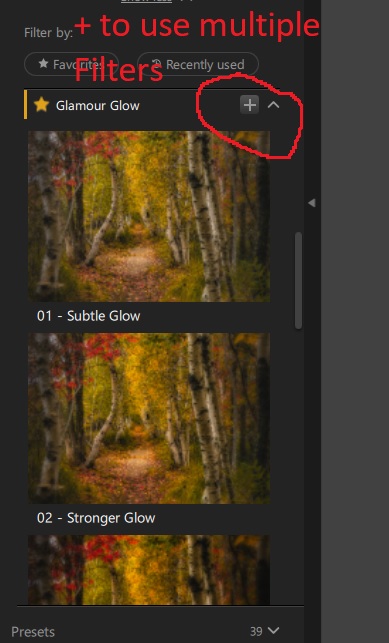
One of powerful features in Color Efex is that you can apply multiple filters by applying one filter and then using the plus key to add additional filters. And of course when you find a combination that you like you can save it as a custom preset. I have several combinations of glamour glow and foliage saved. You can stack as many filters as you like, so the possibilities are almost endless.
Below is the image with the warm green foliage and strong glow presets applied. Look at the amazing transformation from the rather plain original image that these two filters created.
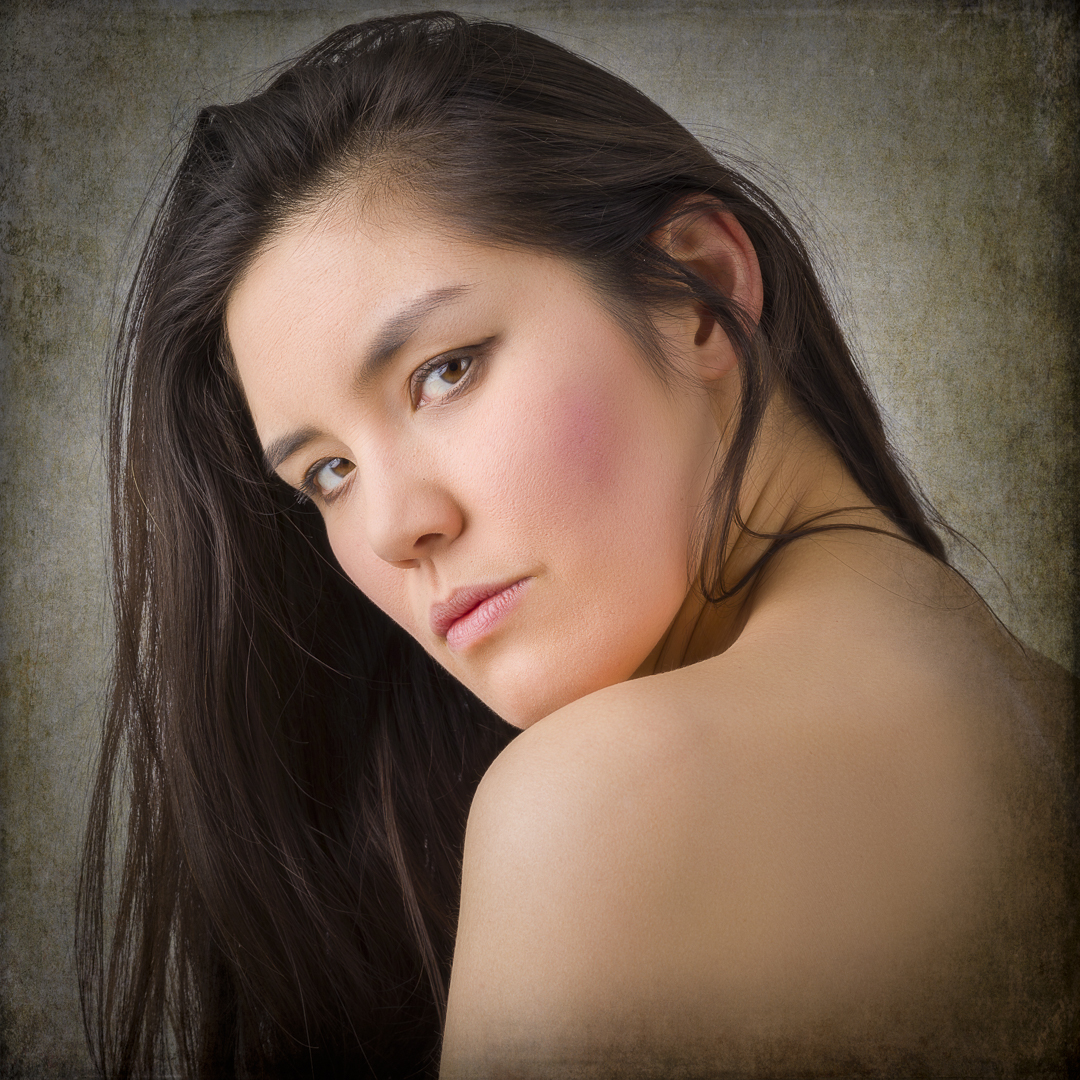
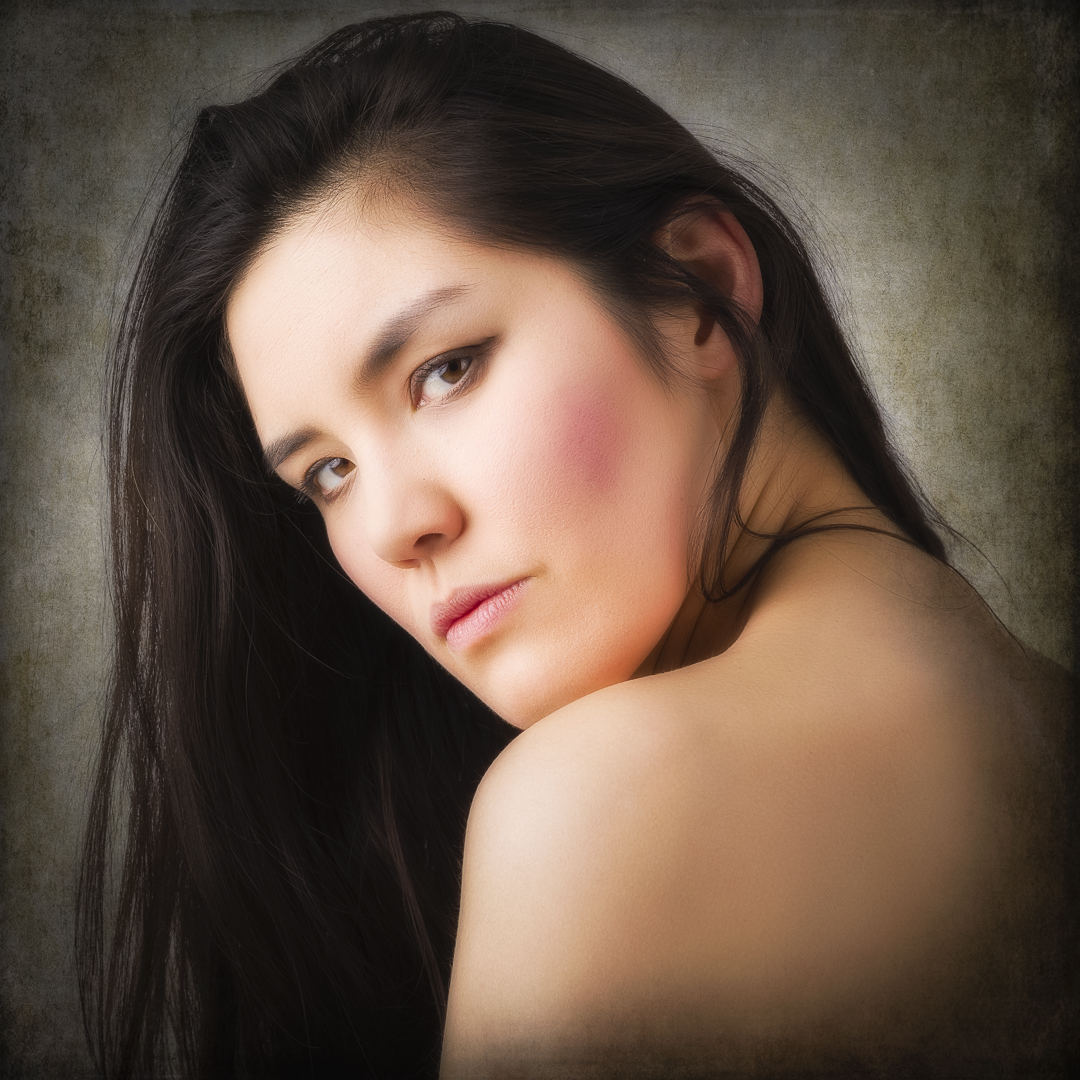
I occasionally use the glamour glow filter on portraits. Usually the subtle glow is hardly noticeable, and strong glow is too much, so I most often use stronger glow. Even with the mid setting, I usually have to decrease the opacity of the layer and sometimes mask individual areas. Here is a before and after portrait.
Before:
After
I always felt that this image of a small corn field backlit and surrounded by woods had potential to be a strong image, but basic processing and tonal contrast alone didn’t create the feel I wanted.
Just the addition strong glamour glow gave it the mood I was after.
I’ll end with a before and after of Mingus Mill near Oconaluftee.
And the after with glamour glow
If you do landscape photography, these are two filters you should definitely experiment with. As one of my friends pointed out, you could probably get the same effects with Photoshop alone, but it would take much more work, time and skill. These filters make it much quicker and easier to get some great looks.